



































Share Your June Desktops with the WC Community!
Tuesday, June 1, 2021 by Island Dog | Discussion: WinCustomize News
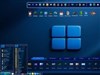
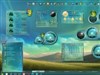
 June is here and summer will be officially here soon! I think it's going to be a hot one, and I'm going to keep some beach and tropical themes on my desktop! With a new month brings a new desktop screenshot thread, so post your desktop screenshot in the forum and lets us know what skins you are using!
Post your desktops to the monthly thread here: https://forums.wincustomize.com/505165/
(This is a news thread and will be locked. Screenshot taken by Chasbo)

Put Your Desktop on Vacation with These WindowBlinds Skins!
Monday, May 24, 2021 by Island Dog | Discussion: WinCustomize News
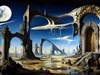
We are less than a month away from the official start of summer, and we've been talking about it over the past few weeks here. Last week, we looked at some animated wallpapers for you beach lovers, and today we'll look at some WindowBlinds skins for that same summer theme.
If you have a favorite skin that you use for summer, let us know in the comments below and be sure to post them in our monthly desktop screenshot thread here.


DeskScapes 11: How to Make a Background Playlist
Thursday, May 20, 2021 by Tatiora | Discussion: Stardock Blog
DeskScapes 11 is currently in beta and although there are a lot of fantastic new features, one in particular is my personal favorite: playlists.
In the newest version of our popular customization app, you can set different backgrounds - both animated and static - to a playlist that will cycle in and out at intervals of your choice. I have a lot of interests and things that I love, so sometimes choosing just one of something is tough for me. I usually will manually change out my desktop background a few times a month or so - but now I don’t have to!
Let’s go through a few of the settings and get you on your way to setting up your own background playlists.

Choose Your Backgrounds
If you’re going to start a playlist, it makes sense to start with having an idea in mind of what backgrounds you’d like to include in it. There are thousands of backgrounds to choose from on WinCustomize.com, but maybe you have a few hundred photos from that awesome trip you took, or that family reunion you visited that you’d like to use.
That’s great, and there’s an easy way to access them in DeskScapes. First and foremost, you’ll want to make sure that all of your pictures you’ll want to use are easily accessible in a Folder on your PC. Then, on the main menu, click on “Settings” down at the bottom. Go to the “Manage Folders” option and once you open that menu, choose the “Add…” option to put a new folder on the menu. You can also select and deselect folders from this menu to control what shows up on your DeskScapes UI.

If you want to use backgrounds other than personal photographs or videos, you can browse the entire WinCustomize library right from within the DeskScapes app. You can browse via categories, popular author, and by latest updated or uploaded. There’s also a section that keeps track of all the backgrounds you’ve favorited so that you can find them easily when you need them.
Once you’ve found some backgrounds you like - either from your personal camera or from within the app - you’re ready to move onto the next step.
Make Your Playlist
Go to the “Playlists” tab on the main menu of DeskScapes. If you already have some playlists made, they’ll appear there - but for our purposes, let’s select “Create New Playlist” and go from there.
Once you name your playlist, it will appear in the menu below and you can edit it. You have a few options here - you can import backgrounds one at a time, selecting from different folders. If you’re going to use backgrounds you’ve downloaded from DeskScapes, make sure you know the folder directory they’re all saving in so that you can add them here.

TIP: If you’re not sure where a background saved to, you can check it in DeskScapes by selecting the background and looking at the file directory listed to the right of the thumbnail image.
If you have an entire folder worth of pictures or backgrounds you’d like the playlist to cycle through, you can add an entire folder to the playlist.
Choose your Intervals
Once you’ve imported all of the images or videos you’d like to use in your playlist, it’s time to choose how often it will cycle from one thing to the next. You can set it to change only when you login/reapply, every 30 seconds, every few minutes, every hour, and so on. There are plenty of options to suit your preferred speed!

Choose Where it Applies
If you work with multiple monitors, DeskScapes gives you the fantastic option of applying different wallpapers - and, now, playlists! - to each of them. You can also choose to apply the playlist as a screensaver. In theory, since I work with 2 monitors, I could have 2 different playlists running, one on each, plus a separate one for my screensaver.
Am I extra enough for that? Yeah, probably. Don’t judge me!
Explore DeskScapes for Yourself
Playlists are just one of the fun and fantastic features in DeskScapes 11. You can make your own animated backgrounds using the in-app DreamMaker Pro, alter static backgrounds with dozens of cool effects, and much more! If you're an Object Desktop member, you can get into the beta right now. Not a member? You can get Object Desktop here.
Have you tried the Playlists feature in DeskScapes yet? Tell me about it!
DeskScapes 11: Beta 2 Released
Tuesday, May 18, 2021 by Island Dog | Discussion: WinCustomize News
We recently announced the brand new DeskScapes 11 (the beta is available exclusively through Object Desktop). Users can animate their desktop backgrounds, add customization to personal photos and tons more. While we're in the beta phase, we encourage users to submit bugs and suggested changes. Head over to this thread.

Beta 2 Changelog:
- Fixes issue with the 4K flag on some dreams showing incorrectly
- Alters screensavers to terminate process vs exit on mouse move etc
- Fixes issue with screensaver applied message up and being able to make app look hung
- Tweak to wallpaper change detection
- Tweak for performance loading up playlists
- Small tweak to the font size on search checkboxes
- May fix issue with remote desktop - should no longer pause
- New option for playlists where it will change either after X seconds if non-video or when the video ends (if a video)
User-submitted request: https://forums.stardock.com/504876/ -
Now has options to update playlists if new files added (must read folder)
- Installer tweaks
Animated Wallpapers for a Beach Vibe!
Monday, May 17, 2021 by Island Dog | Discussion: WinCustomize News
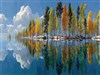
The sun is out and it's time to start looking for a place to have a nice vacation at! If you can't travel yet, you can turn your desktop background into an animated paradise with DeskScapes. With DeskScapes you can download and use a wide variety of animated and static wallpapers to turn your desktop into a tropical paradise, or anything else you would like!
Check out some of our favorites, and find more in the DeskScapes gallery here.


DeskScapes 11: The Dream Maker Pro Tool
Let's take a tour!
Thursday, May 13, 2021 by Tatiora | Discussion: Stardock Blog
I’m really not much of an artist.
To be frank, saying “not much of an artist” is being a little too kind to myself. I once drew a dog at the request of a 6 year old, who, upon me finishing my drawing, looked up at me and said, “I don’t know what that is, but that’s not a dog.” Kids and their brutal honesty!
While I’m not good at making something out of nothing, if given the right tools I can occasionally create some fun visual things. Fortunately for me - and all of you! - DeskScapes 11 gives me an amazing creator studio right inside the app, filled with tools for creating the perfect background for my Windows desktop. Let’s take a look at how to make an animated background - called a Dream - for DeskScapes together!
Getting Started
You’ll start by clicking “Create Animated Background” on the left-side menu in the app. You’ll have an option to choose an existing template or start with a completely blank slate. At the top, the options for “Package video as dream file,” “Upload Video Background,” and “Upload Static Background,” will allow you to put your finished creations up on WinCustomize - but more about that later. Let’s start creating!
Import a Picture
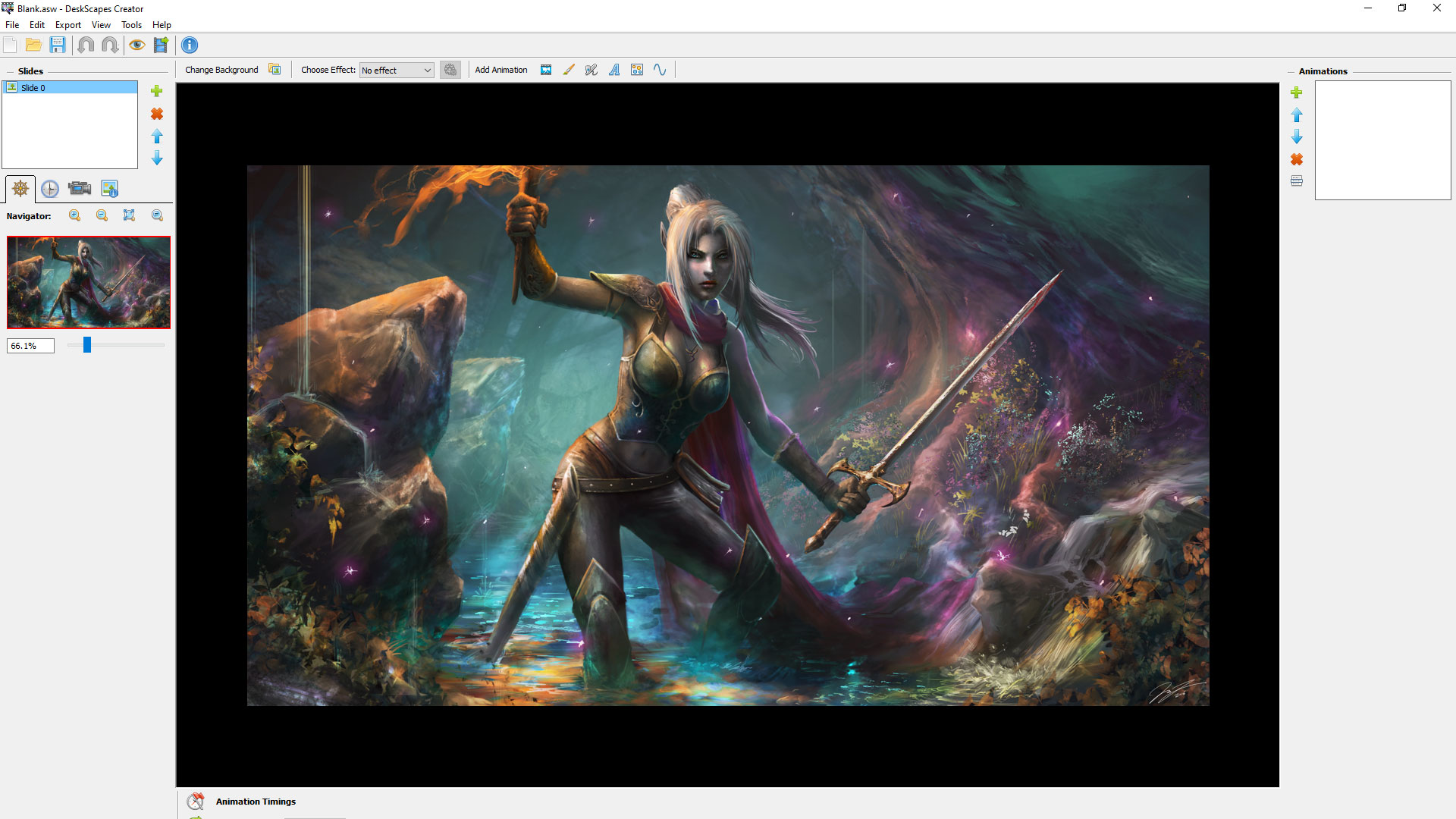
I started with a blank slate for mine because I wanted to animate a beautiful digital painting my friend Leo made for me. To get started, I just needed to double-click on the blank option in the menu, then import the image I wanted to alter.
Now that I had my image selected and ready to go (you can also do this with a short video!), it was time to get started!
Select Your Effects
I had been thinking for a while that it might look cool to add a flickering effect to the purple glows in the picture, so when I opened up the dream creator that was one of the first things I planned on looking for. Once I got my bearings, I found the “add animation” bar at the top, which gives you several options to flip through.

Animated Objects
This section will let you place different kinds of objects on your static or video background. There are tons of options - things like clouds, lightning bolts, fire, light beams, and quite a lot more.
Animated Brushes
These brushes will apply overall effects to your background. You can select something like “Day to Night” and make your image lighten and darken at custom intervals, or choose a drift or flow brush for some other wild effects. The pattern brushes have fun things like stars or hearts and will let you overlay them across your image by painting specific areas.

Airbrushes
These brushes will give you a wide spray of cool effects to apply all over your background. You can control where they go, and even change the size of the spray so that you can be more precise.
Text
There is a selection of fonts here that you can customize with words or phrases of your choice. You can adjust spacing, color, alignment, and more to get it just the way you like it.
Particle Systems
These options have lots of particle effects that you can apply and customize. You can alter the angle and location of where certain effects fall, too.

Lines
You can apply colored and animated lines on your backgrounds with this. You can control how long they are, where they curve and angle, and other aspects of how they look.

Customize, Customize, Customize
Nearly every effect has some level of customization, from speed, to size, to color, and so much more. I found a cool particle effect to surround the character’s sword and changed the color to match all of the purple magic particles in the image (which I also overlaid with some particle animations to make them pop).

I played around with the effects' colors, sizes, shapes, and frequency of flashing. I was able to adjust the transparency of the effect on the sword so that it fades at one end and appears brighter at the other. After a bit of tinkering, I ended up with a result I was pretty happy with.

Obviously it's difficult to see the full effect of the animations from a static image like this, but I really love what came out of all of my experimenting. It's subtle and it flows into the overall picture very nicely. The Dream Maker Pro tool is included in DeskScapes 11 and, as you can see, offers you so much in terms of what you can do with it. If you're not into making your own Dreams, not to worry - there are thousands to choose from at WinCustomize.com, which you can browse through right from within DeskScapes 11.
What does your desktop background look like? Show me some screenshots!
Getting an Early Start on Your Summer Desktop!
Tuesday, May 11, 2021 by Island Dog | Discussion: WinCustomize News
It seems like not long ago we were posting this similar article about spring. Well summer arrives in a little over a month, and I think it's going to be a hot one. Summer is a fun season to skin as there are a variety of WindowBlinds skins, animated wallpapers for DeskScapes, CursorFX themes and more you can use! There are also plenty of landscape wallpapers to have your desktop feel like it's on a tropical vacation.
We'll be showing off and featuring more summer inspired skins soon, but please leave any favorites in the comments below!
Tropical Beach Under the Coconut Palm (DeskScapes animated wallpaper)


Seaside Relaxation (Wallpapers)

DeskScapes 11: A Guided Tour
Thursday, May 6, 2021 by Frogboy | Discussion: Stardock Blog
DeskScapes is a program designed to make it easy to have really cool Windows desktop backgrounds. It doesn’t just manage wallpapers - it integrates native animated wallpaper support into Windows.
Version 11 includes a bunch of cool new things that make it pretty compelling for every PC user. Here is a quick tour of some of those features.
Part 1: The interface
Once installed, you access DeskScapes by right-clicking on your desktop.

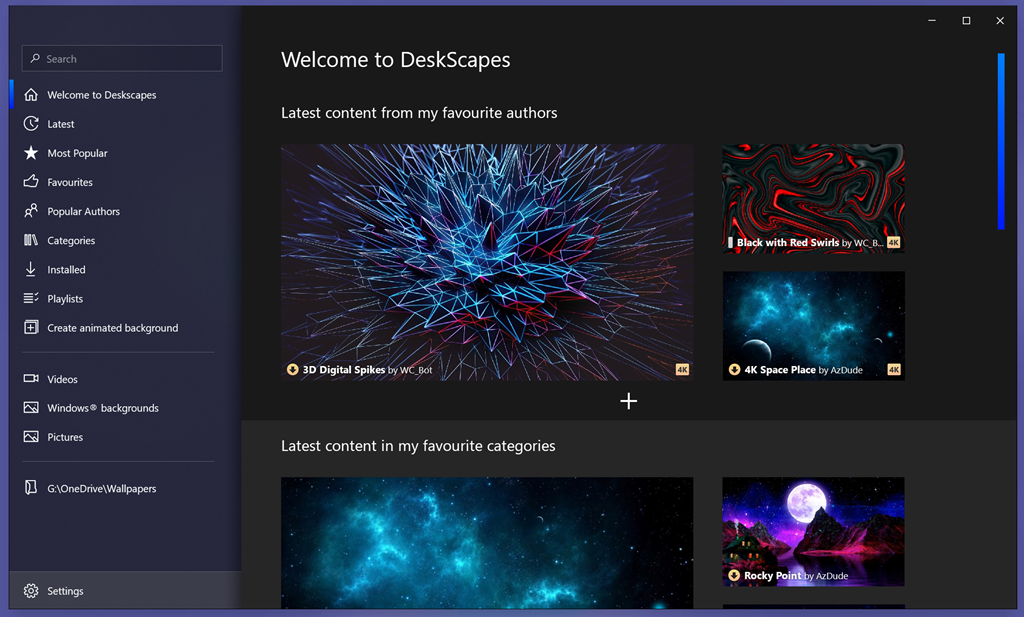
The interface is designed to make it easy for you to access wallpapers that are already on your computer, as well as ones in the cloud. DeskScapes 11 seamlessly integrates into the cloud, giving users access to hundreds of thousands of desktop backgrounds, both traditional and animated.
Part 2: The Cloud
I am generally a minimalist. That’s why I use Fences to keep my desktop as clean as possible. In my case, I stare at a lot of different monitors but even on a laptop, I like to occasionally switch my background. The problem is that I can never remember where I put cool backgrounds I found. That’s where the cloud helps.
I’d be the first to agree that this should be part of Windows. But it’s not, so here we are.

I can type a word in and it goes out and finds desktop backgrounds I want. I can pick between normal (static) or animated ones.
But more commonly, I’ll see what the current most popular ones are.

While DeskScapes is often thought of as an “animated desktop” program, the Stardock team looks at it as a background is a background is a background. So it makes both easily available.
Part 3: Clever backgrounds
A bunch of really clever backgrounds are already installed with DeskScapes 11. Not just pretty pictures, but backgrounds that you could imagine being their own apps. Let’s take a look:

Colored lights is one of my favorites. It just changes throughout the day. It’s like having a mood ring as a a background.

Blurry blobs is another background that you could imagine being its own app. It is kind of like having a lava lamp. It’s super subtle and interesting.

Desktop Earth is one I always run on one of my machines. Except I don’t have the earth rotating. Here’s why:

It slowly changes over the course of the day. Based on your Windows settings, it shows where you are in the world and you can slowly see when nighttime comes.

Desktop Collage is one of my favorites. Basically, it just places pictures from target folders onto the background. Here at work I have pictures of my daughter from ages 0 to 14 that are placed on my desktop.

Moving wallpaper is pretty neat. That said, I have it move very, very slowly. I don’t want to be distracted. So it takes images and such and gradually rotates through them in a kind of Ken Burns type effect.

Photo Dream is similar to moving wallpaper, but it treats the backgrounds at 3D images. I usually have this one running on on my my monitors, as it’s one of my favorites.

Stars is one I often run. I typically have the stars running very, very slowly. Like, you can barely tell they’re moving. These work via DirectX, so unlike, say, a video of stars running, these basically use no resources. At night I will run these on all my monitors at times.

Part 4: Playlists
Depending on the day and the time of year and other considerations, I will run a given playlist.

Playlists are super easy to make and once you make one, it’s basically the same as it is with music.
Part 5: Customizing
So you’ve got a normal desktop background. As I write this, it’s Spring. So I have applied a normal background.

But look at the buttons in the upper left. The first one down lets you customize the background.

There are a lot choices to apply, which would require an entire article just to go over them. The one I find myself using the most is “porthole". It makes the edges of a background dark.

Should this be part of Windows? Probably. But it’s not. This feature makes almost any desktop background useful. But there are lots of other ones too that are very interesting and helpful.
Part 6: Universal Resolution Support
Windows has a few fit options for backgrounds. But not nearly enough. If you’re someone who runs a monitor with an unusual aspect ratio (or have a rotating monitor), you already know how limited the options are.
DeskScapes has a lot of options.

And this is super useful if you get a background that doesn’t support your desktop’s resolution, but still looks cool.
Part 7: Colorization
Apple, Microsoft and others make some great default wallpapers. Unfortunately, they tend to be a particular color, which is fine - until it’s not.

These are great wallpapers, to be sure. But I tend to like my backgrounds a little less saturated.

You could also make it a totally different color.

You can also mix it with the customizations to get something totally different.
Part 8: Creation
DeskScapes 11 includes DreamMaker Pro, a full-on animated wallpaper maker.
Now, personally, I lack the artistic skills to make something cool. But I’ve used Adobe After Effects enough to know I can take create something from something else that’s cool.


If you’ve ever used an art program of any kind, you already know how to use DreamMaker Pro.
When you’re done, just Export it as a DeskScapes file and voila.
I tend to use this for games I play a lot and have those as my backgrounds.
Conclusions
So where can you get DeskScapes? Right here: Animated Wallpapers for Windows : Stardock's Deskscapes
DeskScapes 11: Preview Guide
Tuesday, May 4, 2021 by Frogboy | Discussion: Galactic Civilizations III
I like wallpapers. Or desktop backgrounds, if you prefer. But what comes with Windows is really…lacking. That’s why I use DeskScapes. It adds a ton of features that arguably should have been part of the OS. Millions of people use DeskScapes already, but there were a number of missing features that I think kept it from becoming a “gotta have” app. DeskScapes 11, I believe, adds those killer features.
The new features
Below I’ll highlight some of the bigger features we’ve added:
Cloud Integration
I have a confession to make: I generally prefer normal backgrounds. By that, I mean non-animated. I mainly use animated wallpapers when I want something behind me if I am streaming or doing a demo. But typically, I don’t run them. This is why I, and others like me at Stardock, felt that DeskScapes 11 needed to become absolutely compelling for anyone who just likes regular static backgrounds. Hence, cloud integration.
Bing Integration

Bing has an image of the day. You’d think Microsoft would incorporate this into Windows directly. I don’t mean a web link to an app or something, I mean right into the background UI. DeskScapes does.
WinCustomize Cloud
Another obvious feature is being able to use the cloud to instantly search and get new desktops.

You can even do a search:

You can also subscribe to popular artists:

You get the idea. It’s like your favorite music streaming service, except for desktop backgrounds.
Background Tweaking
When you go to apply a wallpaper there are a bunch of tweaks you can make to it.

If you look over on the left, you will see some tabs. Here you can apply (and mix) a bunch of cool effects.

One of my favorite features here is the portal effect:

Even the noisiest (but pretty) background can be made usable by simply putting it in a portal.
Check this out:

You can also do color blending here too.

Here I made a weird, muted desktop background if I want to reduce the amount of color I’m looking at.
Playlists
Another feature new in DeskScapes 11 are the playlists. The easiest way to create them is to do this:
Step 1: Create the Playlist

Step 2: Go to your installed tab

AND RIGHT-CLICK on backgrounds.
Step 3: Add them to your playlist

Step 4: Apply

I have mine change every hour. And you can specify which monitors you want them on and so forth (I only have playlists changing monitor 3 here).
DeskScapes Wallpaper Creation
What if you want to do something a bit more advanced? Imagine you have a wallpaper a favorite game or something.
Let’s start with Star Control.

When you go to apply it choose this:

This will open up the DeskScapes Creator. It’s extremely powerful.


Let’s go ahead and add some light sourcing and glowing…

So here all I’m doing is using the brush on the green and white “lights” already in this image. It turns these dots into light sources.

And each affect has a bunch of options available to it. Did I mention it supports layering too?
Just as a fun tool by itself it’s pretty amazing and you can use this to create any background effect you can imagine.
And naturally in the untalented (like me) you can do all kinds of obnoxious stuff too.

If you’re familiar with something like Photoshop you will have no problem here.
When you’re done, hit EXPORT:

Then just fill out the fields, hit export, and voila.
Just the tip of the iceberg
These are just a few of the new features. DeskScapes 11 is basically a rewrite of the app designed to be a must-have for anyone using a Windows PC. There are dozens of small tweaks and enhancements to make customizing your desktop easier and more fun. It also uses hardly any background memory or CPU (Admittedly, we can thank modern GPUs and CPUs for a lot of that since everything DeskScapes does now is accelerated).

What little memory it does use is actually the desktop background (multiple monitors X resolution) which previously would have been used anyway via a svchost process or something. In the above example, it’s running an animated desktop called “Shapes” on 3 4K monitors.
Availability
DeskScapes 11 went into beta on Object Desktop, Stardock’s full suite of desktop enhancements that includes programs like Fences, Groupy, Curtains, Tiles, etc. It will be available as a stand-alone program later this Spring.
Share Your May Desktops with the WC Community!
Monday, May 3, 2021 by Island Dog | Discussion: WinCustomize News
It's May and that means it's time for another monthly desktop screenshot thread in the forums! Are you getting a summer desktop ready yet, or sticking with more of a spring theme? Let us know and post your desktop in the forum and lets us know what skins you are using!
Post your desktops to the monthly thread here: https://forums.wincustomize.com/504755/
(This is a news thread and will be locked. Screenshot taken by 2of3)
