






















This Week in Skinning
A Roundup of Skins for November 11th, 2006
Friday, November 17, 2006 by Island Dog | Discussion: Community
Well another week has passed and a busy week it has been. Despite all the big news this week I still wanted to drop by and give you an update of some skins that caught my eye this week.
If there is any skin you would like to see featured here, feel free to e-mail me the link and let me know why you think it should be included in this weekly roundup.
Winter Clear for Logons
by Boss0190
Boss 0190 has a fine collection of logons and wallpapers in his gallery on Wincustomize.com. Winter Clear is a very nice, clean logon that will
soon make its way to my computer.
Frois-01 for ObjectDock backgrounds
by messiah1

Messiah1 has produced a great pack of backgrounds for use with ObjectDock. The docks are made to go with the Frois-01 Windowblind skin
found in the GUI Championships.
VXP2 Tabs & Side Docks for ObjectDock backgrounds
by WebGizmos

There are some great dock backgrounds out this week. This is for the VXP Windowblind skin that was in last weeks article. These docks are a perfect compliment to that skin.
Country Cottage LT for RightClick
by Fairry~
Rightclick has always been one of my favorite programs, and I'm happy to see more skins being developed for it. Fairry~ made this to match the Windowblind skin "Country Cottage".
Deck the Halls for Windowblinds
by jazzymir
It's not a secret here that Christmas is my favorite time of year, so I'm always happy to see some seasonal skins coming in. A very beautiful skin that I'm sure will be the focus of many desktops this coming holiday season.
As always, be sure to click the artists name and visit their personal gallery here on Wincustomize. I want to thank all the artists for another week of great submissions.
Don't forget to send any skins you think should be included in future articles, and since next week is Thanksgiving, try to find some Thanksgiving inspired skins!
WindowBlinds comes to Vista
Customizing your new Vista...
Wednesday, November 15, 2006 by Frogboy | Discussion: Customization

Vista Preview


|
Our story so far... |
|---|
In 1999, software developer Stardock released a program called WindowBlinds 1.0. It allowed users of Windows 95, 98, and NT to "skin" the way Windows looked and behaved. It not only could make Windows look better, it could make it more functional by adding more buttons and controls to the Windows GUI.
The screenshots below may cause pain. But back in 1999, it was this or the default Windows look.


In 2001, Microsoft released Windows XP which had "Luna".

Microsoft applied the "Luna" skin using a built in engine called uxtheme. Some users figured out how to crack the digital signing protection in uxtheme to allow for other skins to be applied (some companies actually charge money for this).
Stardock followed up with a new version of WindowBlinds (version 4.0 by this point) which continued to add new things that it could skin.


WindowBlinds 4.0 had significant advantages in features over the built in skinning system in Windows XP such as the ability to skin non-theme aware applications (most programs even now aren't fully theme aware so you get a mish-mash of "classic" and Luna in them) and WindowBlinds could add more controls to the UI, have irregularly borders, independently sized frames and title bars, animation, etc.
But the downside was that all those goodies came with a price in performance. While WindowBlinds was the same speed as the Windows XP engine while running the same skin, most WindowBlinds skins tended to skin more things. WindowBlinds 4 and the XP engine were, from an architectural point of view, nearly identical.
That changed with WindowBlinds 5.
WindowBlinds 5 - faster faster faster
WindowBlinds 5 was a major departure in that it was the first version to truly make use of hardware acceleration. WindowBlinds 4 and the XP skinning system both did everything in software using GDI calls. WindowBlinds 5 made use of DirectX to begin leveraging the performance of 3D cards which in turn allowed WindowBlinds skins to run faster than classic could in many cases (let alone Luna).
Moreover, this 3D acceleration allowed WindowBlinds 5 to have alpha blended borders -- glass.


But now there is a whole new Microsoft OS with a whole new system. And the new look on Vista (the default look) is VERY good -- Aero.
|
WindowBlinds on Vista in action |
|---|
Version 5.5 of WindowBlinds has been designed to enable Windows Vista to become skinnable. This is no easy task for a number of reasons. The biggest reason has to do with the new Desktop Window Manager (DWM). While technically WindowBlinds could have hacked its way to work on Vista, it was important that WindowBlinds work natively on Vista and that means using the new 3D composited desktop. By using the DWM you get hardware acceleration and a ton of other possible effects.
The second challenge was making visual styles (skins) made for Windows XP work on Windows Vista without parts missing. So Stardock developed "Smart Skinning" in which graphical elements in XP skins are translated to take care of new parts in Windows Vista.
The new configuration window


The new configuration dialog has been designed to be easier to use and adhere to the new Windows Vista UI guidelines.
Performance
WindowBlinds 5.5 should run as fast or faster than the default "Aero" skin thanks to using some of the caching features of the DWM that Aero currently doesn't use. This should be particularly noticeable when moving windows around. Aero is already plenty fast and at this point, where everything is accelerated, performance is no longer really a factor in skinning. But it is worth noting that the days of "slowing your system to a crawl" that was so common in the earliest days of skinning should be long gone at this point.
Compatibility

Compatibility is still being worked on in this beta. This has mostly to do with the sheer number of different skins that have to be tested. WindowBlinds supports 3 different skin formats with thousands of different skins. And many new applications, like the new Office, do some pretty..unusual things (if there ever was a program not designed to be skinned it would be the new Office apps but as you can see in the screenshot, we're doing it).
Since this is being ready more so by technical users than most things we release, let's be specific: Compatibility has to do with the skins. For example, what if a given skin's title bar is really thin. How will it be handled by the new Office which assumes title bars of a certain height? What if they made their start menu in such a way that it gets in the way of the new search field or the new buttons Microsoft added?While most experienced users would simply choose a different skin, we feel it important to make sure that skins, even ones made years ago, function properly on Vista or at least don't cause any problems.
A new life for visual styles
Thousands of WindowBlinds visual styles exist and work on Windows Vista. However, thousands of msstyles were made too. They won't work on Windows Vista. The good news is that they can work vai WindowBlinds after being converted by SkinStudio (a free download). Once SkinStudio has been installed and associated with .msstyles, users can double click on one and convert it over.


Windows Vista includes Aero, a bold new look. But for users feeling a little retro, they can still make Vista resemble great designs of the past. OS/2, MacOS, Msstyles, and of course the Windows XP look itself.
|
FAQ |
|---|
Question: Will WindowBlinds 5.5 support the new blur effects?
Answer: The goal of WindowBlinds 5.5 is primarily to get skinning working on Windows Vista and support existing XP skins. It is adding new features to the skinning format to support Windows Vista elements. Subsequent versions will begin to add support for different kinds of 3D effects such as blurring that skinners can make use of.
Question: What versions of Windows Vista will WindowBlinds work on?
Answer: All of them. Even ones that don't include Aero. As long as your video card supports the DWM (any reasonably decent video card) you'll be able to get the full power of WindowBlinds 5.5.
Question: Will WindowBlinds 5.5 support Windows XP?
Answer: Yes. Stardock will be continuing to make new versions of WindowBlinds for XP users for a very long time.
Question: I've tried WindowBlinds and I don't like the visual styles for it. Are you going to make better skins?
Answer: We don't make the skins. We make the software. At least, historically. That is changing though. Recently we launched a new group called Stardock Design whose job is to create phenomenal looking skin suites. There are thousands of different WindowBlinds skins out there plus there are thousands of msstyles out there that can be used with WindowBlinds. Just look for ones that suit your tastes.
|
Getting WindowBlinds on Vista... |
|---|
Right now, the only way to get WindowBlinds on Windows Vista is to have Stardock Object Desktop. You can get that at www.objectdesktop.com. Object Desktop includes over a dozen different programs that improve the user experience of Windows. In January, Stardock expects to make WindowBlinds 5.5 available as a stand-alone download. Current owners of WindowBlinds 5 can upgrade to Object Desktop here.
Get it now at...

ObjectDock 1.5 Feature Guide
What's new, what's cool?
Tuesday, November 14, 2006 by Frogboy | Discussion: ObjectDock

Website: www.objectdock.com
ObjectDock is a program that enables users to organize their programs and running tasks into a dock. ObjectDock enables users to have more control over how they organize their desktop. Rather than have a bunch of icons on the desktop, these icons can be put into docks. ObjectDock can also be used to replace the Windows Start bar entirely freeing up valuable screen real-estate.
ObjectDock comes in two forms:
- ObjectDock Freeware, which is a free download for all users.
- ObjectDock Plus, which adds additional features such as tabbed docks, system tray support, taskbar grouping, multiple dock support, multiplemonitor support, fly-out menus and more. ObjectDock Plus is $19.95.

ObjectDock Freeware
ObjectDock Plus adds tabbed dock support too
Users can download ObjectDock at http://www.objectdock.com.
ObjectDock 1.5: What's new
A ton of new features have been added to ObjectDock 1.5. This includes:
- Windows Vista support
- Vista-like searching in the image browser
- Users can reserve the edge of the screen for ObjectDock
- BRAND NEW zooming algorithm that is faster and smoother than before!
- Smarter resizing of docks
- .DockZip support
- All kinds of new window dragging features
- Users can now drag and drop data onto programs in a dock
- Tabbed docks will now auto-rotate when you drag them to a different edge of the screen!
- Smarter acquisition of images from short cuts (shortcuts won't have ugly icons anymore)
- Auto-hidden docks show themselves for a specified time when they're loaded in order for users not to forget they exist
- The config dialog for applications (taskbar items) now allow you to drop an image file onto them to set their image, like the rest of the config dialogs in the program.
- Always on bottom docks will now come to the front when click-activated.
- Always on bottom docks will now no longer steal focus from the foreground application unless clicked on.
- Fixed issue where if user put a registry path (e.g. ".html") as a shortcut link the link wouldn't work properly when some browsers e.g. firefox were set as the default.
- Fixed issue where separators on tabbed docks could not be dragged (and thus moved or removed)
- Fixed major issue involving dragging existing items, in which animations would begin to heavily lag and ObjectDock would become temporarily unresponsive on drag and drop operations that are not completely quickly.
- Fixed issue with the top 64 pixels of fully-zoomed icons not being clickable when zoomed to a full 192 pixels.
- Fixed issue with Always-On-Bottom zooming docks, where the dock would flicker some when moving to the front and back again.
- The Calendar docklet for ObjectDock has a grey outline around it (as if the bounding box of the docklet were not transparentized)
- Fixed issue where some rare tray icons who have active popups as their main window, would become inaccessible when you open them via the tray.
- Fixed issue with always on bottom docks where configuring some items would be a challenge as the dialogs would keep going into the background once the mouse left the dock. Instead, the dock is not allowed to move to the back when config dialogs are open.
- Fixed issue with the background-skinning of zooming docks attached to the left or right side of the screen. The caps on the top and bottom would not always be the proper size.
- Fixed issue where if there were no items on a zooming dock, its background would have a strange behavior and not display properly
- Fixed dock issue where if it were set to be always-on-bottom, when you did a drag-and-drop it would snap back to the background on release.
- Fixed issue of authiding zooming docks not immediately re-hiding after you configure them and close the config dialog.
- Fixed issue where systray would exhibit a "shift right" graphical glitch when a program is exited that existed in the tray.
- Fixed rock/swing/glow alternate mouseover effects not working properly when no background is in use by the dock
- Fixed issue where if you were using a tile background and using a rock/swing/glow effect, the tiles could sometimes quickly disappear during a mouse-over
- Modified some option text for hopefully improved clarity
Full list can be found here.
ObjectDock Features: Standard Dock
ObjectDock has two types of docks. The standard dock is essentially a single "tray" or "wharf" that can hold short-cuts, running tasks, docklets, and system tray items. The other type of dock, the "Plus" type, is the tabbed dock. The following section discusses the standard dock.
Highly flexible visual appearance
At a basic level, ObjectDock is simply a container for desktop items. It's been designed to be as flexible as possible to enable users to easily drag and drop their programs and documents onto it. It is also very flexible in enabling users customize the way it looks and feels.
 ObjectDock supports more than just programs and running tasks, it also supports "docklets". These are mini-applications that reside on the dock and are created by third parties. There are docklets for telling you the weather, your email status, network traffic, CPU usage, memory usage, clock, Wi-Fi connection strength, calendar, and much more. Docklets let users add useful information to their docks.
Docks can be vertical (such as in this screenshot) or horizontal, on the top or bottom of the screen. They can be aligned to the middle of the screen or to the left or right. Version 1.3 also adds the ability to have the dock offset from the edge of the screen (both free and Plus versions). The background (skin) of the dock can easily be changed with hundreds of additional skins available on-line to make your dock appear as anything you'd like it to be.
Mouse-Over Zoom effects
Another popular feature of ObjectDock is the ability to have the icons grow on mouse-over. When the mouse is moved over a given icon on the dock, it starts to grow.

This effect can be a "narrow" effect or a "wide" effect to determine how many near-by icons are affected by the mouse over.
Easy replacement of icon images

A minor but key feature of ObjectDock is its ability to allow you to change the icons of items on the dock. Since many icons don't look good when enlarged, ObjectDock enables users to replace those icons with either other icon files or .PNG files. The popular customization site, WinCustomize.com, includes thousands of replacement icons for virtually every program out there.
Optional Start Bar replacement

ObjectDock can hide the Windows Start bar if the user chooses and take over all of its functionality. (ObjectDock Plus supports taskbar grouping and system tray items as well.)

ObjectDock Plus feature: System tray (see on the right of the dock). Hold down the mouse button on a system tray item for a few seconds to change the appearance of its icon.
ObjectDock Features: ObjectDock Plus
ObjectDock Plus includes all of the features of the free dock, but adds other features including the ability to have customizable tabs on your dock, which allows for even greater organization and control over your desktop.


Two customized docks
Different docks can be organized in different ways, and tabbed docks can be docked to an edge of the screen to display just the tabbed dock. When the tabs are docked to the edge you can choose to have them show up on top or activate with a hotspot. What can't be shown in a mere screenshot is just how good the usability of ObjectDock is. Drag a dock to the edge and it'll automatically dock. Move it off and it'll undock. It works intuitively and easily.

When used properly, tabbed docks can enable users to organize their desktops in truly remarkable ways.
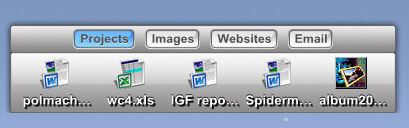
Because the tabs can be made any size the user wants, the user could have color coded tabs that have no text. Or they could simply have hot spots that activate various docks on mouse-over. The hot spots are intelligent enough that the user can set how long the mouse must linger on that hotspot before activating the dock. This is a major usability feature that ObjectDock Plus has going for it.

The tabbed docks are incredibly powerful when combined with the ability to have multiple docks on the desktop.
Free vs. Plus
|
Feature |
ObjectDock Freeware |
ObjectDock Plus |
| Standard Dock |  |
|
| Docklet Support | |
|
| Taskbar Support |
|
|
| Skinning Support | |
|
| Mouse-Over Zoom effect |
|
|
| Notification Animations | |
|
| Minimized Programs displayed as thumbnail | |
|
| Image short-cuts displayed as a thumbnail | |
|
| Custom Graphics Engine | |
|
| GDI+ Graphics Engine | |
|
| Replace icons with other images | |
|
| Can hide Windows Start Bar | |
|
| Start menu support | |
|
| Multiple Docks |
|
|
| Task grouping |
|
|
| System Tray Support |
|
|
| Tabbed Docks |
|
|
| Multiple Monitor Support |
|
|
| Fly-Out Menus |
|
|
| Tabs docked to screen edges |
|
|
| Control of Tab Sizes |
|
|
| Hot-Spot activation |
|
|
| Multi-Dock Manager |
|
|
| Cost | Free | $19.95 |
Screenshots


Flip3D - Windows Vista's new task changinger
A great demonstration of 3D action from Microsoft's new desktop OS.
Sunday, November 12, 2006 by Frogboy | Discussion: Avalon
 Flip3D is one of the coolest new visual features in Windows Vista. To use it, hold down the Windows key on your keyboard and hit tab. At this point, the desktop will re-organize your running tasks into an easy to visualize system of displaying your running tasks and windows.
Flip3D also helps demonstrate the new Desktop Windows Manager (DWM) which is essentially a 3D compositor that turns the Windows Vista desktop into a 3D surface. Because of this, many expect future Vista-specific applications will be able to display data and content in truly innovative ways.
Software developer, Stardock Corporation, is arguably the world's leading developer of Windows enhancement software. It has already begun to prepare to release a series of software products that leverage the power of the VDM in many interesting ways.
Stay tuned!
The Sounds of Windows Vista
45 new sounds added to Vista
Friday, November 10, 2006 by Island Dog | Discussion: Windows Vista
"Sounds are obviously an important part of how people interact with their PC. The idea is to use your ears to get information from a sound without even thinking about it. For example, certain sounds on our PC tell us when we have a new email or instant message."
Read more at his blog posting:
http://windowsvistablog.com/blogs/windowsvista/archive/2006/11/09/the-sounds-of-windows-vista.aspx
This Week in Skinning
A roundup of this weeks best skins!
Friday, November 10, 2006 by Island Dog | Discussion: OS Customization
One of the things I do on a daily basis is check out all the new skins people submit to Wincustomize. I also check out countless other desktop customization sites and I am going to post some of the skins that have caught my eye in the past week or so.
Be sure to click the artist name and check out other creations they have submitted.
LightHelix (CP) for CursorXP
by Artur Berk
I'm still amazed at some of the just plain cool cursors that come from the galleries sometimes. Now you can browse the CursorXP
library at Wincustomize and find things like Guitars, Lightsabers, and everything in between. However, something
always catches my eye and this is it.
There are 3 different neon colors in this set, and the animation is smooth and easy to work with.

Fett in DX Themes
by mcackerson
It's Fett. It's Star Wars themed, do I really need to say anymore? Well probably not, but this is a great theme that is based on the great Windowblinds skin by MikeB314.

iTunes 7 in ObjectDock Icons
by Havell
I'm not a big fan of the icon that comes with iTunes, so I was glad to see Havell step up and create one. Havell has a very impressive gallery of icons, so be sure to stop by his site and check out all his work.
MP3 Player Icons
by deleket
While we are on the subject of music I found this great set of some of the popular music players available. The design is very well done, and he has some other packs in the same style. Head over and check out his page for the others sets. 
Download
Coastal Living in Wallpapers
by Kenwas
A beautiful render done in Vue 6 Infinite. Kenwas has many wallpaper submissions that are just as great as this
one in his gallery at Wincustomize.
VXP for Windowblinds
by vStyler
VXP is a great, minimalist skin that is easy on the eyes, and very usable for everyday use. Great job on this and I'm looking
forward to more submissions from you in the future. Be sure to stop by the GUI Champs to see his other skin, Vectra RC2.
Well that's it for this week. Please add any skins that you caught your eye this week, and don't forget to let me know what you think of these picks. I thank all the artists for their hard work, and can't wait to see more contributions from them all.
Using Multiplicity in a Home Office
One PC is just not enough
Tuesday, November 7, 2006 by Island Dog | Discussion: Personal Computing
I recently spent the entire weekend building myself a new home office. I previously had a small, cheap computer desk from one of the big office supply chains, and it just wasn't efficient for doing actual work. So I went and bought a nice new glass/metal desk, a few accessories, and went to work. I spent several hours carefully bundling and running wires, and making them nice and neat with wire ties. I think I actually did a pretty good job of concealing most of the wires, and making any visible ones appear organized.
Now in the next 2 or 3 weeks I need to purchase another computer and monitor. Space is a big problem because well.....I don't have that much left. So that also brings me to the next decision of what type of computer I have buy. That's a whole other article in itself, so I won't get much into that. However, I still have to plan ahead before I buy. Another computer means another box, another monitor, another keyboard, and another mouse. Or does it?
The last thing I want is more clutter and mess, so I found a solution that will fix some of that problem. I can use Stardocks Multiplicity, and can eliminate the need for another keyboard and mouse on my desk. I will be able to work with my primary and secondary computers as though they are one unit. I have been using this with a laptop until I get my new computer, and I have found it to be an invaluable asset to my desktop. Some of the benefits of running Multiplicity on my desktop are:
- Having dual monitors on my desktop, but each will have it's own dedicated PC without the need for another keyboard/mouse combo.
- Clipboard sharing between my computers, and Multiplicity Pro can copy files and directories from one machine to another.
- It now supports Windows Vista, so I can have my new machine running Vista and my current one running XP.
- The OS X client for Multiplicity is being developed, so I will be able to control my Macs also.
- I can play a game on one system, and work with Office or Photoshop on the other, while chatting on IRC on another.
I would definitely recommend this to anyone who uses multiple computers, and for anyone looking to save a little space in your work area. You can view a comparison chart and download a trial version to try for yourself at the link below.
Microsoft improves licensing terms for Windows Vista
They care! They really care!
Friday, November 3, 2006 by Frogboy | Discussion: Windows Vista
Recently Microsoft announced licensing terms for Windows Vista which made many users cringe -- your Vista license was essentially tied to a single machine. You could upgrade the machine -- some -- but the activation was pretty strict on how much you could change and how often.
Many users were understandably upset. Microsoft was thinking of piracy while many hardware enthusiasts felt that they were being left out in the cold. Many MANY users rebuild machines and don't want to pay hundreds of dollars for another copy of the OS.
Microsoft's new system is much more fair and, in my opinion, quite impressive in the technical work that had to be done to make the change on such short notice.
With the new license, you can uninstall the software and install it on another device instead. But you can't have it on two machiens. That is what is nice about activation when it reaches its potential -- since it's "Calling home" upon installation, it can tell how many devices it is being put on and you can (one presumes) deactivate it on the previous machine.
This is similar to what users already see with products like iTunes where users can deauthorize a machine when they upgrade.
So hooray for Microsoft for this one thing.
Now, if they can listen to Robert McLaws suggestion that they make family upgrade pricing more affordable (so that a household with multiple computers can get multiple licenses very cheaply) then we'll be really talking (my household has 4 machines plus I have 2 laptops on top of it, would be nice to get a discount for those 6 machines that are only going to be used by 3 people).
Real Time Data Backup -- KeepSafe!
How KeepSafe saved my day!
Wednesday, November 1, 2006 by Brad Wardell | Discussion: Software Development
Today I thought I was going to just crawl under my desk and die.
I worked from home today and was using a VPN to connect to my work machine. I was working on a lengthy documented in Microsoft Word and had been saving periodically during the day. On my last save, Word locked up. Locked up hard.
It turned out that my VPN disconnected me during the middle of the save. No warning, it just had. But Word didn't handle the lost connection gracefully and it died taking out not just my recent changes but the entire document itself.
Because the document was confidential in nature, I didn't have it on the network, only my work computer and now the file was gone. I had a USB backup from some months ago but I'd made so many changes to it that that would have been useless.
What saved me was KeepSafe. I have it installed here and every time I had made a save to the document, KeepSafe had made an archive of each one (I have it set to save the last 10 revisions of .DOC files). So I pulled up KeepSafe, typed in the name my document and pulled the one up the version from 17 minutes before the disaster. I still lost 17 minutes but I could have lost the document entirely (or even if I had daily backups, I would have lost many MANY hours of work -- creative work at that).
I have to say, of all the software I use on my computer, the one I absolutely must have on there is KeepSafe. I've had it save me in the past from more minor stuff but never from a disaster of this magnitude. I had forgotten I even had it installed almost until the sweat was coming down my forehead and I was trying to think of some way to get my file back.
Open Source Has Its Own "Vendor Lock-In"
Why the pot shouldn't call the kettle black.
Thursday, October 26, 2006 by Zoomba | Discussion: Personal Computing
Yesterday, I reformatted my main work PC. It had belonged to someone else before I started working here, and when I started, I didn't think to take the time to wipe it down and rebuild it to make sure there wasn't any lingering wonkiness from old applications or files. Well, after three months of me adding and removing my own software as needed, the system reached a point where pasting an image into Photoshop to resize was a serious undertaking that pushed the machine to the very edge of its capabilities. Now, I know Photoshop is a hog, and it's the age old joke of no matter how much RAM you have, it's only "almost" enough to run Photoshop, but this was just embarrassing performance for a Pentium D 2.8GHz with a gig of RAM. This sluggishness showed up when doing other taxing tasks such as loading up Firefox or IE. The hard drive was continuously thrashing, even though the disk was showing only 20% full and wasn't fragmented in the least. So yesterday, I bit the bullet, backed up all my files to an external drive, and started over.
Now, installing Windows XP is just old-hat. I've done it countless times on my home machines, for friends, family and in my various jobs in the past 5 years. There's nothing tricky and I had all my drivers on a USB flash drive ready to reinstall when I was done. I started backing up a gig of files around 1:00pm and by 2:00pm I had Windows running largely configured. By 3:00pm I had almost all of my basic software reinstalled (Firefox, Photoshop, Office, FrontPage, IM apps, IRC etc...) The last task was to restore my email.
Up to this point, I had been using Mozilla Thunderbird. It's a nice, basic mail application that doesn't have any bells or whistles. It runs well and does the email thing just fine. However, as I find myself with more and more on my plate, more tasks to keep track of, and in general trying to keep sorted a growing amount of information, Thunderbird was showing some significant weaknesses. It just doesn't have the additional features I needed, namely calendaring and a task list. So, it's back to Outlook for me. Despite my irritations with how it handles some things, and how it has the typical MS interface design stupidity, Outlook is probably the best overall information management app for Windows at the moment.
I fire up Outlook and go to import my Thunderbird mailboxes and contacts. The contacts would only transfer by doing them as a CSV and then doing about 20min of editing in Outlook to make them work right again. The mail itself though? Not quite so lucky. Turns out that Thunderbird, despite many complaints from users, has NO EXPORT FEATURE!
Yes, that's right. A feature that every mail client I've used since Eudora 1 is missing from Thunderbird. The ability to quickly and easily move the contents of my mail from Thunderbird to another mail application does not exist. I have been "locked-in" to Thunderbird. Let us pause for a moment to reflect on the irony of this situation.
Ok... moving on.
My messages are all there, I know they are, I can see them with Thunderbird. But I can't get them into any format Outlook can import (and outlook can import a fair number of file types, and export a few too). I know there's a way to get this all working, so I turn to Google, the repository of all human knowledge worth knowing, for the answer to this issue. Turns out this is a very common problem people run into as I found numerous forum and blog posts bemoaning the fact that they can't get their email back out of Thunderbird in any easy manner. A little more digging turned up the solution. Here are the steps in a nutshell:
- Open your c:\Documents & Settings\%user\%app_data\Thunderbird\xxxxxx.profile\ folder
- Find the file names for your mail boxes, the boxes themselves have no file extension (i.e. Inbox, Sent, Trash...)
- Copy the folders you want to recover to another folder on your PC
- Rename the folders to %Folder_Name.mbox
- Download a freeware program called mbox2eml, install
- Run mbox2eml on each of the .mbox files
- This will result in a folder with individual .eml files for every email message in the mailbox
- Open Outlook Express
- Select all the .eml files in the folder, and drag them over the open Outlook Express window. This will import them into Outlook express
- Export the contents of Outlook Express to Outlook.
- Cry as about a quarter of your emails are gibberish now since there is no direct translation from mbox to eml files, and some of your messages had a flaky character or bit of formatting that it couldn't handle. If you want those messages, you'll have to read through the raw text of the message to get all the data, but you won't be able to fix the headers in your mailbox. Those messages, for the average user, are gone.
There is absolutely no reason on earth I should have had to go through all of that to get my messages into Outlook. It should have been a matter of exporting from Thunderbird and importing into Outlook. Done. No muss, no fuss. Especially since so many people love to tout Thunderbird as being ready for the average user. That it's just as full-featured and stable as anything you could want in that market-space. Well, if the average user ever has to switch email clients for any reason (like lets say, their job requires it, or say Thunderbird development ever stops moving forward and the app gets abandoned), they're up a creek without a paddle unless they can find a computer geek nearby to take them through the arcane steps listed above. Even moderately technical users familiar with the workings of import/export features in their office apps won't be able to puzzle that one out.
Ultimately though, the biggest issue I have is that so many Open Source apps tend to make it difficult to abandon them and move to an alternative product. Settings, data files etc don't export, they're in some "open" format but no other application out there uses it or knows how to import it, or they're crippled when converting to certain applications. When anyone points these sorts of issues out, they get one of several responses:
- Want an export feature? Code it yourself! It's Open Source, you have the code right there, make it yourself.
- Why would you want to go from Thunderbird to Outlook? Outlook is just a part of the M$ vendor-lock-in monopoly!
- None of the developers see any reason why anyone would want to export their mail, since Thunderbird is just the best there is.
- It's Microsoft's fault for not building a translator to import our files!
Not a single one of those is a valid or reasoned response to the request for a BASIC feature that everyone else seems to have mastered. It's all a part of the high-and-mighty "Our way is the best way, because it's ethically and morally superior to proprietary, closed-source software" attitude that seems to permeate every nook and cranny of the open source world. It results in its own form of "lock-in", that dreaded and evil concept where a vendor makes software such that you can not switch to a competitor without losing a significant amount of time and/or data. Guess what? I lost a few hours of my time getting my email sorted out because of this, and lost several dozen messages to an inaccurate conversion between formats. Imagine the kind of cost this task would incur for any organization trying to make a similar transition... it would be horribly expensive in terms of lost productivity and data.
But I guess lock-in is OK, if you're locked in to software that is "morally superior"
Don't get me wrong, I like Open Source Software and the ideals behind it. I use it when it fits my needs (I love FireFox) but I'm not brainwashed on the whole absolute superiority to proprietary software thing. If a tool provides better features, usability and performance, I'll go with that, regardless of who made it and how. But I can't stand it when OSS pulls the same dirty tricks as closed-source software, but it's considered OK when OSS does it.