

























Windows Themes: Ready to Change Your Desktop Theme
Parts 1 - 4
Thursday, March 29, 2007 by Island Dog | Discussion: Beginners
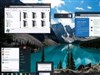
In the past few months I have written a series of articles on how to customize your desktop, and with the series wrapping up I wanted to put them into one source for easy reference.
While these articles were based on skinning Windows XP, several of the applications can apply to Vista as well. As more and more applications are made Vista compatible I will dedicate another series strictly for Windows Vista.
Ready to Change Your Desktop Theme?
Part 1 - WindowBlinds, Wallpapers, and IconPackager
- This article covers how to change the visual style of Windows using WindowBlinds. It also cover how to change your wallpaper and icons.
- This article shows you how to add a dock to your desktop and how to change your default Windows cursors.
- This article describes how to add cool and functional widgets to your desktop using DesktopX.
Part 4 - LogonStudio, ObjectBar
- This articles shows how you can easily change your Windows XP logon screen, and use ObjectBar to create and use alternate interfaces for Windows.
Vista Themes: Changing My Desktop
Thursday, March 29, 2007 by Island Dog | Discussion: OS Customization
Over the past few weeks I have found myself on the Vista desktop more and more despite the problems I have written about before. So spending this much "extra" time with Vista means I can't get stuck with the basic Aero theme.
I have spent a lot of time just trying out different skins and themes on Windows Vista. WindowBlinds has done an incredible job of making XP skins works pretty flawlessly on Vista, and it has been nice to boot Vista and see some of my favorite themes on there.
I have been reading forum posts lately and realized people don't know that ObjectDock 1.5 is Vista compatible. Just as on XP, ObjectDock is almost a necessity for me and having it on Vista has made the "switch" that much easier.
There really isn't any difference running and using ObjectDock on Windows Vista. You can still use the same backgrounds, tabbed docks (plus version), and icons just as you did on Windows XP. There are many backgrounds available and for me it's almost mandatory to have a matching ObjectDock theme to go with the rest of my desktop.
One of my top favorites on XP was Acrylic by danilloOc, and has been the one I have used the most on Vista.

Next up on my rotation is
Dreamland by JJ Ying. Dreamland takes advantage of transparency and has been
a skin that I use when I want a real minimal desktop, and it looks great on
Vista.

The last skin that I have been using on a regular basis here recently is
5imple,
another skin by danilloOc.

These are some of the themes I have been using on Windows Vista with
WindowBlinds, and I recommend each of them if you haven't used them already.
So for the people who have Vista, what are some of the skins and themes you have
been using with it?
Tips for making animated wallpapers
How to make your dreams..come true
Wednesday, March 28, 2007 by Frogboy | Discussion: DreamScenes
Alex Kipman from Microsoft has posted a series of tips on WindowsUltimate.com on how to make a good animated wallpaper. The highlights include:
From a content perspective:
- Keep the camera angle static, so no zooming, panning etc or people will either puke or turn you off after a few seconds
- Try to bring interest in the top quarter and bottom quarter of the video so that you can get motion coming through the glass surfaces in Vista
- Keep the loop to about ~30 seconds in length
- Make sure the content is visually appealing, and the composition of the frame is appealing
- Beware of the areas of motion. Make sure that where there is motion, that the motion is not distracting. Make sure the type of motion doesn't make folks dizzy or lean to one side etc
- Make sure there is enough motion to warrant the DreamScene content
- Take a look at how the content looks as a still (paused). Make sure it looks as good as a static background would look in terms of quality and appeal
- Make sure the DreamScene content looks great under the glass surface. Some of the best content I've seen is content that only comes alive when you have about 80% of your real estate taken up by other apps and windows, and all you can see is the DreamScene content sipping through the 10% or less of the glass areas
- Make sure it is something you can easily loop

- Consider how the content looks in both 16:9 as well as 4:3. You don't control the positioning style and your content should behave nicely in either scenario. In our case we optimize for 16:9 but also test the content on 4:3 to ensure the areas of interest aren't cropped straight out of the video
From a rendering perspective:
- Render the content natively at 720p
- Have the content natively rendered at 16:9, but make sure it crops nicely at 4:3
- Cap the rendering at 30 fps. Bonus points if you can make something interesting at 15 fps.
- Make sure the first frame and the last frame of the video go together so you get a sense it keeps going forever.
- Output the final results as raw and uncompressed AVI (or other uncompressed and raw format)
From an encoding perspective:
- Pre-process everything to progressive (don't let the encoder do the de-interlacing)
- If you need to scale to 1280x720, do so with XScaler
- At the end of the day the biggest variable will be the bitrate. I suggest you start with encodes at 1.5, 3 & 5 MBps and then check. At the end of the day you are looking to find a happy medium between CPU utilization, files size (i.e., download time) and video quality. This is primarily determined by the bitrate you choose.
- I have mixed feelings on what the ideal key frame distance should be. It is supposed to just repeat the current frame in the buffer but we don't want to wait too long for the next key frame. Therefore, we go with something between 3-5 seconds.
- Lastly you need to decide if you are going to be encoding an MPG or a WMV.
- If you choose the WMV route I suggest:
- 5 Mbps WMV
- Select video stream WM video Stream 1
- Width: 1280
- Height: 720
- Aspect Ratio: 16:9, Pixel [1:1]
- Encoder: Windows Media Video 9
- Framerate: 29.97
- Bitrate: 4991
- Bitrate type: CBR
- Number of passes: 1
- Seconds / Keyframe: 1
- Image quality: 97
- Interlacing: Non-Interlaced
- Buffer: 5000
- Video Codec: Complex Auto
- No Audio
- If you choose the MPG route I suggest:
- 15 & 8 Mbps MPEG2
- Stream Format: Generic ISO MPEG Stream
- Stream Type: MPEG-2 Elementary Stream
- Width: 1280
- Height: 720
- Frame rate: 29.976
- Interlacing: Non-Interlaced
- Aspect Ratio Code: 16:9
- Quality/Speed: Mastering Quality
- Bitrate type: CBR
- Video Bitrate: 15000 (8000)
- Profile/Level: HP@HL
- VBV Buffer Size: 1492
- Max GOP Size: 15
- Closed GOP: yes
- Chroma Format: 4:2:0
- Intra DC Precision: 9
- Strict GOP bitrate: No
- No audio used
- Insert one sequence header before each GOP
You can read the whole thing below.
OpenOffice 2.20
Wednesday, March 28, 2007 by Island Dog | Discussion: Windows Software
"OpenOffice.org is the open source project through which Sun Microsystems is releasing the technology for the popular StarOffice productivity suite. It is an international office suite that will run on all major platforms and provide access to all functionality and data through open-component based APIs and an XML-based file format. It establishes the necessary facilities to make this open source technology available to the developer community."

Adobe Unveils CS3 - Will You Take the Plunge?
Wednesday, March 28, 2007 by Island Dog | Discussion: Personal Computing
I have Photoshop CS2 and really did not want to upgrade because CS2 has everything I need, and spending $200 for an upgrade was not something I planned to do just to run Photoshop on Vista.
The estimated price for Creative Suite 3 Design Standard is $1,199 and for the Design Premium version, $1,799. The Web-oriented editions cost $999 for Web Standard and $1,599 for Web Premium.
The CS3 Production Premium is $1,699. And the Master Collection, the most comprehensive package, is $2,499."
As Photoshop is used by a lot of skinners here, do you plan to upgrade to CS3?WindowBlinds 5.5: Video Tour
WindowBlinds on Windows Vista
Tuesday, March 20, 2007 by Island Dog | Discussion: WindowBlinds
WindowBlinds 5.5 was recently released, and I made a video guide to show you how WindowBlinds works on Vista, and to show off some of it's features such as coloring of skins. Another advantage is you can use SkinStudio to convert existing XP .msstyles for use on Windows Vista with WindowBlinds.
Po's Freebie Picks -Week 2
For The Kids
Saturday, March 17, 2007 by PoSmedley | Discussion: Personal Computing
First up is

The screenshot/gif doesn't begin to do it justice.
'Drempels makes colorful, swirling, hallucinogenic patterns that resemble a hurricane or tornado. It normally runs in your Windows background or "desktop", replacing your old still-image wallpaper with gently-animating visuals... and meanwhile, you can use your computer just like you normally would. It uses very little CPU overhead - so little that it even runs smoothly on a 233 MHz system!'
This item is way cool for the kids, especially if they have your old PC and don't have VISTA yet. It can run on the desktop and/or as a screensaver. I've been running it on my mine off and on for the past week and it's pretty cool. What I really like about it is that while it is running, you can adjust all the visuals from your keyboard. It's very easy to play with, even for the young ones.
Nest up we have

As you can see, I even had fun with this. (Sorry skinhit, but yours was the first pic that came to mind to mess with.lol) You can customize your colors, spray dispersal, and even which hand to use. You spray paint right over your entire desktop, windows, everything! It opens and closes very easily. It has very simple instructions and it's very easy to use. Keep those hooligans off the street!
Finally, the one that caught my attention to begin with
It's a free drawing program for kids 3 and up. This program is sweet for kids. It has a lot of really neat features built into it, FX, fonts, shapes, brushes, etc. Just not enough room to list them all. But I want to tell you what I think makes it really cool for kids, especially the really young ones.
You don't open anything up from your files or save anything to file. When the kids are using it, it's entirely self contained. All images are saved in it's program folder and show as thumbnails in the program for the kids to find again and open. So they can't misplace anything they are working on! It even comes with some images to get them started. What's also nice is that the parent can set it up at different levels, from easy on up. You can also move pics (must be in png format) into their thumbnail folder for them to mess with.
This is just a sample of what you can do on the fly.

So there you have it. Get 'em started now, Mom's and Dad's! They are the next generation of skinners and it's your responsibility to nurture their hidden talents!
Stardock DeskScapes 1.01 Preview
Dynamic Wallpapers start to arrive
Friday, March 16, 2007 by Frogboy | Discussion: DeskScapes
With the release of Windows DreamScenes, Microsoft has made animated wallpapers on Windows a practical reality. Windows DreamScenes enables users to play video as their desktop background which, when done correctly can provide spectacular results.
Windows DreamScenes, available only on Windows Vista Ultimate, makes full use of the new DWM's video acceleration to deliver high definition backgrounds that won't slow your computer to a crawl. The caveat is that the video driver makers need to make sure their drivers are up to snuff which, in some cases, they are not yet. But that is a temporary issue.
Stardock worked with Microsoft on the DreamScenes projects and is responsible for some of the animated wallpapers that will come with the final release of Windows DreamScene as well as producing tools and enhancements that extend the functionality of the animated wallpaper feature. The best known tool is Stardock DeskScapes. It's ones of the new programs that makes up Stardock's popular Object Desktop suite of desktop enhancement utilities.
The two most anticipated features of Stardock DeskScapes has been the promise of animated wallpapers that can change based on triggered events (time of day, weather, etc.) as well as dynamic animated wallpapers (wallpapers that are generated on the fly as opposed to looping video).
 Ironically, what has probably helped make DeskScapes so popular is that most people creating animated wallpapers choose its format .DREAM instead of releasing their work at .MPEG or .WMV. The reason? .DREAM files support author information that is displayed in the Desktop Background dialog (including links to the author's website). Without this, the hard work that artists put in creating these wonderful animated wallpapers would done anonymously.
Dynamic Dreams Become a Reality
In early March 2007, Stardock released DeskScapes 1.01 into beta for Object Desktop users. It includes two dynamic animated wallpapers to show what is possible. These dynamic animated wallpapers are called Dynamic Dreams.
The first Dynamic Dream is a floating, bouncing, rotating cube with the Stardock logo on each side. This is a sample one that will also be included in the upcoming DreamMaker 1.01 SDK to allow others to create their own Dynamic Dreams. Dynamic Dreams use DeskScapes to do much of the work. They're not like screen savers which are essentially EXEs renamed. Dynamic Dreams are designed specifically to be animated wallpapers to use as little CPU and resources as possible while delivering stunning visuals. DeskScapes also provides support for configuration and performance settings.
Stardock's mid-term plan is to also release an editor to make it easier to create Dynamic Dreams that are very easy to create that fall into certain common templates. This way, artists can concentrate on making visually impressive Dynamic Dreams without having to worry about coding or scripting.
Dynamic Dream: Stardock Cube

Stardock Cube floats gently around the screen on a reflective surface
Dynamic Dreams use very little CPU. Their performance is tied to your video card. If your video card is poor, then Dynamic Dreams will perform poorly too visually. Think of them like a video game. If you're running at 1920x1200 on your desktop, ask yourself if you usually run your video games at 1920x1200 with all the quality options on. But fear not, DeskScapes provides options to control the experience.

Performance Settings for DeskScapes 1.01
My ThinkPad T60 laptop is a pretty decent laptop. But the running at 1400x1050 is taxing on it. It's not like I could run Company of Heroes with at that resolution with 4X animation and expect to get 60fps. So on my laptop, at maximum rating, I'm only using 3% CPU but the cube moves at less than 30fps and windows move slowly because the DWM is being taxed. In other words, it slows down my Windows experience which is unacceptable. So I try lowering the performance to regular quality.

Same cube at "Regular quality"
I can't actually tell any quality difference between the two versions. But the performance is much better. Now the cube moves smoothly. But windows move with a bit of a lag because the DWM is still taxed. For me, I won't tolerate any degradation in performance for eye candy. So I'm going to turn down the performance all the way to best performance.

Same cube at best performance setting but minimum quality
At this setting, it's perfect. But I can tell the cube doesn't look quite as good now. It's not significant but it's there. I could use some beefy machine for this demo but the point here is to use the lowest common denominator. If your video card rating is a 3.0, you probably shouldn't be running Aero let alone animated wallpapers. The point here is to give users a real-world, worst case scenario.
Incidentally, if I run my laptop at 1280x1024 I can run at near the highest quality without any affect. It's just that at 1400x1050 the video card is either not optimized for 3D at that resolution or it's where video memory starts to run out. But a well designed Dynamic Dream will provide its own options as well and the Stardock cube is no exception:

Dynamic Dreams can have their own configuration
If I shrink the cube a little and slow it down, it performs better. The other guys here are laughing at me for even running this stuff on a business laptop but again, I just want to stress that this stuff runs pretty well even on lower end hardware if you set it up right.
Dynamic Dream: Desktop Earth
The second Dynamic Dream released is called Desktop Earth. This is available to Object Desktop users for free but it will also be released as a premium Dynamic Dream to users who don't have Object Desktop (it took far too long to develop to give away entirely).

Desktop Earth Dynamic Dream
Desktop Earth looks at the time of day and time of year and lights the Earth and textures it appropriately. It's March 2007 so you can see snow and such down in Michigan (or as we say to prospective employees -- lies! Michigan never has snow! It's warm!). As Spring arrives, you will see it gradually changing to being greener as the snow goes north.
Since I'm in the Eastern Time zone, it automatically defaults to centering there. If I choose to not have the globe rotate, it will lock overhead and over the course of the day, the shadow of night will slowly creep in until you see the lights come on.

Because I'm boring, I don't even have it rotating on my screen. I just enjoy watching the day pass gradually from above the earth.
By the time I go to bed my desktop looks like this:

The change is extremely gradual -- rendered in real time.
Now if I choose to have the globe spinning, I can set how fast it rotates so that I can see the whole world. The lighting of the world is still based on the time of day and time of year. But instead of looking over one part of the world, your desktop is orbiting the earth.

The earth at around 1:57pm EST in March 2007.
The quality settings really matter on this one because the Earth texture is extremely high resolution. We wanted something that would look good even at 2500x1600 type resolutions. But if you're running at a lower resolution, there's no need to use such a huge texture.

Even at the lowest settings, it looks really good and performs well at the highest resolution with less than 1% CPU use.
Availability
You can get this right now if you have Windows Vista Ultimate Edition and Windows DreamScenes installed IF you have Object Desktop. Stardock is releasing DeskScapes 1.01 first on Object Desktop and later to the general public. The Desktop Earth Dynamic Dream is free for Object Desktop users and is part of the content download.

When you buy Object Desktop you get Stardock Central which makes it easy to download and manage the programs that come with Object Desktop such as DeskScapes.
DeskScapes 1.01 should be available to the general public by the end of March at http://dream.wincustomize.com and on its home page https://www.stardock.com/products/deskscapes
If you have any questions, ask here, we're around. 
DeskScapes 1.01
Requires: Windows Vista Ultimate, Windows DreamScenes (and Stardock Object Desktop to get it early)
This Week in Skinning - March 16th
Skin Roundup for 3-16-07
Friday, March 16, 2007 by Island Dog | Discussion: Community
So lets get to it!
SD Skin Checker in DesktopX Widgets
by Vad_M
This is another widget by Vad_M that really shows the power of DesktopX. This widget can show your WinCustomize skin information such as downloads, comments, referrals, etc. Be sure to check this out.
Early Morning in Dreams
by candiedbug
This is a very nice Dream of an early morning scene with grass swaying. The loop could use some work but it's still a great Dream.
Amazon Explorer in Sidebar Gadgets
by tcash11
This Sidebar Gadget will allow you to search Amazon.com. It's an interesting use for a gadget and is a great addition for anybody who shops Amazon.
Grandpa's Dream in Wallpapers
by kenwas
I'm always impressed with the quality and detail of the renders that kenwas always shares with us. Great work.
Adrenaline in Windowblinds
by PixelPirate
This fantastic skin by PixelPirate is based off a skin for a Powerarchiver contest. This is a skin I'm not going to describe, just download it and you will see.
Stargate SG-1 in Windowblinds
by vStyler
If you are a fan of Stargate then this skin for you. Even if you are not a fan this skin may well fit your style as well. Great job.
Great submission as always, and I always say it, but be sure to check the artists galleries for more great skins. See you next week!
Converting .msstyles for use with WindowBlinds on Vista
Using SkinStudio
Wednesday, March 14, 2007 by Island Dog | Discussion: Community
With the recent release of WindowBlinds 6 for Vista there has been much talk around various communities on how to use existing XP .msstyles on Windows Vista. These existing .msstyles will not work on Vista by themselves, but you can convert them using SkinStudio and applying them with WindowBlinds 6.
I wanted to give a quick tour on how simple it is to take these XP visual styles and make them work on Windows Vista. First there is a couple of things you need.
-
The first thing you will need is to download SkinStudio. It's free and it will allow you to convert the .msstyle for use in Windows Vista.
-
Next you need WindowBlinds 6. A shareware version is now available and it is also part of the Object Desktop suite.
-
Your favorite XP .msstyle.
Once you have SkinStudio installed it should associate itself with .msstyles. All you have to do is double-click the file and SkinStudio will convert it. You can the apply the skin or do that later in the WindowBlinds configuration.

Alternatively, you can also open SkinStudio and select "Import msstyles". Once imported you will also have the ability to modify the skins if you choose to. However, if you did not create the visual style you cannot distribute without permission from the original author.

Pretty simple, right?
I also made a quick video showing how easy it is to use existing XP .msstyles on Windows Vista using SkinStudio and WindowBlinds.