





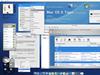




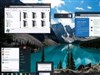
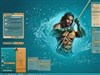
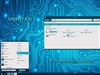












ObjectDock gets a face lift in v1.9
Windows dock program gets better and better!
Wednesday, April 25, 2007 by Frogboy | Discussion: ObjectDock
 ObjectDock is a program that adds a skinnable dock to your Windows desktop. It is one of the most popular desktop enhancement programs available.
ObjectDock 1.9 is such a major update over 1.5 that it could have been called ObjectDock 2.0. In fact, there was a lot of internal debate on this with 1.9 being the compromise versioning!
So what's new in it? Here is a list of changes from v1.5:
|
What's changed in ObjectDock 1.9 over 1.5:
Brand new awesome weather docklet! New docklet uses brand new technology to fly out your 5 day forecast when you click on it or hover over it, and hides it when your mouse goes away.
Zoomin/Zoomout smoothness *significantly* enhanced, and is now adjustable! Find the new options in the "Quality & Performance" settings
ObjectDock now comes bundled with some really great artwork (icons and backgrounds) from the community. (Permission recieved to use all of the images involved).
New artwork has been pre-associated with over 50 different programs! As result, chances are if you add a program, it will show up with a nice high-resolution icon!
New minimize effect on Vista! When Live Thumbnails are in use on Vista and your dock is showing a taskbar, windows will now do a nice minimize animation into any zooming dock. I
Live minimize effect should be smoother than any other program available! Effort was made to make it work with minimal to no interference to your workflow, and the animation should never jump around / flicker heavily at the end unlike other versions of this effect you may have seen.
"Live previews" for files and folders are enabled! While folders will not have their icons update automatically if their contents change, when loaded folders will show as their correct preview. The same with other types of documents that offer a live preview (PDF's, etc)
In Vista, all minimized windows will show up as a live mini-thumbnail in the ObjectDock taskbar! Optionally you can have all windows, minimized or not, show up as thumbnails. Note: this feature is only
available for zooming docks, it does not support tabbed docks.
New background ability! Tile-based backgrounds can now adjust the size/position of the original icon, end result, really cool tiled backgrounds. Check out the included HyperGrass theme for an example of how cool tiled backgrounds can now be!
Completely redone the mouse-activation / layering system. See the new "interaction" area in zooming dock's positioning options. The new interaction abilities should make ObjectDock a much more pleasent program to use!
Custom icons set for program file shortcuts now automatically sync with custom icons set for windows of a program in taskbars.
Entry areas in shortcut dialogs now use AutoComplete
Entering in generic terms or filetypes such as "internet", "email", ".doc", etc for a shortcut will now
Background code *significantly* improved.
New "Troubleshooting" dialog with quick access to disabling features of ObjectDock
Increased drawing optimization code's ability to manage images. Should result in quicker than ever drawing and decreased memory usage for zooming docks.
Docks can now not only be left/right/center aligned, but anywhere in-between. See the new slider in zooming dock's positioning options
Brand new "Show Start Menu" functionality! Will show your existing startmenu/startpanel right next to the cursor when you click it. Add one by right clicking dock and choosing "Add -> New Start Menu Entry"
"Add" menus now significantly more useful ; they now give you the option to add a wide variety of different built-in entries
New "command entry" abilities! You can now create a dock item to toggle autohide on and off, or toggle hiding/showing the taskbar. Very useful!
New option available to turn on "proportionate stretching" for backgrounds
New mode available in plus: "keep on top, hiding off-screen for maximized applications", which makes the dock always on top except when a window is maximized, at which point it will automatically temporarily turn on autohide
Improved dock's ability to judge what maximum size it should be. Dock will now exactly fill the screen when you set it to be as large as possible, and it will properly maintain this as you add/remove items.
Brand new taskbar modes available in Plus! Your taskbar can now be set to show "all windows", "minimized windows only", or "non-minimized windows only"
Dramatically improved behavior during right click menus on zooming docks. When you right click and the dock's zooming locks in position, if you click/right-click on another item ObjectDock will now correctly select the item that your cursor was over at the time, not what i would be after the zoom lock is released. Similarly, if you begin dragging an item while locked, the program will behave appropriately instead of its prior very unpredictable behavior.
Improved handling / awareness of full-screen applications
Completely redone system tray mechanism for Plus, which is more lighweight and does not require any additional resident EXE (that’s right, sdmcp.exe will be a thing of the past
 ) System tray will not currently work on 64-bit versions of Windows, but they do work with Windows Vista, including the new "Special" tray icons in Vista. Performance and memory usage has been improved. Lots of optimizing for CPU usage.
Every single 'glitchy' behavior that we/users could find in previous versions of ObjectDock has been fixed
When using extension-only in shortcuts, the item's title will now automatically update to the name of the application, not just its filename.
Ability added for ObjectDock to apply included default images for programs that do not have high-resolution icons already included with them. For example, a default Notepad shortcut on XP would use the included custom high-quality icon, but on Vista where a high-quality icon is available for Notepad, ObjectDock will use the actual Notepad icon.
Improved system tray, should now work more reliably than ever! Outlook 2007 and Windows Live Messenger should both now work reliably.
Fixed up a couple minor resource leaks
Improved taskbars / thumbnail behavior.
Added option to turn off tabbed docks' ability to automatically dock to the edge as a drawer when dragging. Option available in "misc options".
Fixed multimonitor issue with the Start Menu functionality, and added better problem-notification.
Fixed issue with flyouts where if they contained 9+ items and zooming is disabled, they could show up partially behind the dock.
UI improvments
Ability to export backgrounds added to the DockZip packaging format. Try this feature today by right clicking the dock and choosing "Pack images for sharing"
Dialog flow / layout improved for zooming docks
Colorizing a background now also colorizes the indicators you've selected to use
When packing up icons, you can now reliably drag dock items on to the "packager" dialog, and the icon associated with that item will automatically be added to the package you're creating
Improved autohide ability in general. Also, added ability for autohide to give activation back to the window that had it if an autohidden dock gets activated temporarily and then hides.
improved shortcuts so that the dock longer pauses for a moment when you run something
improved delete-item animation so that there is no longer a delay when you delete something from the dock
clicking empty space directly above/below a zooming dock that is still part of the background (e.g. a shadow) no longer causes the dock item below it to get selected. similarly, right clicking that area will bring up options for the dock itself, not the item below where you clicked.
On Vista, Taskbar should now show / be able to interact with applications ran as administrator when UAC is enabled in vista, even if ObjectDock isn't elevated. (Minimize animations will not work for programs ran as administrator however)
Fixed issue where icons for url-shortcuts would not get remembered
Can now drag/drop "Internet" and "Email" shortcuts from start panel into dock
ObjectDock is better than ever at picking up the best high-quality icon for your file, particularly in Windows Vista.
You can now zoom icons up to 256x256.
Click Here to check out some of the features of ObjectDock as a video. |
In short, a lot has changed.
Highlighted Changes
There's so many new things in ObjectDock 1.9 that it's hard to narrow things down to a handful. And even the above list isn't complete! Here are some of our favorite changes:
It's Faster!

Probably one of the first things some users will notice is how much faster ObjectDock 1.9 is. That's because the underlying engine was largely rewritten to take advantage of advances in OS and video card technology. It's faster while using less memory.
It's Prettier!

Another thing users will notice, especially long-time users, is how many cool new backgrounds and icons come with it. The default look has been changed, the default icons changed, and a ton of artwork from the WinCustomize.com community (with permission) has bee included.
One other note about that screenshot, ObjectDock supports backgrounds on a per item basis!
It's more useful!

ObjectDock is popular not just because it's so visually cool and pretty but because it is very useful. Docklets that support searching and the ability to display running tasks as part of your dock are examples of why ObjectDock isn't just a cool program, it's a very useful one.
ObjectDock 1.9 includes a new weather docklet that on a single click will display the 5-day forecast.

ObjectDock 1.9 also includes a new Start menu docklet that will bring up the real Start menu (and if it's skinned, then it'll still be skinned!).
It's more usable!
ObjectDock has always been strong about having features that make is convenient to use. But ObjectDock 1.9 goes even further!


ObjectDock 1.9 now includes options for dock placement that is completely free-form! Put the dock anywhere you want on the screen!

It's easier to use!

The user interface has been updated to be easier to use with functionality much more accessible!
It has more Windows Vista support!
While users of Windows XP have much to rejoice, users of Windows Vista get live thumbnail previews and minimize and restore effects thanks to the new Windows Vista desktop graphics engine (the DWM) which provides hardware acceleration features!
It's more fun!

With thousands of skins and icons for ObjectDock and tons of cool effects and options to choose from, ObjectDock doesn't just look great and work great, it's just fun to use.
And it's still free!
The world's most fully featured dock on any platform is still freeware.
Stardock also makes ObjectDock PLUS! which adds tabbed docks, system tray support, additional mouse-over effects, multiple dock support, taskbar grouping, and more!
But ObjectDock itself remains free as it always has even with all these new features. Try it yourself and find out what millions of others have learned -- it's fun, pretty, and useful!
Get it at http://www.objectdock.com
mIRC Guide: Chatting on Stardock IRC
Alternative to SDC/WC Browser
Tuesday, April 24, 2007 by Bebi Bulma | Discussion: Beginners
Alright, first things first...download an IRC client. For the purpose of this guide, going to use mIRC. Why mIRC? Because it's simple and doesn't have a bunch of crap bloat that anyone would need anyway. 
Download it here.
First you install it obviously, then after it's installed open the mirc.exe.
Next we'll have to add the Stardock server to the server list. Just follow the screenshots and you should be fine.
Click on the little hammer icon thingie at the top left, this is the mIRC Options. The Connect section should come up, enter in your details there. Full name and email address don't really matter, you can put any kind of nonsense you want there. For your Nickname I suggest using your Stardock login name. No spaces, if you want spaces you'll have to use an underscore. For the alternative, something similar (this is used when you get disconnected and your nick is still in use).

The click on the Servers area and the Add button. Then fill out the information accordingly. After that press Add.

Now we're going to setup the Perform on Connect settings, with this you will automatically join the channels and identify to nickserv once you connect. Click on the Options section under Servers, then click on Perform. Make sure the Enable perform on connect is checked. Now click on the Add button, find the Stardock server we just added and then select Ok. Now select Stardock from the Network dropbox. In the textarea, add the following information as shown in the screenshot, the click Ok at the bottom.
Notes:
- The first line identifies you to your registered nickname (if you choose to register it [explained below], if you don't register it then you don't need to add the command).
- The next two commands automatically join you to the #wincustomize and #stardock channels. You can add or remove whatever channels from autojoin if you want. If you want a list of other channels, type /list in the status window.
- The last line disables the server's language filter. The language filter prevents anyone from sending you a private message that contains swearing. Personally I tend to swear like a sailor so I find this little feature annoying and silly, so I have it disabled.


Before we connect, I'm going to show some optional settings I find useful. Click on IRC in the menu list. I would suggest checking Prefix own messages, Show mode prefix, Whois on Query, Rejoin channels when kicked, Rejoin channels on connect, and Keep channels open. This way is for some reason you get kicked (hey it happens) mIRC will automatically have you rejoin the channel without you having to manually do it. Keep channels open just keeps the channel there when you get kicked/banned, normally the channel would close and disappear and you'd have to rejoin it.
Also, click on the Options section still under IRC, and under Show: check User addresses (you'll be able to see the isp the person is connecting from) and under Flash on: check Query message (this way when someone sends you a pm, the window will flash in the taskbar to notify you). If you go to IRC > Messages, you can enable the Timestamp. Check Enabled and then you can edit the display. I'm using [ddd h:nn:ss TT] which displays as [Tue 5:18:34 PM]. You can change how it's displayed by changing the identifiers. You can find a list of those identifers Here or in mIRC go to Help > Contents and in the Index search type "time" and the first thing listed should be the Time and Date Identifiers.
Next I'd go down to Display, click on it, then make sure always highlight and blink icons are checked, this way the windows inside mIRC will flash to notify you that there has been a new message in the chat/pm window.
Speaking of display, by default mIRC uses the lame Fixedsys font but this can easily be changed by going to View > Font. I use Verdana size 8. You can change the fonts on a per channel/window basis pretty much, but I have mine set globally.
Now we can connect. You can do this a few ways. The first would be to find the Stardock server we added in the servers list and then click on the Connect to Server button near the bottom of that window. Otherwise you could just type this into the text area at the bottom of the screen.
/server irc.stardock.com
You should now be connected to the server and have joined #wincustomize and #stardock. You can now register your nick if you choose to do so. To do this type the following (without the brackets of course).
/nickserv register [yourpasshere] [youremail]
You should then get a message from Nickserv saying the nick has been registered to you. Now go back to the options and go to the perform window, enter your password in the settings as we showed above. This way when you connect you will be automatically identified to Nickserv.
If you get disconnected for any reason and your nick is still showing up in the channel, you can kill it so you can use it again. To do this use the following command:
/nickserv ghost [yournick] [yourpass]
You can now use your nick again. To change your nick, just use /nick [newnick]
Another thing you should do is add your hostmask to the Nickserv access list so you won't get Guested if you fail to identify to Nickserv for whatever reason. First you will need to find your hostmask, to do this perform the following command:
/whois [yournick]
After you've gotten the whois result, copy the ident@host (highlight it, mIRC will automatically copy anything that is highlighted) and then do the following command.
/nickserv access add *!*ident@host
Example: Say my whois result showed this for my host (IP address edited of course): [email protected]. Now if your IP tends to be dynamic and change a lot, you might want to edit it when you add to the access list. This is how I added mine:
/nickserv access add *!*supervixen@*.socal.res.rr.com
That's pretty much it for the basic setup. mIRC has a ton of other options and settings you can play with, just look around. One I use frequently is the Colors option (click on the Address Book icon next to the clock and select the Colors tab). Here you can colorize your own name, friend's names, and user modes (ops @nick [usually Stardock employees and/or WC mods/admins], voices +nick [special people], channel owner .nick etc). This makes it easier to spot who is chatting in the window. It should be pretty self-explanatory to get it working, but I'll give some examples anyway.
Go into the Colors option like I explained above, make sure Enabled is checked, and then click on Add. On the left is how it looks to color my own nick. This way whenever I say something in the chat and in the userlist, my name shows up as pink. On the right is how it looks to color all ops as bright green (I use a black background).


You can also change the color theme for how your mIRC is displayed. As I mentioned, I use a black background because it's easier on my eyes. Just click on the Crayons icon to mess around with the colors. Just click on whatever you want to change and select a new color. To change the background color just click on any of the white space. Here is how mine looks:

One of the other features I use a lot is Highlight. If you go to Options > IRC > Highlight, you can set it up there. What highlight does is what it says, if it finds a match for something in the highlight list, it will change the color of that entire line to whatever color you set, and can also beep to notify you. To use this, make sure Enabled is checked, then click on Add to add your highlight trigger. I have highlight set for whenever someone says my name. Here is how mine looks:

Additional Commands
Often you will see people talking in third person, this is done using the \me command (I had to use backwards slash because the forums parse it the other way). Example:
\me waves hello (don't forget to use forward slash!)
Will be displayed as: * BebiBulma waves hello
If you need to go away for a while, you can use the /away command. This way when someone does a /whois on you or sends you a pm, they will get a notice in their status window that you are away.
/away Gone out, be back soon
To disable the away, simply type /away and it turns it off.
Perhaps you want to ask someone something but not in the public channel, then you can use the /query command. However, it's always a good idea to ask someone first before you pm them, it can be irritating to have someone pm you just because they can without any real reason. Tip: If you type the first few letters of someone's nick and then press Tab, it will go down the list of names of all that match.
/query Nick Hi there, nice day?
If you need further help with this, you can post a comment here. Also, you might want to check out this IRC tutorial for a more lengthy guide on the commands and other features IRC has. If there are other features I didn't cover but someone would like more info on, let me know and I'll see what I can add. Come chat with us on IRC!
*For these screenshots, I'm using the Argos premium suite.
What Graphics Software Are You Using With Vista?
Monday, April 23, 2007 by Island Dog | Discussion: Windows Vista
The first application I am evaluating is Corel Paint Shop Pro XI.
The second trial I downloaded was Adobe Photoshop Elements 5.
So for you who are running Windows Vista, what graphics software are you using?
Windowblinds/Skinstudio Video Tutorial
Saturday, April 21, 2007 by Mrrste | Discussion: OS Customization
I don't know if anyone will be interested but after a month in the making, i finally finished by Windowblinds/Skinstudio Video Tutorial If you have ever wanted to mod, create or just wanted help with skinstudio and a windowblind, this is what u need. It will help give you a basic understanding of how Skinstudio works and how to go about creating your own skin. Deviantart has helped with this and Aquasoft are linking it. Since this is the home of Windowblinds and Skinstudio, i thought u guys might like to know Check it out at http://mrrste.deviantart.com
If your wondering, due to the file size and bandwidth needed for this, DA has given me special persmission to host it on my site. They have even promoted it from there accounts and in there newsletters
This Week in Skinning - April 20th
Skin Roundup for 4-20-07
Friday, April 20, 2007 by Island Dog | Discussion: Community
Well the end of the month is approaching and I am having a hard time picking skins to feature. Not because there weren't enough, but because I'm just having a really hard time choosing from all the great submissions. Remember I always appreciate your suggestions on skins to feature, and feel free to e-mail me your suggestions.
Also, don't forget the WebGizmo's ObjecDock Background Contest that is going on. The deadline isn't until May 11th, so there is still plenty of time to enter. Now let's take a look at this weeks picks.
INDUSTRIAL conformity for CursorXP
By Drill'n Boss

I really like the animations with this cursor. He says it goes with Industrial skins and I can definitely agree, but even if you don't have an industrial skin, be sure to download it anyways.
CPU_TEMP in DesktopX Widgets
By RomanDA

Here is a simple CPU Temperature widget. Color changes depending on temperature range. Be sure to check his gallery for more great gadgets.
Ovals in Dreams
By Neil Banfield

This is a dynamic dream with two slowly moving semi-transparent oval shapes. It's simple, but it looks really good on the desktop.
Clear OB for ObjectBar 2
By Quentin94

The ObjectBar 2 gallery on WinCustomize is started to get populated, and that is great news. Quentin94 has been hard at work adding a few skins in there, and this latest one deserves to be featured.
Leather Dock Backgrounds for ObjectDock
By messiah1

This is a really cool set of dock with a real leather look to them. Very nice work.
PoulanZ_Vista IE7 for ObjectDock
By PoulanZ

If you use IE 7, and there are people who do, then you should definitely check out this icon by PoulanZ. Great job.
Fantasy World in Wallpapers
By enormousaxie

This is a really nice wallpaper, and I hope to see more from him. However, I would like to see some resolutions with it.
Nuage Redux in WindowBlinds
By essorant

This skin is based off the original Nuage and makes great use of transparency. There is also Vista compatible versions as well.
There were many great submissions this past week, but time and space won't let me list them all. Be sure you browse the galleries on WinCustomize because you don't want to miss the other skins that are there. See you next week!
Best Skins of 2006
Thursday, April 19, 2007 by Frogboy | Discussion: OS Customization
Last year was another great year for skinning. Users from around the world created some incredibly fantastic skins.
Culturally, skinning is a great deal different today than it was back in the late 90s. Back then, a popular skin might get a 1000 downloads. I remember when the first "Aqua" skins came out and the infamous "WinAqua" from Dangeruss managed to get 5 THOUSAND downloads total which was, back 2000 or so, a real milestone. Now, downloads of 50,000 are common and most of the top skins can expect to be reaching towards 100,000 downloads.
The popularity of skins has altered the way skins are made. Designs tend to be much more mainstream. While programs such as WindowBlinds and Winamp allow for pretty free-form skin designs, the trend has been to make them conservative and "clean" to appeal to the widest audience.
In this article, we look at some of the best skins of last year. This article is, by no means, the end all be all list, we do try to include a good selection of the best creations from the past year.
 WindowBlinds
 is a 3rd party program developed by Stardock (whom I work for) that lets users apply GUI skins (often called visual styles) that change the overall look and feel of the Windows interface (title bars, push buttons, Start bar, etc.).
To use WindowBlinds skins you will need to download WindowBlinds.
Last year was a great year for skinning. Not counting the great skins that came out of the GUI Championships, here are ten of the best (there were so many great ones to choose from so apologies to all the other great skinners we didn't include).
 |
danill0c's 5imple skin was one of the first WindowBlinds skins to really show off what WindowBlinds 5 could do. Both a practical skin and very polished at the same time. The subtle shadow effect is part of the skin (WindowBlinds 5's engine supports alpha blending effects like shadows and glass). A terrific design all together. [Download]  Vista Ready! |
 |
Kol's Thallos was one of the best skins of last year without a doubt. Clean, smooth, and useful, its subtle shadows and polish made it a favorite for users. Thallos is unique in that Kol created both WindowBlinds and msstyles versions of it and hence won in both categories. The two are virtually identical. The WindowBlinds version adds toolbar icons, and a progress animation. [Download] Vista Ready! |
 |
Josephs's Live Suite was one of the highlights of last year. Some argued that this is the look they wish they'd updated Windows 2003 Server to look like. A good step between Windows XP and Windows Vista. [Download] Vista Ready! |
 |
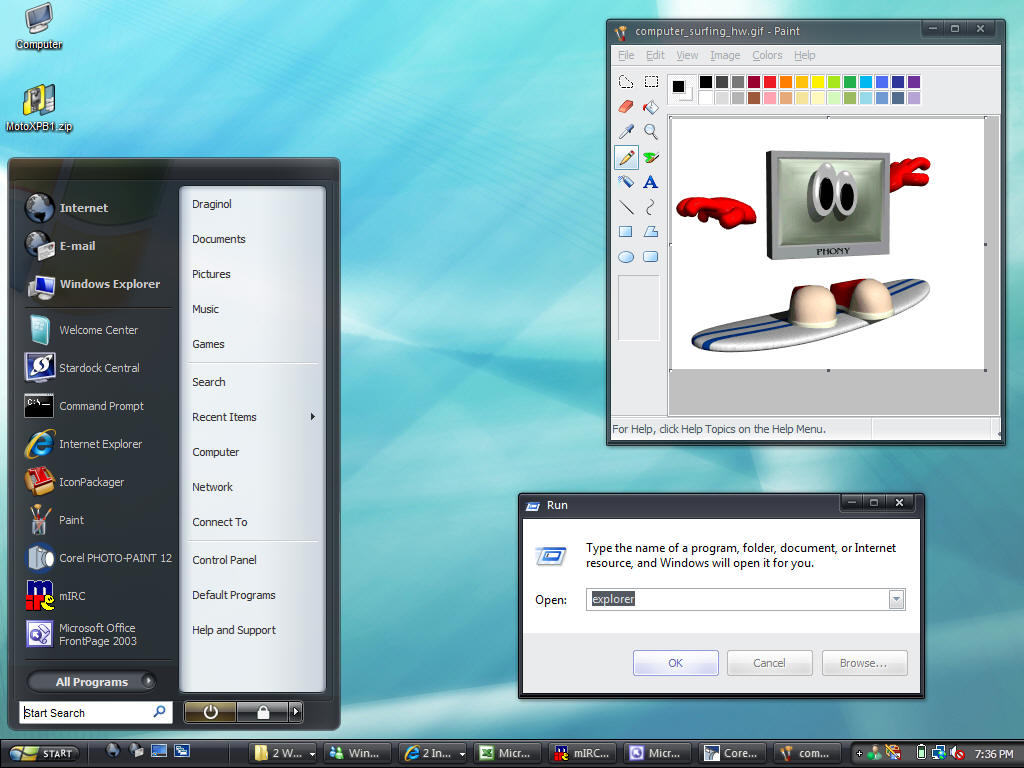
ChaNinja's MotoXP B1 was one of the most beautiful skins created last year. Both highly stylish and very usable. It comes in multiple styles, supports animation, and is very fast.
|
 |
danillo0C was almost certainly the top skinner of 2006. Besides making the top GUI Championship skin Acrylic, he also made Aerial. This skin has it all and is incredibly usable and fully-featured.
|
 |
JJ Ying was another skinning super-star last year and one of the best skins made last year was Ecliz Deluxe. The screenshot really doesn't do it justice as it comes in multiple styles including a clear glass version. A truly amazing skin. And as you can see, it works great on Vista as well as XP.
|
 |
No best of 2006 list would be complete without tehZERO's Eminence. With its cloudy stained glas title bars, clean design, it looks great on both Windows XP and Vista.
|
 |
For users getting tired of Aero-like glassy skins, Buuf-OS from Gabriel provided great relief. With great toolbar icons (for XP users), great progress dialogs, and lots of other subtle tweaks and enhancements, it's just a beautiful and original skin.
|
 |
Adni's VistaPlus was the most downloaded WindowBlinds skin of 2006 with nearly a half-million unique downloads. It doesn't run on Windows Vista but for Windows XP users looking for a fantastic looking skin on Windows XP that in some respects is a better Vista than Vista, VistaPlus is a great choice. |
 |
MikeB's Old Republic was one of the more original skins that also maintained a high degree of usability and polish. With a subtle shadow and distressed style, it's an awesome choice for users looking for something different. [Download] Vista Ready! |
Some Popular Skinners
| Essorant danillo0C Treetog Gabriel VStyler JJ Ying Adni18 Kol |
Z71 MikeB Dangeruss I.R. Braniac InGUI Josephs ChaNinja Patrick24 |
Navigatsio Pinchecl Boxxi Night Train Bones2112 Fuzzy Logic SKoriginals |
 XP MSStyles
Last year might have been the twilight of XP msstyles with Windows Vista's arrival this year. But it was still a great year for .MSSTYLES. MSStyles is Microsoft's skin format designed for changing Windows XP's look and feel. While not as powerful as WindowBlinds, it has a significant following. Third-parties can make skins and use them provided that the uxtheme.dll is cracked to disable digital signing protection. Below are some of the notable ones we found made from last year.
To use .msstyles you will either need to crack the digital signing verification in uxtheme by patching it (which you can obtain at Neowin.net and elsewhere) or you can download/install SkinStudio and use it to convert them to WindowBlinds format. There's a quick guide for that here. In the case where we took our own screenshots, they were taken on Windows Vista via WindowBlinds since XP msstyles won't run on Vista.
Here are some of the best from 2006!
 |
Luna Element 5 from Tornado was easily one of the favorites of users everywhere. With a clean UI that blends XP and Vista together seamlessly, Luna Element makes our list of one of the best skins of 2006. LE 5.1 released in January of this year keeps the updates going. [Download] |
|
Kol did double-duty with Thallos. Available both for WindowBlinds and as an msstyles, it was a user favorite. [Download] |
 |
No top 10 list on msstyles would be complete without mentioning MohsinNaqi's Tener VS. What makes Tener so special is in the details. The taskbar is extremely well done and the colors are very carefully chosen. Mohsin Naqi is a top skinner with icon packages, wallpapers, WindowBlinds visual styles, and more (you can check out his site here). [Download] |
 |
heylove's Area04 (Areao4.2), like many of the top msstyles, made deviantART's daily download (this one on New Year's Eve!). It is significantly different than most of the msstyles we saw last year. Combined with its original design, clean style, and several different sub-styles, Aera04 makes our list. [Download] |
 |
Schluepfer's very first visual style was Klarheit. And if this is what his first effort is, we can't wait to see what he makes for 2007! [Download] |
 |
hsn's Mint 2.0 started its life as a Linux Gnome GTK2 theme and brought over to Windows XP. Despite not being "original", it is still one of our favorite skins of 2006 regardless of where its original platform was. For the shadow effect, you'll need a shadow program such as WindowFX. [Download] |
 |
Tempura is another Linux GTK theme that was ported but like Mint, the platform is less important than the excellence in the skin itself. Lokheed had a great year and you can see his complete portfolio here. hsn's port of it really shines. You can see how it looked on Linux by going here. Like Mint, you'll need to download a program like WindowFX to get shadows. [Download] |
 |
Bant's Reluna Em3lent is a great example of Bant's elegant design philosophy of creating usable, clean, and elegant skins. The skin actually comes in several different flavors that look significantly different from one another. Any individual sub-style would be on its own one of the top skins of the year. Getting them bundled together in this single visual style package makes it just that much sweeter. [Download] |
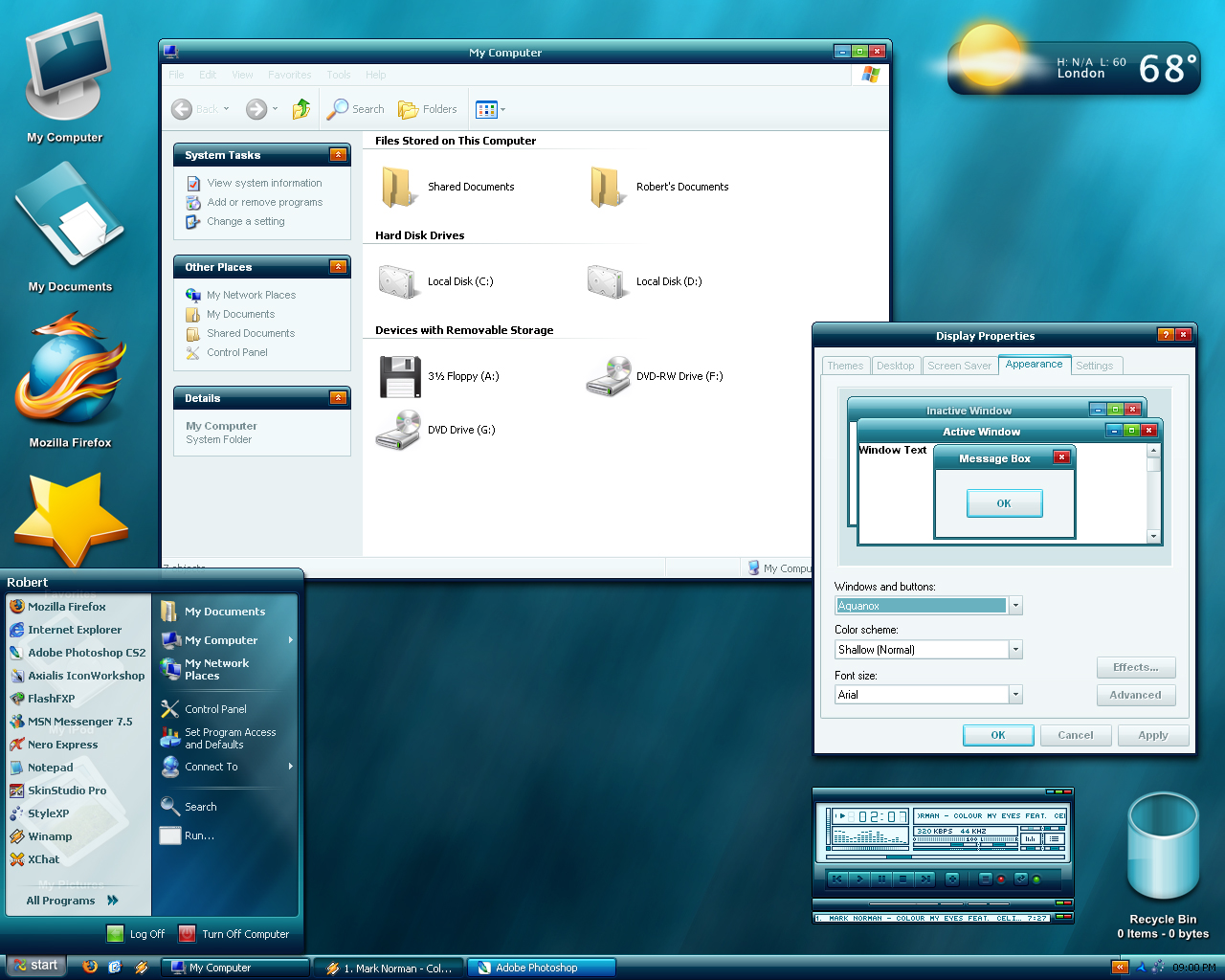 |
Cyberchaos's Aquanox VS was one of the most popular msstyles of 2006 with over 100,000 downloads at deviantART. Inspired by some of Kol's other work, this clean, usable and original skin makes our list. [Download] |
 |
dobee's NeoGeniX's is one of the most polished and original looking msstyles of last year. It was a favorite of many of us this past year. When combined with the right icon package, a toolbar theme, and the NeoGeniX ObjectDock, users can give Windows a whole new look. [Download] |
 Winamp Skins
Winamp was the skinning program that started it all. Originally Winamp skins were very limited in what they could be. But WinAmp 5 supports both a free-form skinning format as well as the easy but limited skinning format. Here are some of the highlights from last year.
To use Winamp as your media player, you will need, of course, Winamp.
 |
NeuroSKINS Meridian was definitely one of the best looking Winamp skins we saw last year. Taking full advantage of the Winamp 5 skinning engine, it's both highly usable and just looks great. [Download] |
 |
883's Drone was possibly the best Winamp skin of 2006 that we saw on WinCustomize.com. 883Design has been perfecting this design for quite awhile but its final arrival was Summer of 2006. [Download] |
 |
Tiggz's GT3 skin was ranked on our list as one of the best Winamp skins we saw last year. Part of the GT3 skin series, it is a clean, bold look with a high degree of functonality. [Download] |
 |
In a year with a lot of glass skins, GlassAMP from jeree01 one of the best we saw combining the signature glass look with a high degree of usability. [Download] |
 |
While not as usable as the cleaner, simpler skins made by others, Skinister's self-named skin has a high degree of creativity and originality putting it on our list. [Download] |
 |
faris's Cell skin was another favorite for many users. With over 50 different color styles and many different ways of using, Cell was easily one of the top skins of 2006. [Download] |
 |
Inter-Pol.info AMP continued the trend of glass-styled skins. But unlike many skins, this one was able to carry it out without it looking like a Vista clone. An exceptional skin. [Download] |
 |
Maybe we were a little biased but the Heavy Equipment community project (which delivered skins for dozens of programs) gets bonus points for letting users have their entire UI have a consistent look (screenshot of complete suite here). But regardless, it's still a great skin. Winamp skin from Elvee. [Download] |
 |
MrV2K's Pebble skin has a great, polished design. Its usability to the user depends on the user of course but we found this to be one of the better Winamp skins we found this past year. [Download] |
 |
Snowman's 5imple Winamp skin takes a different route than most. It makes Winamp into an almost iTunes-ish media player with a very simple and clean skin based on the popular WindowBlinds skin. [Download] |
Conclusions
That's it for this year. There are so many other skinnable programs out there that I wish there was time to cover them all. If you have your own list of favorite skins, feel free to comment here and I'll try to check in and update the bottom of this article with some other noteworthy lists or produce a follow-up with with favorite skins of other programs or ones you think we missed.
Related Articles
Changing icons on Windows Vista
New Vista Icons
Make XP look like Vista
Home Office Software Essentials
Software Recommended for Your Home Setup
Thursday, April 19, 2007 by Island Dog | Discussion: Personal Computing
I wanted to write a guide that lists software that every home office should have. Being someone who works from home, I understand how important it is to have software that will make your life that much easier, and your work more productive. Part 1 of this article will deal with office applications, security, and backup.
Office Tools
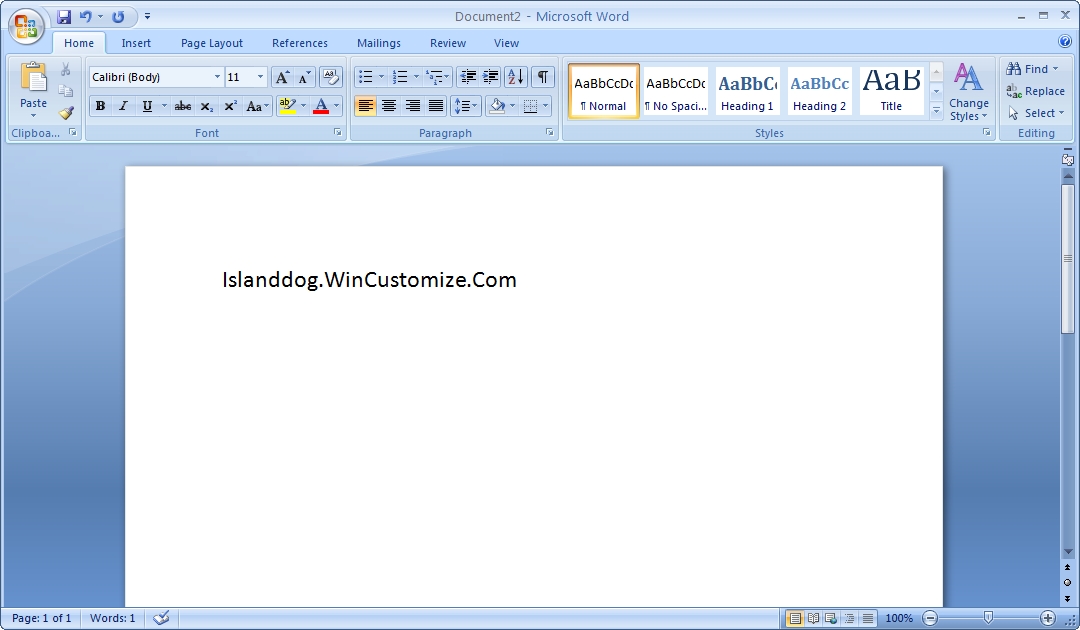
Aside from a web browser, the Microsoft Office 2007 is one of the most used applications on my PC. There are about 8 different suites from the Office Basic version on up to the Enterprise edition. You can check out the comparison chart to determine which suite includes the applications you will need. The most noticeable difference in Office 2007 is it's new interface which includes the new "ribbon". Now I know some will disagree but I have grown to like the ribbon and once I had become familiar with the new layout I found it quite easy to use.
Word 2007
Part of Office 2007 or available stand-alone is Outlook 2007. It is open all day on my PC, and it is essential for my e-mail, calendar, and contact information. One of the really cool features of Outlook is the to-do bar which contains a mini-calendar, upcoming appointments, and displays your task list. This is great because I don't have to switch views just to check on today's upcoming appointments. Other features include RSS feeds, integrated search, and an attachment preview feature.
If you don't need the complete Office suites, then OpenOffice is a great alternative. OpenOffice does not include an e-mail client, but another I can recommend is Mozilla Thunderbird.
Security
Anti-Virus and security tools are very important in your home office setup. There is such a wide variety of good, quality solutions for this, so I'm going to list some of the most popular applications.
- Trend Micro Internet Security 2007 - This is what I personally use and it's a great solution for anti-virus, firewall, spyware protection, wireless networking monitoring, and parental controls.
- Ad-Aware - One of the most popular anti-spyware applications, and they have solutions for personal and business use. The signature files are updated often and it does a great job of cleaning your system.
- CCleaner - Another popular application is CCleaner. This program does a fantastic job of cleaning up unused files on your hard drive. It also has a registry cleaner, and tools for cleaning your startup programs.
- Windows Defender - Another anti-spyware program which also includes real-time monitoring.
- KeepPass Password Safe - This is a password manager that allows you to store all your passwords into a database that is protected by a master key or key disk. This is very handy if you have a lot of passwords and want to organize them in one place.
- Zonealarm - When people think firewall, Zonealarm comes to the mind of many. Zonealarm has grown into a complete security suite, but the free personal edition is still available.
- AVG - AVG is a great, free anti-virus program for non-commercial personal use. Talking with many members on WinCustomize this seems to be one of the favorites.
Data Backup
Stardock KeepSafe - KeepSafe is an application that I really can't go without. If you have typed a long report or article and had it suddenly disappear after one of those "rare" occasions Windows crashed, or accidentally overwritten an important file, then you will appreciate what KeepSafe does. It will save your important files in real-time as you are working on them, and you can easily choose and configure which file types to have saved.
The first time you recover a document that has been lost or corrupted you will understand why this is such a valuable program. When you first start KeepSafe there is an easy setup wizard that will have your documents protected in no time.
|
KeepSafe configuration wizard |


Acronis True Image 10 - This is another program that has saved my data many times over. True Image allows you to create an image of your entire hard drive, including the operating system, and will restore in case of hard drive failure or if something goes wrong with your operating system.
In the next part of this article I will cover graphics programs, utilities, and misc. software. The software I listed today are all things that I use and recommend to anyone. If you think I missed something or would like to add your recommendations, please feel free to post them.
Changing icons on Windows Vista
Giving your desktop your own style
Wednesday, April 18, 2007 by Frogboy | Discussion: IconPackager Talk
Windows Vista has some awesome looking icons. Microsoft went way out of its way to try to give Windows Vista a truly polished look. They did this by giving most icons a 256x256 icon. Think about how large that really is. Each Windows Vista icon has an image of that resolution.
But as good as they are, what if you want to change them? How do you do it? Windows Vista maintains the ability to change the icons of individual short-cuts and folders though in very inconsistent ways.
The best, easiest, and to my knowledge only way to change Windows Vista icons all at once is with Stardock IconPackager. With it, users can change individual icons or change all their icons at once by applying a "package" of icons to their Windows Vista system. IconPackager even supports the new "live" folder previews.
Individual Icon Changing
IconPackager adds a context menu called "change icon" for most types of files that looks like this:
 Changing individual icons with IconPackager installed |
Once IconPackager is installed, this functionality is natively added to Windows Vista. It's totally seamless.
 Any icon that doesn't have a 256x256 image gets a smaller version that doesn't look as good as it could |
One issue on Windows Vista is how icons are displayed. Most icons are 32x32 pixels in size. Some programs have a higher resolution 48x48 version. But on Windows Vista, unless there's a 256x256 version, the lower resolution version is displayed in it native size which can look strange (especially on your desktop).
Users of Windows Vista will no doubt soon notice that as they install programs that add short-cuts to their desktops that many of those icons look smaller and strange compared to the default icons on the desktop.
IconPackager supports changing program icons as well. To do it (once you have IconPackager installed) right-click on the icon you want to change and choose properties.

Program icons can be changed with IconPackager installed as well.
Packages of Icons
The entire set of Windows icons can be changed in a single click by using an icon package. There are thousands out there. Most do not yet support the 256x256 resolution of native Vista icons yet (Stardock is working on a way to up-convert on the fly if there's a sufficiently high resolution version available). But all the icon packages that come with IconPackager include full Windows Vista support.
 The IconPackager application |
Changing your icons is a pretty straight forward process -- choose the icon package you want, load it, and hit apply. Within a few seconds, nearly all your icons will be changed.
More Screenshots
   |
Getting IconPackager
IconPackager is a free download. You can get it at www.iconzone.com (or https://www.stardock.com/products/iconpackager).
New Vista Icons
Windows Vista Changes How Icon Customization Works
Tuesday, April 17, 2007 by Zoomba | Discussion: Icons
 Windows Vista has a lot of little visual tweaks and changes versus it's older sibling, Windows XP. Where XP's icons are simple and straight-forward in their design and presentation, Vista's icons require more design work, and have a bit of technical flash to make them fit in with the rest of the improved visuals of the recently-released operating system.
In Windows XP, icons are typically a maximum of 128x128 pixels, with most people viewing them at 32x32 size on their desktop. If you wanted to change the size of your icons, you had to dig through preference windows and dialogs to try and manually set the sizing. Sure, there were a few preset views (large icons, small icons) but those didn't give you a great deal of choice when tweaking your display. There's also no dynamic scaling. So you can't easily/quickly test icon sizes on your screen to see how they look. Add to this the fact that many applications don't necessarily have high-quality larger icons defined in their .ico file (this is especially typical of shareware type software, or older apps from the Win9x/2k days) so if you run with higher icon sizes, some icons look gritty, pixelated and down-right ugly. Woe to the person who has a very large monitor or poor eyesight.
Of course, there's a certain benefit to how icons work in XP, you have a few preset sizes you have to worry about, anything else is something strange only a handful of users would every try anyway. So as an icon artist, your life is just a little bit easier. 16x16, 32x32, 64x64 and 128x128 are all you need to hit 99% of what users will try/see.
 Now there's Windows Vista. Vista not only takes icons up to 256x256, it does dynamic icon scaling, adds dozens of new system icons for icon package artists to design for when creating new themes, and adds a completely new type of icon; the Live Icon. These changes present a completely new set of challenges to artists trying to make complete system icon packs, or for ones looking to update their XP pack for Vista. First, lets look at the dynamic scaling. While there are still a few presets for users to click through, there's also a convenient slider in the view menu that will, in real-time, alter the sizing of any icons on your screen.
Icon scaling is a nice feature that will make life much easier for those of us with either poor eyesight, or impossibly huge monitors. Vista's icon scaling also is done per-window, instead of across-the-board like in XP. In XP, you set the icon size once, and that was the size across every single window you opened. In Vista, you set icon size independently in every window you open, and even on the desktop. This level of built-in choice is nice for users who only have a few very important icons on their desktop, and for usability purposes want those to be large and easy to spot, while keeping other icons on their system small and neat,
 Possibly the coolest icon change in Windows Vista is its support for the display of "Live Icons" when browsing through folders. If your files have an appropriate thumbnail handler, you'll be able to see a richer preview of the file in question as opposed to just a static icon set by type.
This support is also present when viewing subfolders in an Explorer window. For instance, if you have a subfolder filled with images, the Live Icon support will attempt to show the first couple as part of the folder icon to give you an idea of the folder contents.
On top of scaling icons and live icons, Windows Vista throws a lot of new items into the mix that you now have to build new icons for. Artists who tried to theme out even the Control Panel icons for XP will find that not only have many of those Control Panel items changed, but there are also more than a handful of completely new ones to make icons for now. Windows XP has roughly 30 Control Panel icons on a default install. Windows Vista Ultimate? 53.
With this brave new icon world stretching off into the distance, there comes the question of tools for both the artist and the user. Customization junkies that are making the leap to Vista no doubt are looking for the same level of control they enjoyed with Windows XP. For artists, the world of tools is much like it was just a few short months ago. Tools such as Eclipsit's Microangelo Toolset 6, Stardock's IconDeveloper, and IconWorkshop from Axialis still exist and work just fine for creating all the new icons needed for Windows Vista.
 On the user end, it's a little more difficult to find software that lets you switch out your icons for something newer and cooler looking. By default in Vista, users technically have the ability to change every icon they use by selecting them individually, digging through their properties and changing them one by one. A step up from that comes with tools like Microangelo Librarian which let you change them out with simpler to follow menus. However, if you want to completely switch out your icons and replace them with completely new Windows Vista icons, your only option on the market is Stardock IconPackager, which added full support for Windows Vista and Live Folders in version 3.2. IconPackager lets artists bundle their icon sets into one easy to use file, and users can substitute in that entire set, replacing all of their main Vista icons with just a few simple clicks.
Live Icons, real-time scaling of icons on the desktop, and numerous altogether new icons make Windows Vista a new and interesting challenge for both artists and users. Just another example of some of the cool new opportunities presented by Vista.
Note:
If you're interested in seeing how the Live Folder Icons go together, we have a set of template images for you to take a look at when building your own icons for Windows Vista. Grab the example files here.
WindowBlinds: Manage Your Desktop Wallpaper
Walkthrough of WindowBlinds Wallpaper Features
Monday, April 16, 2007 by Island Dog | Discussion: WindowBlinds
I recently wrote about the ability of WindowBlinds to
change the
color of your visual styles, so this week I wanted to touch on another cool
feature of WindowBlinds which is the built-in wallpaper changer. If you
are like me, then you probably have a large gallery of wallpapers on your hard
drive. Organizing them isn't always easy, and finding them and adding them
to your desktop can be just as tedious.

Fortunately, WindowBlinds has some features that can help you with managing your wallpaper collection. In this article I am using WindowBlinds 5.5 to demonstrate these features. In your WindowBlinds configuration window select "Change my wallpaper" from the menu on the left side.
You can simply browse through the thumbnails, and when you want to apply a wallpaper, just double-click the preview and your wallpaper will be applied to the desktop.
There are two options near the bottom right on the configuration window just
above the thumbnail previews. The first one will change the wallpaper
between the larger preview and a gallery view. The second image (tools
icon) is the wallpaper settings option. From that screen you can
add/remove folders that include wallpapers, and select/deselect those folders
from viewing as well. Simply click "add folder" and browse to the folder
that contains your wallpaper collections and they will be added for viewing in
WindowBlinds. You can also set the wallpaper options such as tiled, centered,
stretch, or smart mode from there.
Now that your wallpaper collections are set up, click "Changer" to configure your wallpapers to change based on certain settings. You can set WindowBlinds to change your wallpaper on Monday mornings, every morning, at every logon, or every hour. These are optional settings and you can set it to never change your wallpaper with those settings. You can also set these to only use the wallpapers of your choice, or apply it to them all if you like.
Now a quick note for people who don't want WindowBlinds to apply wallpaper that is included with a theme they are using. In the WindowBlinds configuration select "Override default settings", and make sure the setting "Apply the wallpaper included with a skin" is unchecked.
I made a short video to go along with this tutorial. It shows how easy it is to manage your desktop wallpapers and goes through the features described in this guide.