
























This Week in Skinning - August 17th
Skin Roundup for 8-17-07
Friday, August 17, 2007 by Island Dog | Discussion: Community
We are at the halfway point of the month, and I'm starting to see the signs that people are getting back to work on their projects. I would recommend checking out the "what are you working on thread" where you can get a glimpse of some works our members are working on. There is some really great stuff coming up.
One gallery that was getting many submissions was the .dream gallery, but it's slightly slowed up during summer. Is anyone working on some .dream projects? If you do, feel free to add them to the above thread and share what you are working on.
Now for this weeks picks!
 |
Arileen for CursorXP Quentin makes his way from gallery to gallery, and this week he ends up in the CursorXP section. This cursor is made to match the upcoming Airleen WB skin. |
 |
Plasma Ball v2 in Dreams JuiceDaddy has been turning out the .dreams lately, and this week he brings us an updated Plasma Ball. Nice work. |
 |
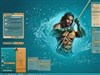
Another great icon pack with over 200 icons, and more available in the misc. icon gallery. Great work. |
 |
Adobe Creative Suite CS3 in ObjectDock icons This is a wonderful set of icons for the CS3 suite. I look forward to seeing more icons like these. |
|
|
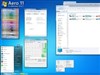
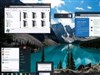
Messiah1 has shared with us a very cool, or should I say "funky", set of wallpapers. Very nice design. |

 |
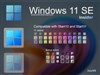
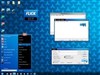
BoXXi has once again created a clean design for Xion, and this time we have several colors to choose from. Be sure to check out his gallery for many more works. |
Be sure to visit the galleries here on WinCustomize for more great submissions from the past week, and always stop by the skinners personal pages and leave them a comment on their works. See you next week!
DesktopX 3.5 Guided Tour
Coming to a desktop near you
Tuesday, August 14, 2007 by Frogboy | Discussion: DesktopX

Version 3.5 Info Guide
Introduction
DesktopX is a program that lets users build their own desktops. It does this by giving users access to desktop objects. These objects can come in all sizes and shapes. They can have scripts attached to them, they can be combined together to form mini applications or turned into an entire desktop.
A new way of looking at the desktop
Let's take a look at a typical desktop. For this example, we'll use Windows Vista but it could just as easily be Windows XP.

Windows Vista's desktop
When DesktopX is first loaded, it provides 4 primary options:

Loading DesktopX brings up its launch menu
This menu lets the user decide whether they want to load an existing creation (widgets, objects, and desktops) or create their own. For our purposes, we'll go with create.

DesktopX appears in the system tray
From the system tray, users can now create a new object which will appear on the desktop like this:

An object on the desktop
This object can be made into almost anything the user wants. Let's look at a couple simple examples:
Making an object into a glorified desktop icon:
DesktopX objects can be turned into fancy desktop icons easily. They have the advantage of being sized however the user wants. Just right-click on the object and choose properties:

From there, a dialog comes up in which users can choose what they want the object to appear like. Users can use .PNG image files (or .BMP or even .ICO) to change the image. By selecting a new image, the user can see this:

The size of the image can be controlled by the summary page.

The object can be resized right from the summary page.
Now I just have it point to whatever program or website I want. In this case, I'll have it open WinCustomize.com.
And Voila I have a really fancy desktop icon.
Making my object into a widget/gadget
Technically speaking, objects are widgets/gadgets. The difference is one of format. When you have finished, you can take your creation and save it as an object pack which simply saves the raw data to be imported back into your desktop or you can save it as a widget which turns it into a program (.EXE). If you have DesktopX PRO, you can also save as a gadget which turns it into a program that can run on any Windows XP, 2000, or Vista machine without requiring DesktopX to be installed.
What's new in DesktopX 3.5 in this area is that users can also export their works as Windows Sidebar gadgets. The Pro version will turn them into stand-alone sidebar gadgets.
Let's create a simple widget. First, we start back with our object. I'm going to us images and script provided by David A. Roman for this example.
Show/Hide desktop icons widget
This widget, when it's done, will show and hide desktop icons when clicked on. This means I'll need two images for my object: One to represent the hide desktop icons and one to represent show desktop icons.
DesktopX objects support multiple states -- unlike icons. This gives them incredible flexibility.

This object has two states
For each state, I provide an image.
The next step is to write some VB Script (or JavaScript).

Writing the script
This script is obviously more advanced that what a beginner would create but I wanted to show something that was fairly useful and it's only 67 lines even with spaces and comments. What it does is react to being clicked on. If the icons are showing, it tells Windows to hide desktop icons. If the icons are already hidden, it tells Windows to show them.
Turning it into a Windows Sidebar Gadget!
When I'm done with my object and have made sure it does as I ask, I can export it as a Windows Sidebar Gadget:


Since I have DesktopX Pro, I can export it as a stand-alone sidebar gadget (otherwise, the user needs to have the DesktopX run-times installed).

And there it is. the .gadget file

There's my new gadget
The advantage of DesktopX for making Sidebar gadgets is that DesktopX has a much larger library of APIs to call on and is a visually oriented development platform for gadget makers. Something as simple as a show/hide desktop icons toggle isn't very easy to make as a Sidebar gadget. But with DesktopX, it's a snap.
Building a desktop
So far, we've really only scratched the surface of what DesktopX can do. DesktopX can create widgets & gadgets. But these days, there's a gazillion different gadget/widget creation tools (though DesktopX is probably the most powerful one currently available).
DesktopX doesn't stop at being able to make mini-applications. Users can build an entire desktop and then save it as a .desktop file to distribute out. It's a lot like making a widget except on a much larger scale.

Building a desktop
As we've seen, objects can be given images of any size or shape. Objects can have multiple states to them. And objects can be grouped together.
In this example, objects have been grouped together and also given scripts to allow for the creation of new objects:

A replacement desktop created with DesktopX
Since objects can be created by other objects with all their key properties assigned by other objects, users can literally construct their own Windows environment with DesktopX -- in a fraction of the time it would take to write ones own shell.

DesktopX can even give objects "hit detection"
When done, a user can simply export their creation as a .desktop file and anyone who has the DesktopX run-times installed can use it.
This Play-ground theme will be coming with DesktopX 3.5.
About DesktopX
Developer: Stardock (www.stardock.com)
Price: $24.95 for standard client. $14.95 for run-time client. Both come with Stardock's Object Desktop suite.
Users who want to get DesktopX Pro can get it for $69.95 and that adds the ability to export stand-alone programs and Sidebar gadgets.
Visit http://www.desktopx.net for more information.
Stardock Central: Archiving and Restoring
Backup and restore your Stardock applications
Tuesday, August 14, 2007 by Island Dog | Discussion: Beginners
I have written several articles about the features of Stardock Central such as using it to chat with us on IRC, and how to use it to install that really cool Object Desktop you just purchased. I wanted to write some documentation on one of the most important abilities of Stardock Central, and that is using it to archive your purchased software and the goodies that come along with it.
I have been getting a lot of feedback from members about archiving and restoring, so it's time to go over how you can make sure you always have your applications archived and ready for restoration if needed. If you are not familiar of why you should always keep archives of your applications, here are the two best and most popular reasons:
- Being able to easily restore from a crash or reformat of Windows
- Always having your applications on hand, even if you let your Object Desktop subscription expire (but why would you do that?)
- Having the ability to go back to a previous version if you desire
I think you get the point, and I always recommend backing up all your data, but Stardock Central makes this chore easy to do for your Stardock applications. Lets start by opening Stardock Central and selecting the application you want to archive. I'm going to use the WindowBlinds 6 beta as my example today, but the process is the same for any other program on SDC.
Select the application and right-click.

Archiving an application
In the menu that opens you will see several options, scroll down to the "Archive Application" entry and you will see another expanded menu as seen in the screenshot above. You are presented with a few options, but for this I just want to archive WindowBlinds and its skins, so I will select "Entire Application (including skins). Once selected Stardock Central will archive the application to the Backup folder in the Stardock Central directory.

Stardock Central Backup Folder
The Backup folder is located at Program Files>Stardock>SDCentral. At this point you have your archives and would strongly recommend backing them up to a CD or external hard drive. This would probably be a good time to point out when archiving you also have the option to "download and archive" and "download and archive all" which could be easier in some situations.
So now you should have everything archived, so lets move on to what you do if you need to restore the archive for whatever reason. Select the application you want to restore, right-click, and click "Restore Archive". This function is also available through the File menu.
You will see a list of your archived items, and you have the option to browse to the location of your archives if they are not in the Backup folder. Once you have found your archive, select it and hit restore. Stardock Central will restore the archive to the state it was in when you originally archived it.

Restore an archive
You should now have the ability to archive your applications, and recommend doing so as soon as you can. You never know when you might need to recover your software, and its better to be prepared beforehand.
Highlights of Summer 2007: Favorite Skins, Icons, and Wallpapers
A sampling of some of the cool stuff that's come out lately
Wednesday, August 8, 2007 by Frogboy | Discussion: OS Customization
Summer tends to be a slower time for skinning since people are, well, you know, outside. Personally, the sun causes me to catch on fire. Or at least smolder and no one wants to deal with that.
This Summer, there's been some real gems. Which is pretty amazing since those bastards at Stardock have co-opted most of the skinning community this year to work on MyColors projects. So without further delay, here are some of the cooler looking things I've seen this summer:
|

|

|

|

|

|

|

|

|

Summer is only half-way over and we've only covered skins, icons, and wallpapers. Stay tuned, more to come!
SkinStudio 6 Beta arrives
A new era in skinning is about to begin...
Tuesday, August 7, 2007 by Frogboy | Discussion: Skinning

VERSION 6
Introduction
 Stardock is pleased to announce the availability of the BETA of SkinStudio version 6. SkinStudio is a program designed to allow users to create their own skins that, when applied by the popular GUI changing program, WindowBlinds, can completely alter the look & feel of Microsoft Windows.
With SkinStudio, users design their own title bars, push buttons, Start bars, scroll bars, and virtually every other part of the Windows interface. Users then take their creations and save them as a WindowBlinds skin which will work on Windows 98, ME, 2000, XP, and Vista.

SkinStudio lets users create completely new looks and feels (Zelda skin property of Nintendo who used SkinStudio / WindowBlinds to create a Legend of Zelda branded desktop)
The Evolution of SkinStudio
SkinStudio 1.0 was released back in 2000 and was designed with WindowBlinds 1.x in mind. Since then, two major new versions of Microsoft Windows have been released (Windows XP and Windows Vista) and the capabilities of Stardock WindowBlinds have also expanded. SkinStudio has been continually updated to keep up with all these changes but its design became difficult to use. For SkinStudio 6, Stardock went back to the drawing board and created a brand new version of SkinStudio.


SkinStudio 5 (left) and the new SkinStudio 6 (right)
A Guided Tour of SkinStudio 6
The primary goal of SkinStudio 6 is to make it easy for artists to get into skinning. The existing SkinStudio (version 5) was an extremely powerful, capable program for users who already know how to make WindowBlinds skins. But for new skinners, it was daunting. SkinStudio 6 changes this.
Moreover, combined with changes in the upcoming WindowBlinds 6, skinners no longer have to worry about skinning every part of the OS. In previous versions, if a user didn't provide graphics for a part of the skin, that part was shown as "Windows classic" which looks downright primitive. Now, SkinStudio 6 will fill in either Aero (on Vista) or Luna (on Windows XP). This allows new skinners to worry about changing just the parts they want and grow from there as they gain expertise.
First Impressions
When you first load SkinStudio 6 you get this dialog:

SkinStudio will change its experience for the user based on experience level
Once that question is answered, the UI gets even simpler:

The only two realistic options -- opening an existing skin or creating a new one. The entire philosophy in the design of SkinStudio 6 has revolved around only showing what is needed rather than bombarding the user with hundreds of options.
Making a new skin
When a skinner chooses to make a new skin, they're presented with an Aero-like UI (in the beta, it's Diamond) to start with. On Windows XP, they start out with Luna (the Windows XP style). Skinners can change as much or as little as they want.

On Windows Vista users start out with an Aero-like skin. On Windows XP, it's Luna (Windows XP Style)
The design of SkinStudio 6 is task oriented. When people look at the Windows user interface, they tend to think of it in pieces -- the Start bar, the Window frames, the buttons, etc. SkinStudio 6 takes this route to break skinning up into manageable chunks. Want to just change the Start button? No problem. Click on Start menu and Taskbar, then click on the horizontal (or vertical) taskbar option:

Editing the taskbar of Windows is a snap. Click on the taskbar option

Then click on the part you would like to change
I have set Photoshop as my editing choice from the preferences menu. Since I have no artistic abilities, I'm going to just turn my start button into a blurred orb:

Quickie change to start button
All I did is do a Photoshop blur to it. But I could have just as easily replaced it with a new image or created an entirely new start button. SkinStudio 6 automatically converts images between PNG and TGA for ease of editing.
Control over the details
The key thing here is that skinners have full power over how much or how little they want to skin. And the various parts of the UI are designed to make it self explanatory over what is being skinned:

Users can easily go through and alter hundreds of details of the look and feel of Windows at their leisure.
Packaging and using
At any time, users can go to the file menu and apply the skin they're working on. No need to go and save and then go into WindowBlinds to load. As long as WindowBlinds is already on the system, the user can simply apply right then and there. If users want to share their skin, they can export it as a WindowBlinds archive file (.WBA) to give to other users.
Getting SkinStudio
SkinStudio 6 will be a free download once it is done. But it is available to users of Object Desktop right now. Visit www.objectdesktop.com to get Object Desktop and access to both SkinStudio 6 and WindowBlinds 6.
WindowBlinds 6 Beta Preview Video
Video demo on Windows Vista
Tuesday, August 7, 2007 by Island Dog | Discussion: WindowBlinds
Well the long awaited and much anticipated WindowBlinds 6 beta has recently arrived. With the arrival there have been many requests for additional screenshots and videos of the much talked about "Molten" animation. I created a video of some of the key features of WindowBlinds 6 that I think people will be very interested in. This video does not show all the new features, but it will give you a general idea of what WindowBlinds 6 is all about.
The video demo shows the following:
- Demonstration of the Molten skin start menu animation
- Ability to adjust transparency of start menu, window borders, etc.
- Using XP .msstyles on Vista and adding transparency
- Changing skins on the Vista Sidebar
This video was done on Vista, but I will make another soon showing off the skins in XP as well. Please note that WindowBlinds 6 is currently in beta, so things you see may or may not change upon final release. This is just a preview I wanted to give showing some of the really cool features.
Right now the beta is available to subscribers of Object Desktop.
An Interview with vStyler
Tuesday, August 7, 2007 by Zoomba | Discussion: Virtual Communities
 To kick off our recently revived "Featured Skinner" series, we've sat down with well-known member of the skinning community, vStyler, to ask him a few quick questions about his thoughts on skinning, how he got started, and a little bit about his skinning studio, MaxStyles, which has recruited community members such as I.R. Brainiac, messiah1, J. Aroche and others.
I'd like to thank vStyler for taking the time to answer these questions in such depth and for providing a great preview shot of his next skin, Sexy WB, for us to use in this article.
If you have a skinner you'd like to see featured in this, now quarterly, series drop me a line at mikec [AT] stardock [DOT] com with the subject "Featured Skinner Suggestion"
Without any further adieu, on to the interview!
How did you get your start in Windows UI customization?
 A long time ago, in an operating system far far away, a (noticeably younger) young man decided to click the Classic Color Schemes dropdown button... this thrust him into a parallel universe… that he has yet to return from. Yes, I, like so many other artists had my first ‘skinning" experience back in about 95 \ 98 when I discovered I could actually change the basic colors of my OS. For the next few days (while I was supposed to be making sales calls) I perfected the perfect classic color scheme... for my own use of course. This led to downloading "themes"… A wallpaper, some desktop icons, color scheme, cursors and sounds... I was in customizing heaven… or so I thought. While searching for themes I stumbled across a nifty program called NextStart, and although I never actually skinned it, I had lots of fun customizing with it. I then went onto the very early versions of Windowblinds and Style XP and started uploading screenshots to DeviantArt. I first tried my hand at "real" skinning after installing Style XP and thinking "this doesn’t look so hard". My first official theme (I’ll admit) was an unauthorized modded version of one of Kol’s earlier visual styles (Lumineux VS). Looking back at it now I realize what a terrible job I did of making it look like 100% original work. I have since admitted my horrible crime to Kol and have received forgiveness. Of course, eventually as most of you know I now skin Windowblinds exclusively, why I switched to WB is revealed later on.
Is skinning a professional endeavor or more of a hobby?
This one is easy, once I decided that skinning windows was something I could be good at, I firmly put into place a plan to be as good as I could possibly be in the hopes that one day I could actually make a living doing it. I would have to say this last 6 years or was more like a self-taught home based college course than a hobby in the hopes that someday it would pay off. That’s not saying I don’t enjoy it, it has also been a hobby of mine, when a nice skin is finally completed I do enjoy the feedback from users and I have always been comforted and motivated knowing that my work is being used and appreciated by fellow customizers.

A preview of vStyler's upcoming skin, "Sexy"
Explain how MaxStyles came about?
I think right around 2001 I had gotten the idea, (after making a Jacksonville Jaguars NFL theme for my neighbors PC), to try and make NFL themes and sell them to the NFL. I made a Denver Bronco’s theme as an example and then decided I was going to need a website. It was at this time I approached Tom Reichert (LightStar) of LightStar1.com with my idea. Well, needless to say, not having the 3 million dollar licensing fee required by the NFL my little plan sort of fell through. However, not long after meeting Tom we both started selling Premium Visual Style’s on his site. A short time after he suggested my opening my own site that he would help me setup and maintain... and Maxstyles.com was born.
What is your goal with MaxStyles?
 For about three years I released visual styles, both free and premium on MaxStyles. At the end of last summer I decided to participate in the GUI Championships on Wincustomize.com. My Visual Style ports aside, this was my first real in depth foray into SkinStudio. I was fortunate enough to place 3rd overall with my first full WB skin "Vectra". That was enough to motivate me not only to convert full time to Windowblinds, but also to switch my site over completely to Windowblinds based themes and say goodbye to visual styles forever. A few months back I approached what I thought were some of the most talented skinners on the Windowblinds side of things and asked them if they wanted to join me on Maxstyles and be part of a team. The idea was to produce free and premium skins of unsurpassed quality by maximizing each team member’s potential and expertise in a team atmosphere. The "new" Maxstyles.com is now in place. We intend to continue producing high quality themes for the general public as long as possible. It is my intention at a future date to also involve Maxstyles in the arena of branded skins for corporate clients. The MaxStyles team currently consists of me, I.R Brainiac, Aroche, Messiah1, Basj and Gef.
Do you think Windows Vista will help or hurt skinning?
Well...that’s a tough one. I must say that after my initial investigation of the OS and early attempts at skinning it I am thoroughly un-impressed with Vista from a skinning standpoint. I am frustrated with it as I see many areas where (1) skinning options have been taken away and (2) Some areas of Vista now add even more areas that inherit the properties and attributes of other areas of the OS leading to even more "damned if you do , damned if you don’t" scenarios. On the flip side… because there is technically less to skin and because of some of its limitations it’s actually easier to skin. Bottom line, Vista is probably easier but perhaps not better… in my opinion.
What’s your favorite skin ever made?
Wow... that’s tough! If I absolutely have to choose… my favorite all time Windowblind is Sektor by danilloOc. I would have to say that its overall look, its animations and flawless execution were some of the reasons that attracted me to finally start doing WB skins and how I personally go about designing and implementing my skins. If you’re going to do something... then do it right. In a shameless plug I will give a close second to my good friend I.R Brainiac’s Knot Vista skin. ?
Lastly, I am currently working on a new Master Skin, after several people using the same word to describe the screenshots I was sending them... I decided to call it Sexy WB . Here’s the latest preview of it, should be completed sometime in the near future.
In closing I would like to say I am eternally thankful to those who have supported and helped me along the way and that I hope the adventure is just beginning. I hope to be around for a long time.
Thanks, and keep on skinning!!
This Week in Skinning - August 3rd
Skin Roundup for 8-3-07
Friday, August 3, 2007 by Island Dog | Discussion: Community
In case you missed it, I posted this months edition of "This Month in Dreams" where I feature some of the best .dreams submitted throughout the past month.
Now for this weeks picks!
 |
Tentacular for CursorXP This is a very cool cursor for CursorXP with some fantastic animations. Very nice. |
 |
Prototype 02 for CursorXP This is the week of some great cursor submissions, and J. Aroche comes through again with another great set. |
 |
Plastique in ObjectDock Icons I noticed these icons in the "what are you working on" thread, and couldn't wait for their release. Definitely worth the wait. Great work. |
 |
Quasimodo in Wallpapers Can't really describe it, but it's a great wallpaper so check it out. Great job. |
 |
Onix in WindowBlinds SKoriginals brings us an update to an old skin which had been "lost" for several years. SK brings this skin back with an updated look but staying true to the original. |
 |
This is a clean and functional skin for Xion. Be sure to download this one. |
This week was definitely a big improvement over the slow couple of weeks we have had recently. Be sure to check out the skinners galleries here on WinCustomize for more of their great works. See you next week!
Animated Wallpapers: This Month in Dreams - July '07
July '07 edition of featured animated wallpapers
Wednesday, August 1, 2007 by Island Dog | Discussion: Animated Wallpapers
I can't believe summer is just flying by. I almost forgot August was approaching, and that it's time for this months edition of "This Month in Dreams". This monthly feature highlights some of the best .dreams that were submitted to WinCustomize during the past month.
How many of you are currently working on Dreams you plan to release soon? Just as any other works in progress go, feel free to post your works in the "what are you working on thread" on the forums if you would to give members a sneak peek of what you are working on.
Now for this months .dreams video!
The .dreams features in this months video can be downloaded from the links below. To use .dreams you will need Vista Ultimate, DreamScene, and Stardock DeskScapes to be installed. You can find more information at Dream.WinCustomize.Com.
Reflect (Blue) by JuiceDaddy
Earth To Saturn by AzDude
Super Mario Bros 3 by goyney
Caustic Motion by JuiceDaddy
Electric Vista - Yellow by AzDude
Poubel Sunset by brenopoubel
This Week in Skinning - July 27th
Skin Roundup for 7-27-07
Friday, July 27, 2007 by Island Dog | Discussion: Community
I can't believe its almost August. Where is the time going these days? Well anyways, it's Friday, so you know what today is, right? Yes, it's time for the ever popular "This Week in Skinning" where I features some of the most popular skins from our great community.
It looks like this week is a bit slower than others in recent weeks, but I know several skinners to have some really cool stuff in the works. The SkinStudio 6 beta should be arriving soon, and I think we will see some great activity come out of that.
Now for the picks!
 |
Sport Strip for DesktopX This Master Skin from RomanDa should definitely appeal to the sports fans. This gadget shows the live scores from various sports games, updated every few minutes. Check this one out. |
 |
Earth To Saturn in Dreams AzDude has shared another .dream with us, this time it's a space journey from Earth to Saturn. Great work. |
 |
Pale Moonlight for RightClick Last week I featured another one of buzzh58's RightClick skins, and he comes through again this week with another great submission. |
 |
Skinner´s World RSS Reader in Screensavers Want to keep up with the latest news from the skinning community? This screensaver will give you the latest RSS feeds from the various skinning communities. Nice work. |
 |
Metal Vista 3.0 in WindowBlinds This is a very clean skin with a slick metal look to it. Be sure to download this one. |
 |
Rusty for Xion We have been checking this out in the "what are you working on thread", and this very cool Xion skin is here. Great work. |
Great works from all the skinners this week, and be sure to leave a comment on their skins and check out their other works. See you next week!