





































Share Your April Desktops with the WC Community!
Tuesday, April 6, 2021 by Island Dog | Discussion: WinCustomize News
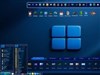
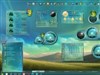
 Spring is here along with a new month and that means it's time for another desktop screenshot thread! Are you rocking a spring theme this month? Something more sci-fi, maybe? Well post a screenshot and let us know what skins and themes you are using!
Post your desktops to the monthly thread here: https://forums.wincustomize.com/504372/
(This is a news thread and will be locked. Screenshot taken by Chasbo)

It’s April Fools’ Day! Let’s talk origins and great geeky pranks
Thursday, April 1, 2021 by Tatiora | Discussion: Stardock Blog
I absolutely love a good joke.
As long as the joke doesn’t hurt or disparage someone, I’m 100% for April Fools' pranks. While some corners of the internet are to be avoided on April 1st, I personally always look forward to some of the funny prank products that game and tech companies come up with for that day.
I got curious about the origins of April Fools' Day, so I did a bit of searching online and found a few different accounts. The most credible explanation of its origin is on History.com, which claims that although its exact origins remain a mystery, there is an early account on April 1, 1700 of English pranksters playing practical jokes on each other, thus popularizing the tradition.
Some historians speculate that the tradition dates back to starting in 1582, when France switched from the Julian calendar to the Gregorian calendar. People who were slow to receive the news or failed to recognize the start of the new year had moved to January 1, and continued to celebrate it during the last week or March through April 1, were suddenly the butt of many jokes.
From History.com: “These pranks included having paper fish placed on their backs and being referred to as poisson d’avril (April fish), said to symbolize a young, “easily hooked” fish and a gullible person.
April Fools’ Day spread throughout Britain during the 18th century. In Scotland, the tradition became a two-day event, starting with “hunting the gowk,” in which people were sent on phony errands (gowk is a word for cuckoo bird, a symbol for fool) and followed by Tailie Day, which involved pranks played on people’s derrieres, such as pinning fake tails or “kick me” signs on them.”
Now that the history is covered, I thought we’d take a look at some of my favorite gag products and posts from game and tech companies from the last several years. This is by no means an exhaustive list - there are tons and tons of these, and I’d love to hear which ones are your favorites, too!
Blizzard Entertainment - Crabby the Dungeon Helper

Back in 2011, Blizzard introduced a little April Fools' joke of their own: Crabby the Dungeon Helper. This little azure crab would offer helpful tips and tricks for tackling those tough dungeons - not unlike Microsoft’s Clippy, who was absolutely essential for writing those tough college essays, right?
Blizzard has had quite a few great jokes over the years, but I think Crabby is by far one of my favorites - and I’m not even a World of Warcraft player!
Duolingo - The Duolingo Pillow
Want to learn another language, but finding the time is tough? That’s okay, the Duolingo Pillow has you covered! With this incredible product, you can learn a language overnight and wake up bilingual in the morning.

The Duolingo pillow offers 3 languages - Spanish, French, and Italian - with promises of adding Japanese in 2039. The website for this prank is actually very clever and entertaining to look through. The joke first debuted for April Fools' Day in 2016.
You know Rickrolling - who doesn’t? It’s one of the oldest jokes of the Internet, and I’m sure at one point or another we’ve all either been Rickrolled or have unleashed it on an unwitting friend or family member.
In 2008, YouTube took the joke to an entirely different level by redirecting all featured videos on its main page to the famous Rick Astley clip. Considering the huge amount of traffic YouTube had, even back then, I think it’s fairly safe to say that they essentially succeeded in Rickrolling the entire internet.
Thinking about this one still makes me laugh!
I love it when a company really commits to their jokes - and back in 2019, Google absolutely did. Not only did they have a fairly large volume of gags, but their execution was meticulous, flawless, and funny. I love this trailer for the screen cleaner who lives inside of the Files app!
2019 also saw Google introducing several other gag products, including Snake in Google Maps, the Google Tulip, and Spoon Bending for Gboard.
They’re not a tech or gaming company, but I found these while I was doing my searching and I got a great giggle out of them. What better way to enjoy snacks at Disney than out of a set of Mickey Mouse ears on your head!?

You can see the link to the tweet containing the silly video in the header above. Hilariously, I read lots of comments about people who wished this product was real - I guess they gave Disney quite an earful.
I’m not sorry.
ThinkGeek - Literally Everything
Ah, ThinkGeek - I miss that website so much. You can still find some ThinkGeek products over at GameStop, but it’s not the same and doesn’t have nearly the same amount of selection. I was devastated when that site shut down; for the longest time, it was the only place I could get quirky nerd apparel and decor.
What I loved about ThinkGeek so much was their humor - especially around April Fools' time. They had some pretty epic pranks over the years - some of them were so beloved that they eventually became actual products! I’ve selected a few of my favorite prank videos and included them below, but you can see the full list linked in the header above.
The Technomancer hoodie actually went on to become a real product!
This never became a real thing, but I have to admit: if it was, I'm that weirdo who'd hang it up in her house.
What a bunch of geeks - I love it so much.
Saved the best for last! This one also went on to become a real product and is one of my favorite ThinkGeek jokes.
April 1st is an awesome time to enjoy some good, clean fun online. What are some of your favorite April Fools’ Day gags? Share with me!
Future Windows 10 Update Targets Optimum Device Performance
The "Device Usage" feature was originally announced back in October
Wednesday, March 31, 2021 by Tatiora | Discussion: Personal Computing
I've been a Windows user for a long time.
Admittedly, that's rather by default - Windows was what came with my family's first PC and is the most accessible OS for most consumers, so it's obviously a fairly natural choice. It's been interesting to see Windows evolve over the years, although I, like many others, abhorred some of the changes (let's just ignore Windows Vista, shall we?).
Back in October, Microsoft announced a new "Device Usage" feature they were working on for a future Windows update. This feature would allow users to optimize the performance of their device for a range of uses, including gaming, business, and schoolwork. The idea is that users would select what they intend to primarily use their PC for during the setup process, and then the software will tailor how it operates in order to ensure the best experience.

Image from Microsoft's Windows Insider Blog
The feature first appeared in preview build 20231, which Microsoft discussed in a blog post stating that it was frequently requested by users. Recently, the feature has been undergoing internal testing and is even available to some preview build users now, which indicates a possible release for it later this year.
According to Windows Latest, which has been able to access the feature, the Device Usage tool offers a number of ways to customize your Windows 10 for specific cases. Currently, the options that are offered are:
- Gaming - Play and discover games, keep up with new releases
- Family - Connect with the whole family, edit safety settings, and give everyone their own profile
- Creativity - Bring ideas to life - from novels and presentations to photos and videos
- Schoolwork - Take notes, write essays, and collaborate on projects
- Entertainment - Watch videos, browse the web, and connect on social media
- Business - Track expenses, manage customers, and run your business
Toggling one or more of these options at setup will allow Microsoft to access your data in order to create "personalized experiences," which could include suggestions for tools and services to download from the Windows store. Right now, there's nothing that indicates that this optimization extends anywhere past just a software solution - for example, it probably won't help solve your RAM-hogging applications or battery draining very much.
Ideally, selecting what you intend to use the machine for might cut down on annoying or unnecessary suggestions from Microsoft, as well as making prominent apps like conferencing or presentation software more visible for first-time users.
Do you tend to give preview builds for Windows a try before they're released, or do you wait for the updates? Tell me about it!
New Triggered Animated Wallpaper Content!
Monday, March 29, 2021 by Island Dog | Discussion: WinCustomize News
We have been producing some additional triggered animated wallpapers for DeskScapes. Some of these are video based .dreams and some are more dynamic using still images that will change over the course of a day.
There are more coming out, but I wanted to highlight a few to start the week off. 
See more animated wallpapers for DeskScapes here.
Day and night sky triggered animated wallpaper of a "looking up" scene in the mountains.

Triggered animated wallpaper showing 3 different beach scenes for sunrise, afternoon, and sunset.

Checking Out Vertical Tabs in Microsoft Edge
Friday, March 26, 2021 by Island Dog | Discussion: Personal Computing
I've been using Microsoft Edge as my main browser for quite a while now, and I've been quite happy with it. I really like the Collections feature and I really haven't had any issues with the browser overall.
A new feature that came out earlier in the month I believe is vertical tabs. It's a simple idea but for those of us who have been using "regular" tabs for years, might be not so sure about it. That's where I am with it. Using tabs in a browser is just natural now, and I don't even think about it, but now this puts the tabs in a vertical layout and now I don't know what's right with the world.

I'm glad it's an option now, but I just need to try it out some more and see if I like it better than the normal tabs in a browser.
Have you tried vertical tabs yet? Let me know what you think!
A Tour of Multiplicity KVM
Thursday, March 25, 2021 by Tatiora | Discussion: Stardock Blog
One of the most common questions I think I get about the Multiplicity software is: why are there 3 versions and what the heck is the difference between them? It’s a fair question - one that I also had personally when I started learning about our software - and I’m here to help answer it.
A while back, I wrote up a guide to setting up Multiplicity KM. Multiplicity KM is the version that is included in Object Desktop, and lets you control 2 PCs with a single keyboard and mouse. This version, while enough for most average users, does have some limitations that Multiplicity KVM expands past.
Just for starters, let’s take a quick look at the 3 versions of Multiplicity and the differences between them, which are depicted in this convenient chart below.

There are a few pretty big differences between the KM and KVM versions of Multiplicity. KM is great, but what if you’re a user who has more than 2 PCs they’d like to connect and wants to make use of the other options? KVM has you covered.
Multiplicity KVM has more options for seamless mode
First off, let's answer the question: what is seamless mode?
You'll need to have both PCs nearby and within your field of view in order to take advantage of this. If you use a multi-monitor setup with one PC, seamless mode works the same way in concept, except you can do it with 2 computers instead of just one. You'll be able to move your mouse cursor from your main PC's monitor right to your second PC's monitor as if they were the same machine.
You can connect a single PC using multiple monitors to another PC using multiple monitors, too! Since I’ve been working from home I only use one computer, but my work setup has a main PC with two monitors, plus a secondary PC with one monitor. I can work seamlessly between them, which is just so convenient.
Multiplicity KVM will let you do more when utilizing seamless mode. In all versions, you can copy and paste things from one PC to another, but only KVM and KVM Pro will allow you to drag and drop files between computers while they’re connected with seamless mode. With KVM, you can also connect up to 9 computers (the primary PC + 8 additional) seamlessly, whereas with KM you can only connect 2 (primary + secondary).
Two computers is more than enough for me personally, but if you work in fields like financial services, industry analysis, or many others, you might just need all the extra computing power. Wouldn’t it be nice to move easily between them with just one keyboard and mouse?
KVM allows for remote connections
Multiplicity KVM allows you to access one PC remotely outside of seamless mode (you can use your remote PC in tandem with all of your seamlessly connected PCs also!). From your primary designated PC, you’ll be able to connect to another PC remotely over network or VPN, and copy and paste files easily between them.
You can view an active thumbnail of the remote PC easily, plus you don’t have to worry about security - security options include connection access security codes, AES-256 encrypted connections, and a connection audit log.

Multiplicity is versatile
With Multiplicity KVM, you don’t have to worry about differences between your PCs. Are two of them running Windows 10 while another runs Windows 8? No problem - Multiplicity is compatible between multiple PCs with various versions of Windows.
Different screen resolutions and monitor sizes won’t negatively impact using Multiplicity in KVM mode, either. Here’s a quick look on compatibility and what you’ll need to run the program:
System Compatibility
- Keyboard and mouse, wired or wireless
- Video monitor (VGA, SVGA, HDMI, DVI, USB, DisplayPort, PS/2)
- Windows 10, 8, 7 and Vista; 32 and 64-bit; Windows XP 32-bit only
- Windows Server 2003 / 2003 R2, 2008 / 2008 R2, 2012 / 2012 R2
- All PCs must be accessible on the same network or router, wired or wireless
- PCs on different networks must be accessible by VPN or crossover cable
Want to learn more? Here are some resources
If you've decided to download Multiplicity and are ready to install it, check out our handy quick start guide here. If you run into any issues, there's pretty thorough help to be found in our support center here. Our longtime software guru IslandDog wrote this handy FAQ too - most of your questions can be answered there!
Are you a Multiplicity fan? Let me know what you use it for!
Here's 5 Spring Desktop Wallpapers to Download!
Monday, March 22, 2021 by Island Dog | Discussion: WinCustomize News
We officially entered spring this past weekend and I hope that you are having some fantastic weather! I've been changing the wallpaper on my laptop quite often, and most of them have been images of beautiful spring landscapes. I wanted to share some of our favorites so you can also have a great looking spring desktop.
Red and Yellow Spring Flower Field


Customizing Start10 Searches
Thursday, March 18, 2021 by Tatiora | Discussion: Stardock Blog
I normally don’t mind change. Change means progress, new and exciting experiences, interesting people, and so on. Change is good!
Unless it’s your Start menu.
Look, I spent a lot of time on Windows 7. I skipped Windows 8 entirely. So when Windows 10 came around and handed me a brand new Start menu (not to mention a bunch of other new stuff that I wasn’t used to), I wasn’t a huge fan. Like it or not, though, I’m a Windows user and I’m pretty much bound to whatever Microsoft hands me in their latest version.
At least, I was - until I discovered Stardock’s customization software.
Maybe “discovered” isn’t so much the right word - I didn’t start using it and exploring it until I was hired here. But honestly, even if I were employed elsewhere, there are several programs I would happily pay to continue to use because I’ve found them indispensable. Start10 is absolutely one of them.
For starters (hah, pun!), the big draw for me is that it returns the Start menu to what it looked like in Windows 7. It also has a cool “modern” option that is sort of a hybrid of Windows 10 and Windows 7. I really like being able to go back to what’s familiar, tried, and true - but I can add a splash of “change” in there at the same time! Let’s take a look at some other things we can customize in Start10.
The first thing I did was customize my Start button. I’m a Green Lantern nut, so I was excited to find a custom Green Lantern symbol button on WinCustomize. I found an image I liked and added it to the Start menu background. Now that the aesthetics were out of the way, I could look to more practical things.
A feature I haven’t used too much until recently is filtering my searches. In order to do this, you want to first make sure to go into the Start10 configuration and set the “Show search filtering icons” is on.

Once you have that option selected, pop into your Start10 menu (I have the Modern option enabled here) and type something into the search bar. A search will pop up, showing icons at the top that allow you to filter what you’re looking for.

Now, select one of the icons at the top. It will remove all other file types from the search, leaving you with a narrowed down view of whatever it is you’re looking for. This has been game changing for me.

I’ve taken great pains to attempt to organize my desktop (Fences is the greatest thing ever), but still, I am who I am and I have a bunch of stuff scattered pretty much everywhere. Being able to search and then sort what I’m looking for (settings, files and folders, documents, etc.) makes the task of hunting down an elusive object so much easier.
Another way to make things easy on yourself when looking for things within your Start menu is customizing how programs, folders, and files appear within the menu itself. If you go back to the Start10 options and select “configure,” you’ll find that there’s quite a lot more you can do still.

You can select which shortcuts you want to show up within your Start menu, as well as the order in which they’re displayed. You can also customize how many large icons you want to leave room for, set it to open sub menus with a mouseover, and also determine what the power button to your PC does.
Now, all of this adjusts depending on which style of menu you’ve selected - everything I’m showing you is related to the Modern style, which is my personal preference. If you choose to utilize the Windows 10 style menu, some of these options won’t be available.
Start10 is a fantastic little tool. Regardless of what your preference is with the menu’s aesthetic, you can find plenty of other customizations within this software (which can show your Fences right in the Start menu if you use that program!) that make it worthwhile to use.
Which Start menu style do you prefer? Share with me!
New and Updated WindowBlinds Skins for March
Tuesday, March 16, 2021 by Island Dog | Discussion: WinCustomize News
We are already at the halfway point of March, so I thought now was a suitable time to look at some of the latest new and updated skins for WindowBlinds uploaded to WinCustomize.
Let us know if you have a recent favorite!


Get an Early Start on Your Spring Desktop!
Monday, March 8, 2021 by Island Dog | Discussion: WinCustomize News
I didn't realize that spring officially started on March 20th of this year. For whatever reason I thought it was next month, so I guess the new season is just around the corner. Spring is always a fun time for themes as there are tons of beautiful spring wallpapers, and we have a nice variety of other skins to make a fresh, colorful desktop for the warmer weather.
I'm going to highlight some favorites and get some featured on WinCustomize, but if you have a spring inspired skin or know of some, post the links in the comments so I can add them to upcoming articles.


Spring Falls (DeskScapes animated wallpaper)

Sunflower Fields in North Dakota (Wallpaper)
