






















Learning DX Step-By-Step - #2
Tutorial #1 - Folder Object
Thursday, February 22, 2007 by RomanDA | Discussion: DesktopX Tutorials

 |
||
| Step-by-Step Tutorials |
#2 - Folder Object |
|
|
A series by RomanDA |
||
|
Listing of other DX Tutorials: Click here Today's Lesson: "Folder Object" In this lesson we will cover how to create a simple object that you can use to open a folder. (We will be using this in the next one to create a Program and a URL Shortcut. To use this tutorial you will need these 2 PNG files - click HERE to download - (yes, they are lame, but i wanted something simple to use). For this and all the Step-By-Step DX Tutorials you will need to purchase DesktopX for $14.95 from Stardock. Lets get started. |
||
| STEP 1 - Load DesktopX | ||
|
Once you have DesktopX
installed, look in your Start Menu for "Object Desktop" then for "DesktopX",
click it to load the program.
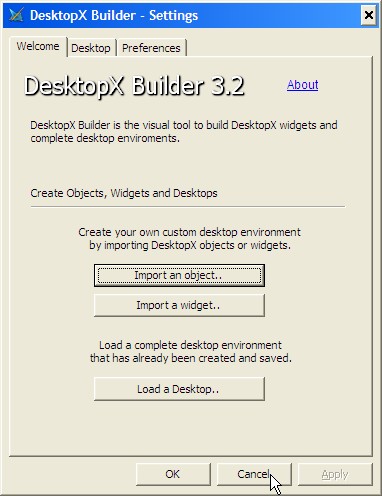
You will see the DesktopX
STARTUP Screen
(yours wont say PROFESSIONAL unless you purchased PRO)
It will load the DesktopX
SETTINGS Window:
We just wish to get these screens out of the way for now, we are not going to use them. Click "CANCEL" on the SETTINGS window, and DONE on the STARTUP Screen. You should have a blank
screen now with a new icon in your system tray:
|
||
| STEP 2 - Create an object | ||
RIGHT CLICK on the
 icon in
your system tray and you will see a popup menu like this one: |
||
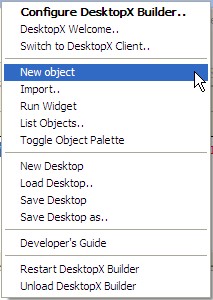 |
You will need to select the "NEW OBJECT" item on this menu. | |
|
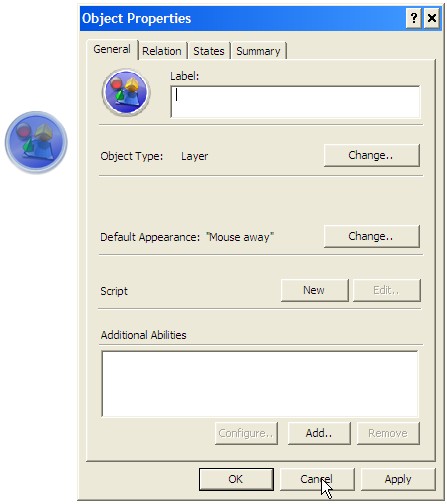
You will see the OBJECT
PROPERTIES window below (as well as the object itself).
This window will be referenced over and over in these tutorials.
IE: Open Properties / Select States
(which would mean to select the States TAB in the
Properties window)
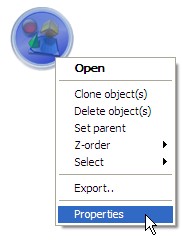
You can access this
properties window at any time by RIGHT-CLICKING on the object and
selecting PROPERTIES.
|
||
| STEP 3 - Adding Images into the Object | ||
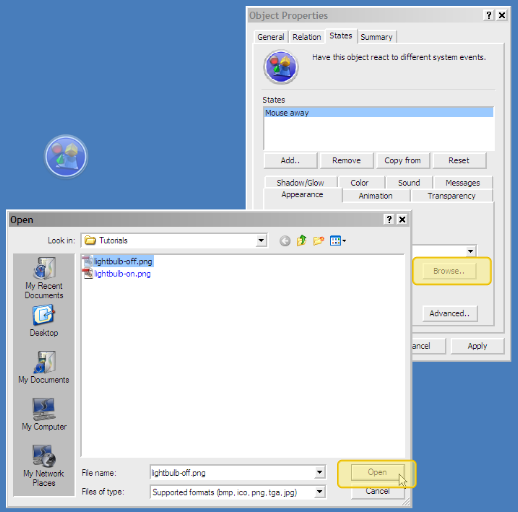
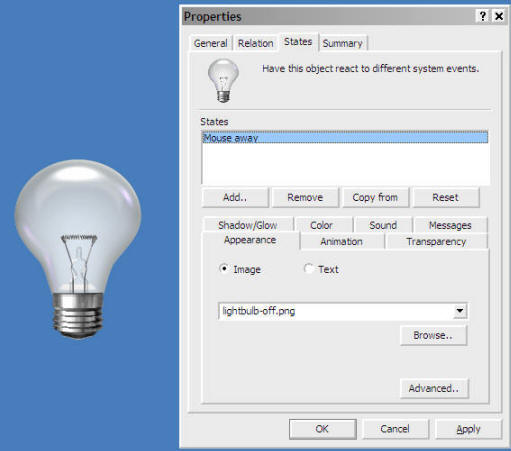
When you added the object,
it brought up the PROPERTIES window, now select the "STATES" tab to
change to this TAB.
|
||
| STEP 4 - Making your Lightbulb DO something. | ||
|
||
| STEP 5 - Changing the CURSOR on the Lightbulb | ||
|
||
| CONCLUSION | ||
|
This is a pretty simple
Tutorial, I was going to continue this and make several clones of the
lightbulb for a program and a url, but I want to split that into the
next Tutorial. I will post that at the same time I post this, so
you can continue with
Tutorial #3 - Attack of the Clones Check back as I add new Step-By-Step Tutorials on how to make this a link to a folder, web-site, or just about anything you want! I hope you have enjoyed this step into DX, and look forward to the next installment.
|
||
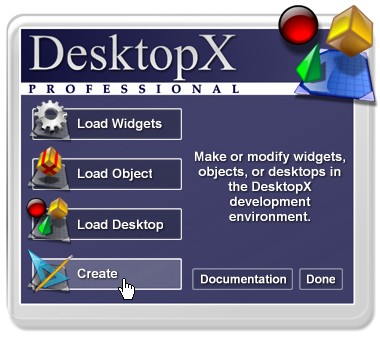 One you see this screen,
click on "CREATE" because we want to CREATE a new Widget.
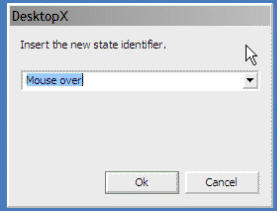

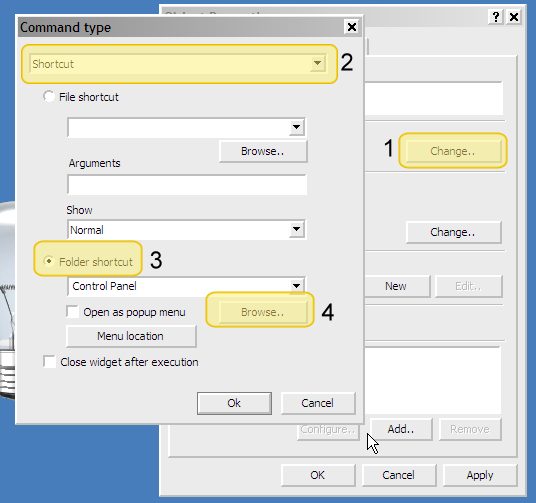
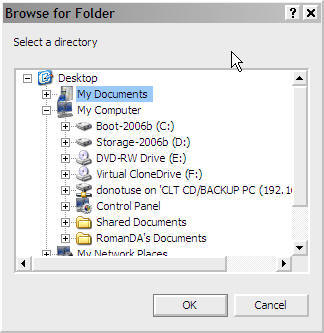
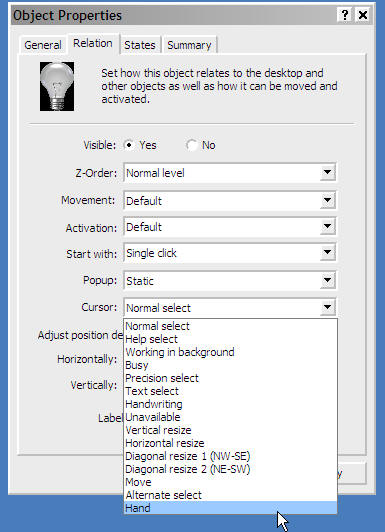
 - Notice the HAND Cursor
What is the .DREAM format?
Animated wallpaper format
Thursday, February 15, 2007 by Frogboy | Discussion: DeskScapes
This topic is touched on in this article. But it's an inevitable question -- why did Stardock develop the .dream format?
A little history here -- Microsoft has created a cool new feature in Windows Vista Ultimate called Windows DreamScene. Concurrently, Stardock was developing its own animated wallpaper program called DeskScapes. Early in development, it was decided it made a lot more sense to team up.
Windows DreamScene allows users of Windows Vista Ultimate to play video as animated wallpapers. The concept is very straight forward -- .MPEG or .WMV as animated wallpaper.
Stardock's view was that we wanted to take it one step further and address potential problems that might come up.
Giving artists credit...
For instance, look at your wallpaper choosing dialog in Windows Vista (or even XP). There's no credit or author info on who made the wallpaper. Maybe that wasn't an issue back in the day of making bitmaps for wallpapers that didn't require effort. But believe us, creating a decent animated wallpaper can take weeks. We strongly believe that artists would want to get credit for what they've done.
Finding the stuff...
Trying to find an animated wallpaper on the Internet? Good luck. Look for .WMV or .MPEG? Or maybe type in "animated wallpaper" and find all sorts of weird stuff. People who make this stuff are going to want to find it. That's one of the reasons we wanted to create a specific extension for animated wallpapers so that people would be able to know that THIS was created to be an animated desktop and isn't just some random video.
Extending the capability...
This has been discussed elsewhere but playing video as the wallpaper is just the beginning. The natural next step is dynamic content. DeskScapes provides that capability. Same for triggers (events that change what is being played as the wallpaper). In the coming weeks, we'll begin posting the documentation and examples on creating this sort of thing along with samples.
Providing a community site...
Another thing that is important that I don't know if most people realize is that for this sort of thing to take off, you need stable, reliable, trustworthy sites to host and provide a base for this kind of thing. 100,000 people downloading a 50 megabyte file is simply beyond the capability of most sites. And while torrents and such might solve some of that, you're still stuck with having to hunt and peck for things rather than see what you're getting and talk to the people who made them directly.
So that's why we created the .dream format. It does create some confusion initially that it's not part of Windows DreamScene. That may change in the future as the format matures, but obviously initially the extra step of downloading DeskScapes can be a hassle for some but on the other hand, because we're not Microsoft, we have a lot more latitude on what we can do in the short-term.
As for us at Stardock, we're just jazzed that animated wallpapers are finally a practical reality (they've been around in impractical forms for years -- even on OS/2 <g>).
Omega Premium Suite Walkthrough
Take a look at one of our newest Premium Suites!
Wednesday, February 14, 2007 by Island Dog | Discussion: OS Customization
 The
Omega Premium Suite,
done by Treetog for Stardock Design
was recently launched and has been getting great reviews from the community.
For those of you who might have missed the launch or just wanted to see a bit
more I am going to take you on a walkthrough of the Omega suite.
The Omega suite contains the following items:
- WindowBlinds Visual Style
- Icon Package
- Wallpaper

When you download the suite you will also get a pack of extras in a .zip file. These include:


One thing that is important to me, and I know is important to users also, is if the skin is usable on a day-to-day basis. I have been using Omega for a few days now, and apart from being a beautiful skin, it's also very usable.
When purchased you will receive a link to download the suite. Just unzip the contents and double-click the omega .suite file to apply it. When you use Theme Manger to apply the Omega suite note that you can specify what size wallpaper to use, if any, and you can choose specific components to use if available for that suite.

Once you are happy with the settings then just hit "Yes" and Theme Manager
will download and apply the suite. Now that the technical stuff is out of
the way, let's take a look a closer look at the Omega suite with some
screenshots and video.
 |
 |
The Omega Premium Suite is available now, and don't forget that subscribers to Object Desktop get a discount! To use the Omega suite you are required to have Object Desktop or IconPackager, WindowBlinds, and ThemeManager to be installed.
Stardock DeskScapes: How to Install and Use DeskScapes
Quick tutorial to get DeskScapes Up and Running!
Wednesday, February 14, 2007 by Island Dog | Discussion: Animated Wallpapers
With the release of Stardock DeskScapes I wanted to give a brief tour on how to get it installed and running on your system. DeskScapes previously required Windows DreamScene and Vista Ultimate only to use, but DeskScapes 2.0 will allow any Vista version (that supports Aero) to run animated wallpapers. Subscribers to Object Desktop now have early access tot he DeskScapes 2.0 beta.
If you are a Object Desktop subscriber, you can download DeskScapes through Stardock Central, along with some exclusive .dreams. If not, and if you are a Vista Ultimate user, head over to Dream.WinCustomize.Com and download the DeskScapes application (free). Oh wait, you might want some extra Dreams so check out the Dream gallery and pick up a few more while you are at it. Now we should be all set.
-
Right-click desktop and select "Personalize".
-
Select "Desktop Background"
-
Click the picture location drop-down and select "DeskScapes Animated Wallpaper"
 |
 |
Now you should see a list of Dreams that are available.
When you click each file the animated wallpaper should appear on your desktop,
once you have selected the one you want to use just click OK. If you have
downloaded other .dreams or would like to use your own video or .dream creation,
then simply drag the file into the window.

If you need to pause the wallpaper then just right-click the
desktop and select "pause", and then click "play" when ready to resume playing.

Dream Maker will let
you easily create your own animated wallpapers in the .dream format in which you
will be able to share with other people. Be sure to check out the guided tour of
DeskScapes, and visit Dream.Wincustomize.Com for more information and downloads.
A Guided Tour of Stardock DeskScapes
Animated Wallpaper software for Windows Vista that can enhance Windows DreamScene
Tuesday, February 13, 2007 by Frogboy | Discussion: DeskScapes
Microsoft released Windows Vista with a whole new graphics engine that is 3D accelerated. Because of that, all kinds of cool visual effects become possible. One obvious thing that became possible for Microsoft to do was to allow users to optionally have animated wallpaper.
Now, like normal (1 frame) wallpaper, animated wallpaper could be pretty obnoxious. But if done right, it would simply take static wallpaper to the next logical step.
So Microsoft developed a new feature for Windows Vista Ultimate Extra called Windows DreamScene. When it came time to get tools and content, they came to Stardock. Stardock's graphics design team (Stardock Design) for the animated wallpaper and our desktop enhancement team for the tools.
This is where Stardock DeskScapes comes in. We developed Stardock DeskScapes to extend Windows DreamScene in certain very important areas:
| Feature | Windows DreamScene | Stardock DeskScapes |
| Plays .MPEG and .WMV content as wallpaper |  |
|
| Plays .DREAM content as wallpaper | | |
| Supports Triggers for changing animated wallpaper | | |
| Supports Dynamic (non-video) content | | |
| Supports author credit in dialog | | |
| Is Extensible | | |
| Requires | Windows Vista Ultimate | Windows DreamScene |
| Price | FREE (with Windows Vista Ultimate) | FREE (for users of Windows Vista Ultimate) |
To be clear: Stardock DeskScapes extends Windows DreamScene. It isn't a replacement for it. You have to have Windows DreamScene installed first to use Stardock DeskScapes.
Taking Windows DreamScene one step further -- Stardock DeskScapes
As we developed the animated wallpapers for Microsoft we became very experienced in how to make it so that it was subtle and use less CPU (there video encoding and then there is video encoding). We also came up with our own wish list of things we felt users would want. For example:
-
A good animated wallpaper is a lot of work. How do authors get credit? If I spend 3 weeks making a good animated wallpaper, I want users to know I made it and be able to visit me to get more.
-
How do users know if a given .WMV or .MPEG was even meant to be an animated wallpaper? If users have to sift through hundreds of animated raccoons and children playing baseball to find something they'd actually want as their wallpaper, the whole concept could die quickly.
-
Looping high-definition video content looks great. But what about dynamic content? You know, fish swimming, wallpaper that changes based on weather or time of day, or randomly. Or heck, how about having a high-definition video feed from a tropical island so that I can pretend it's not snowing outside.
-
How about having triggers? So even if I'm not up to making a dynamic wallpaper, I could still have 2 or 3 or more videos that are switched to based on certain condition (triggers) being met. Imagine an animated wallpaper that's a city scene in the morning, afternoon, and night that switches based on time of day?
DeskScapes Enhancement #1: Authors getting credit

DeskScapes allows author information to be displayed and that info can be linked to your website.
The first thing about DeskScapes -- there is no program to run. Once it's installed, your regular Windows wallpaper manager in Vista is simply extended to support .DREAM files. You don't have to do anything else.
When you click on a .Dream file, the title and author information comes up.

By contrast, Windows DreamScene on its own, as cool as it is, doesn't display author info. So no one knows who created the cool animated Aurora default in Windows DreamScene (Stardock Design created it incidentally)
DeskScapes Enhancement #2: Dynamic Wallpaper

This image is being rotated on the fly in 3D in total smoothness

World rotates in real-time (which is very slowly actually)
Modern video games generally don't use pre-rendered video anymore. That's because modern video cards have the horse power to do amazing things. Most reviewers haven't talked much about this but the Windows Vista desktop IS A 3D SURFACE. It simply looks like previous versions of Windows. It's as if they took the Quake 3 engine and made the game look like Windows. Seriously.
That means you can do some pretty cool stuff with it...such as dynamic animated wallpapers.
My screenshot here is pretty lame but we've got earth rotating, snow/rain (based on weather -- there's probably a sunny one but we're in Michigan) ones, fish swimming, lava lamps, etc. All are in various states of development. Obviously, it does take more work to make a good looking dynamic wallpaper but the results can be really cool. As they get finished, we'll be releasing them.
DeskScapes Enhancement #3: Triggers


Based on time of day your wallpaper can change.
Triggers are another way of saying that if a certain condition is met, then do something. Stardock DeskScapes lets .DREAM files have triggers. For instance, IF time is morning, then play wallpaper A, IF Time is afternoon, play wallpaper B and so forth. It's not that huge of a thing but something that wasn't hard to do that we think enriches the experience.
Summary
Probably the key thing that Stardock DeskScapes does is extend Windows DreamScene to support the .DREAM format. You don't need DeskScapes to play video (MPEG or WMV) content as your animated wallpaper. But consider this -- which will be easier to find in a year from now to use as your animated wallpaper? Googling .DREAM or Googling WMV?
If it's .DREAM you get all the advantages I mention above plus you know it's designed to be an animated wallpaper. And it costs nothing to create them (use DreamMaker) and nothing for Windows Vista Ultimate users to use them.
We'll be providing additional free content on Dream.WinCustomize.com over the coming weeks, months. Essentially, we created a host of high quality, high definition video content for the Microsoft project and Microsoft chose some to distribute and we kept the rest to distribute.
We hope you have fun with this and that as time goes on, more and more people will come to find that animated wallpapers are pretty nice. While the concept of them isn't new (lots of people/developers have hacked at it for years), the key thing about Windows DreamScene / Stardock DeskScapes is that you get to have your cake and eat it too. When perfected, you'll have it without any performance or usability drawbacks. It'll be like the static wallpapers of the present except with more frames. 
So the steps are...
-
Get Windows Vista Ultimate
-
Download Windows DreamScene
-
Download/Install Stardock DeskScapes
-
Start enjoying .DREAMs!
Have fun!
This Week in Skinning - February 9th
Skin Roundup for 2-9-07
Friday, February 9, 2007 by Island Dog | Discussion: Community
Back again for this weeks edition of "This Week in Skinning". Valentines Day is approaching and I hope you all checked out the Valentines Day Theme Guide which lists some of the Valentines inspired skins here on Wincustomize.
Enough about Valentines Day, lets see some of the best skins submitted over the past week!
AquaMorph for CursorXP
by J .Aroche
I have featured a couple of J. Aroches cursors before, and he continues to put out some awesome work. Make sure you check his gallery for many other cursors in a variety of styles.
Welcome to Hogwarts Clock 3.2 in DesktopX Widgets
by HeirOfSlytherin
One thing I have always liked about Heir's Windowblinds skins and related works is the "wood" look. He does a great job and the matching colors always create a great look. Nice work!
Black Glass CPU Meter for Sidebar Gadgets
by ShadowlineDesigns
The Sidebar Gadget gallery is slowly growing, but I think we are going to see some great gadgets come out of that gallery. This is a perfect replacement for the CPU meter in Vista.
Hunter in Wallpapers
by Pixel Z
This is a really beautiful wallpaper made in Photoshop. The colors and design really caught my eye. Fantastic job!
Vision Zero Core Release 3 for Windowblinds
by continuum2
This Windowblinds skin features 32 substyles and every single one is very cool. Not much else to say, just download it and check it out.
Thanks for the submissions and I look forward to seeing more works from all the artists featured here today. As always check the artists galleries for more great works.
Wincustomize: Personal Sites
Your own space on Wincustomize!
Tuesday, February 6, 2007 by Island Dog | Discussion: Community
With WinCustomize 2007 launching recently I wanted to highlight a feature that
some people may have overlooked.......Personal Sites. I wanted to take a
more in depth look at them, and show you how to create and use your personal
pages here on WinCustomize. They are now available to registered users
(Citizen and up), and you will get your own personal page with a photo album,
guest book, and a sub-domain such as
http://islanddog.wincustomize.com,
and more!
The first thing you have to do is register with WinCustomize. Go here and click "create new account", and that will start you on your way. Once you register and verify your account you will now be able to log in to WinCustomize using the username and password you created.
Once logged in you will see a graphic that says "create your site now", click that to begin.

Now fill in your sites title and description, choose your country, read the TOS, and click "create site".

From here you can add links to your site, adjust your descriptions, and use the tabs at the top to navigate to other areas of your settings page. In Personal Information you can add information such as martial status, your motto, favorite music, favorite authors, etc. Under Update Images you can upload a screenshot of your desktop, your avatar, and picture of yourself if you wish.
After you finish customizing your site to your liking then you can access it now by using your sub-domain on WinCustomize. For instance, mine is http://islanddog.wincustomize.com. If you go there you will see what a personal site on WinCustomize can look like. You will notice that you can browse my personal gallery, look through my photo gallery, and even sign my guestbook.
Your personal site is great for showing off and directing people to your work that is here on WinCustomize. As you can see in my site, people can browse through works that I have submitted to WinCustomize throughout the years, and there is even an option to submit your work only to your personal page.
If you write articles you will also be able to view them from your personal page. You also have access to a watch-list and favorites section, where you can keep updated of activities of other people on WinCustomize.
Members often ask how they can get people to know about their personal sites, and it's very easy actually. Promote your sub-domain url! If you frequent other forums/message boards then include a link to your page in the signature. Do you use an e-mail client like Outlook? Well include your url in the signature there as well. I even know someone who puts it on their business card.
If you are a registered member then take the time to check out the personal sites, it's a great benefit to our members and I encourage everyone to use it. Remember that by becoming a subscriber you will remove the ads and help support the site.
Valentines Day Theme Guide
Valentines inspired skins and themes!
Monday, February 5, 2007 by Island Dog | Discussion: Community
Certain holidays throughout the year seem to get more attention by skinners than others, but I was surprised when I saw there were quite a few Valentines Day themed works in the galleries at Wincustomize. Since there are a wide variety of Valentines skins I thought I would put together a theme guide similar to the one I did at Christmas time.
I received several recommendations from the community and I always appreciate your help when I am writing these guides.
These are just some that I found throughout the galleries. If you know of any I missed that you feel should be included, please post them in the comment area.
WinCustomize.com Windows Vista Round-Up
A few article highlights!
Wednesday, January 31, 2007 by Frogboy | Discussion: Windows Vista
 Windows Vista is here and we've been doing so many articles that it's tough to narrow it down to just a handful to recommend to users looking to find out more about Windows Vista.
But we're going to try...
-
Vista Purchase Caveats
-
Windows Vista: Parental Controls
-
Stardock's Windows Vista Road-Map
-
Touring Windows Vista - Part 1
-
Touring Windows Vista - Part 2: UI Changes & Additions
-
Touring Windows Vista - Part 3: Controls, Apps & Games
-
Touring Windows Vista - Part 4: Tools for the Power User
-
Touring Windows Vista - Part 5: Wrap-Up
Stardock's Windows Vista Road-Map
Making Windows Vista YOURS
Monday, January 29, 2007 by Frogboy | Discussion: OS Customization
Windows Vista has finally arrived! Many people have been asking us what are Stardock's plans? What can we do to take an excellent new OS like Windows Vista and make it better?
There have been a lot of articles on how users of Windows XP can get a lot of the visual benefits of Windows Vista using Stardock Object Desktop. And while that may be true, Windows Vista provides us a whole new canvas of cool things we can do.
For Starters: LogonStudio Vista
 If you have Object Desktop already and Windows Vista, you can now change the way your Windows Vista logon looks with LogonStudio Vista.
We've developed a new format (.logonvista). While existing .logonxp files won't work on Windows Vista due to the significant change in the way logons are displayed, I have a feeling there will be no shortage of logons being made for Windows Vista.
LogonStudio Vista will be available for free when it's finished. If you want it now, you'll need to get Object Desktop.
Availability: NOW for Object Desktop users.
Your GUI your way: WindowBlinds 5.5
 Windows Vista's new look -- Aero, looks awesome. I like it a lot. But I also like to personalize my UI to look how I want it to look. Luckily you can -- with WindowBlinds 5.5.
With thousands of different visual styles to skin the look and feel of Windows Vista, along with the ability to change color, saturation, and all kinds of other elements, Windows Vista users will be able to make Windows Vista look however they want it to look.
And for power users -- WindowBlinds cuts battery consumption over Windows Vista Aero significantly. On our internal tests, running Vista with a WindowBlinds skin gave back over 40 minutes of battery life on a Dell laptop. You can test for yourself, it's pretty consistent. And if that's not enough, WindowBlinds is faster too thanks to DWM caching.
Availability: NOW for Object Desktop users (in beta). Public release, February 5th.
Animated Wallpaper on-the-fly: DeskScapes
 If you have Windows Vista Ultimate, you will be able to get Microsoft's new animated wallpaper extra called Windows DreamScene. It lets you play video as animated wallpaper. If you like the computer generated animated wallpaper that comes with it, then good, we made it, including the one shown at launch and the default official one (animated Aurora).
Object Desktop users will be able to get exclusive animated wallpapers not available anywhere else. And they'll be getting our new program that lets Windows Vista Ultimate users have dynamic animated wallpaper. Dynamic animated wallpaper is generated on the fly and it's all done on the video card so even on a mid-powerful computing rig, you'll see virtually no CPU use and incredibly cool stuff.
Moreover, it supports a new format we've designed called .dream. Amongst the various features it supports, one really straight forward one we think artists will enjoy -- credit. Look at the screenshot on the right and you'll see that we've extended the wallpaper dialog to support author info (which can be a link to a website). Creating a good animated wallpaper is non-trivial and we figured artists would want to make sure their hard work gets credit and send them traffic.
Availability: As soon as Microsoft releases Windows DreamScene for Object Desktop users.
Gadgets: The Next Generation = DesktopX
 Windows Vista includes the Sidebar. That's good. Making sidebar gadgets is not particularly easy. That's bad. But sidebar gadgets provide a standard format. That's good. But the native functionality of the Sidebar gadget APIs is painfully low. That's bad.
Enter: DesktopX 3.5. Nearly ready for beta, DesktopX allows users to export their creations as Windows Sidebar gadgets! This is significant because of the massive functionality and API support built natively into DesktopX. From a technological point of view, it's a superset of every widget/gadget implementation out there. With 8 years of development behind DesktopX and thousands of widgets, objects, and gadgets out there, it provides a huge boost to Windows Sidebar gadgets and a great way for users to be introduced to the power of DesktopX.
Because DesktopX doesn't just make gadgets, you can build desktops (we even make an enterprise version of DesktopX for corporations wanting to create secure branded desktop environments).
Stardock also has developed a technology that allows users to create gadgets in .NET (including WPF gadgets). We'll be talking more about that soon.
Availability: Late February Beta for Object Desktop users
Changing Icons for Windows Vista: IconPackager 2.5
 Changing the icons for Windows Vista is not quite as easy as previous OSes. For one thing, the folders are done differently -- they have "live previews". But no worry, we've got that nailed down now and you can now even change the live folder preview icons and still get live previews!
Availability: Early February in beta on Object Desktop.
Your own boot screen: BootSkin Vista
Stardock BootSkin allows users of Windows XP to change their boot screens. So what about Windows Vista users? On Windows Vista, the default is not boot screen at all! With BootSkin Vista, you'll be able to have your own high-resolution, high color boot screen of your choice.
Like BootSkin for Windows XP, when completed it'll be released as freeware. But the initial beta will be on Object Desktop only.
Availability: Mid March for beta on Object Desktop.
Tweak Vista with...TweakVista!
We've partnered up with TweakVista.com to bring you a new program called TweakVista. Designed both for power users and their friends and family, TweakVista lets users get into the guts of Windows Vista but also allows casual users to maintain their systems.
Many people reading this are probably the family "computer guy". If you are, you'll definitely want TweakVista to hand out to people because it helps take care of the most common problems people run into with a Windows PC. But it also lets you dig into the guts of Vista to change undocumented settings and get more data on your system than..well probably more data than you really need to know.
Availability: Mid March beta.
A Dock for Vista: ObjectDock
 If you have ObjectDock 1.5, you have the version that already runs on Windows Vista. But the good news is that we are busy at work on the next version of ObjectDock which is due out later this year. If you don't have ObjectDock (particularly ObjectDock Plus) grab it! You can get ObjectDock right now at www.objectdock.com.
Availability: Summer
Better Cursors for Vista: CursorVista
CursorXP is the defacto alternative to the Windows XP mouse cursors. On Windows Vista, CursorVista is being designed to make it even more powerful. Thanks to the new DWM (the composited, 3D surface that is the Windows Vista desktop), all kinds of fun should be possible. We are getting fairly close to having a beta of this available. If you have Windows XP, you can get CursorXP at www.cursorxp.com
Availability: Early Spring
And now a peek at Stardock's lab!
Working on stuff that's about to get released is very exciting. But the stuff that's just getting cooked up in the labs is just as exciting. When Windows Vista's RTM build was sent to us, we were able to start digging in and seeing what's possible. As video driver quality gets better and we get a handle on what parts of Windows are more easily extended than others, cool stuff results.
My #1 reason I like Windows Vista in terms of customization is that it's free from a CPU point of view. Now that the desktop is a 3D surface, we can do all kinds of cool stuff without affecting system performance.
For instance, Microsoft's Windows DreamScene plays video as your wallpaper. Now, I've seen people say "You could do animated wallpaper on Windows with <insert hack here>." Please. What is possible and what is practical are two different things. The only CPU used by DreamScene is in the decoding of video which is not a major deal now adays. Other effects are completely done on the video card.
On Windows XP, we had to develop a DirectX interface ourselves to get universally good performance with this stuff (which people noticed in WindowBlinds 5). But on Vista, everything's already on the video card, it's great!
Rise of the Super-Gadgets: Code-Name DesktopVista
With Microsoft providing a standard gadget format, Stardock can then concentrate its resources into what it does best -- making really cool technology. Not a competitor to DesktopX, DesktopVista is designed to enable the creation skinnable gadgets. That is, a system in which a standard gadget skin format can be created and used to skin gadgets. Right now, it's just a technology.
A New Style for Windows Vista: Code-Name StyleVista
Windows Vista is pretty polished. But it could be polished further. Enter StyleVista. This new program will let users alter the little touches that Microsoft has in Windows Vista that don't quite fit into skinning but also are just beyond what is included. Want a different blur effect? Want to change that Start button? StyleVista is for you. We're still inventorying what we can and can't do with the DWM now that finalized video drivers are coming out so we'll have more news on this soon.
Build your own 3D desktop: Time for 3D modelers to get their day
For years, a significant percentage of artists were locked out of customization. 3D modelers might be able to make pretty rendered icons but beyond that, things were limited. But now, thanks to a combination of Windows Presentation Foundation (WPF) and Media Center Markup Language (MCML) we are exploring letting users take their 3D creations from Maya, 3D Studio (and if possible XAML) and turn them into working, fucntional 3D desktops. Not 3D in the sense that you move around the screen but rather where the objects you interact with are 3D.
What we can and can't do will heavily depend on the capabilities of WPF/MCML and the DWM which we're still exploring (as well as video drivers). We hope to have something to show late summer.
Other Cool Stuff(TM)
People on Linux have been showing off XGL for awhile. Anyone with Windows XP should try out WindowFX and know we've been doing window scaling, 3D dragging of windows, and all kinds of effects since Windows XP launched and we didn't have the benefit of a 3D accelerated desktop. Now we do. That's all I'm going to say on that.
It's going to be an exciting year! Stay tuned!