































Your Home Desk Deserves a Wallpaper Too
Finding more places for your favorite images
Thursday, September 10, 2026 by bdsams | Discussion: WinCustomize News
For most of us, the first thing we did with a new PC was change the wallpaper. Before installing anything or moving a single icon, you'd right-click the desktop and swap out whatever default image was there for something that felt like yours.
And if you are reading this, there is a strong likelihood that you have a large collection of wallpapers. After all, this is WinCustomize, and for the past couple of decades, we have been collecting them and sharing them with the world.
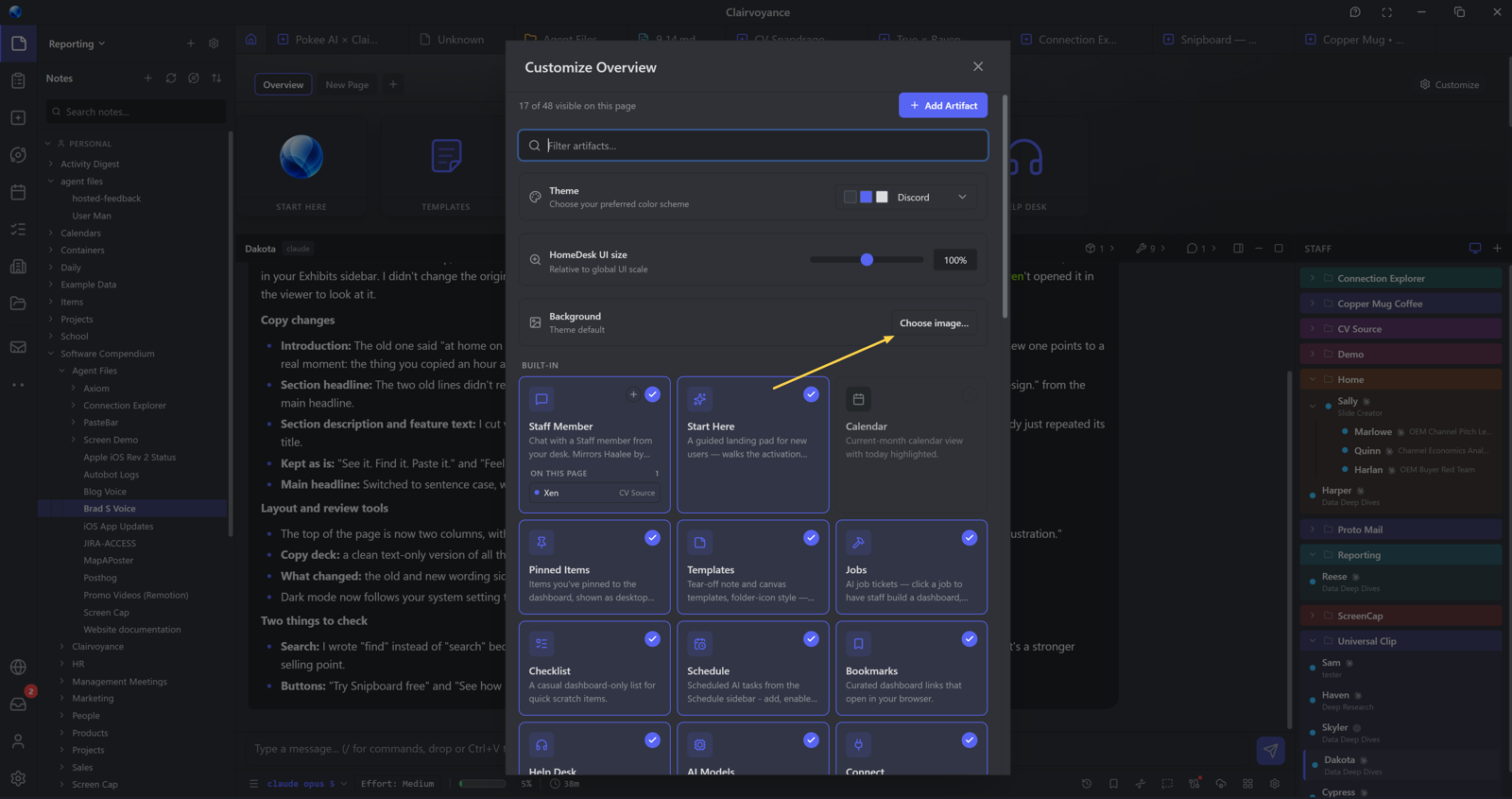
Putting that collection to use is one of the things that makes this community stand out, and it’s part of the reason we added the ability to change the background of the Home Desk in Clairvoyance.
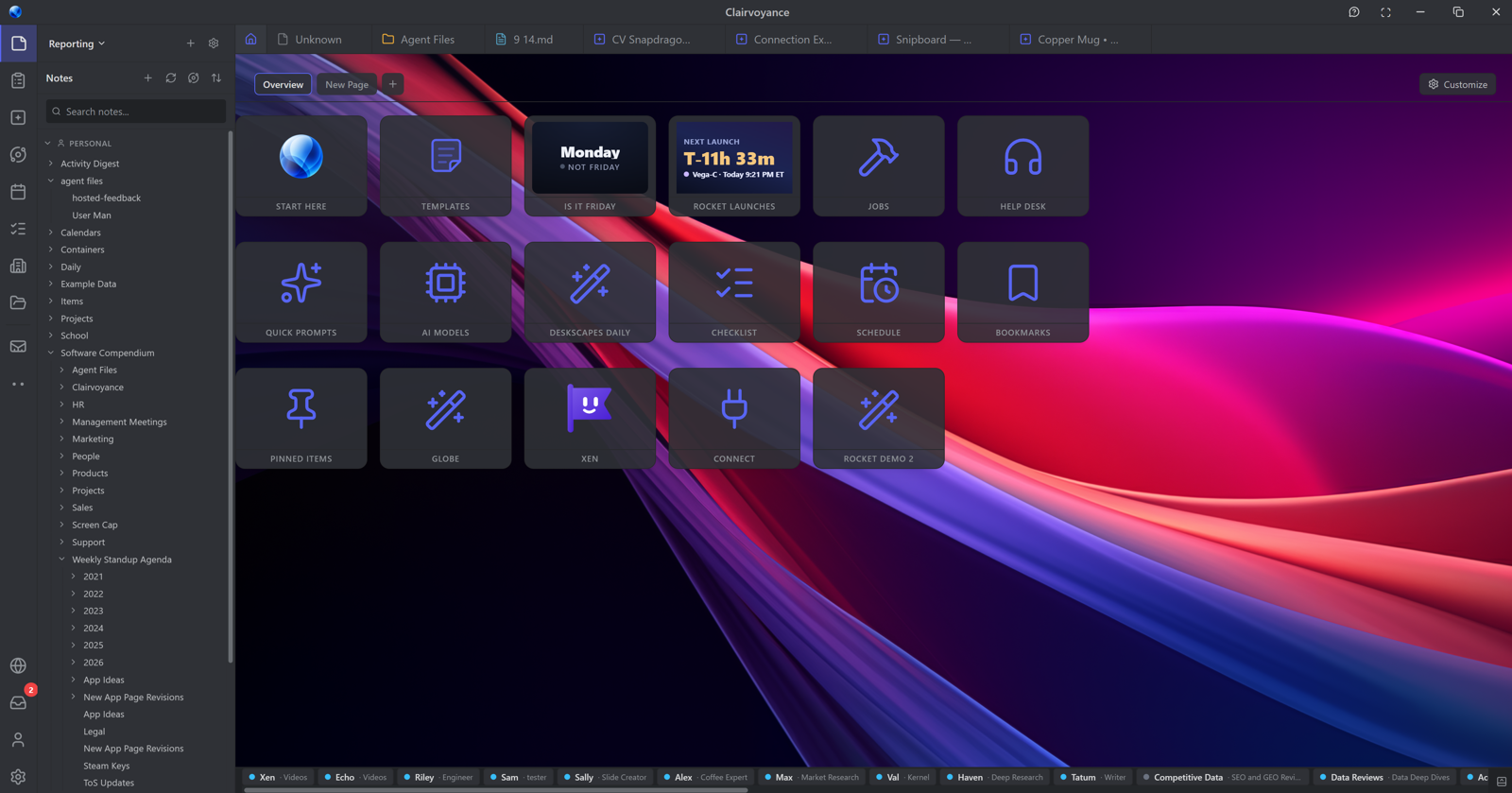
The Home Desk is where your tiles live, and that backdrop is the perfect place to put your wallpaper collection to use. To apply a wallpaper, click Customize, select Background, and pick your image. If the tiles aren’t the right color, you can easily change them in the Appearance section inside Settings to better match your wallpaper.
If you are looking at those tiles and remembering Live Tiles from previous versions of Windows and Windows Phone, hop into our Discord because you can bring back that experience today, or just wait for a future blog post. It’s easy to do: build an artifact and Clairvoyance will handle the rest and will cover the animations too.
We know that wallpapers are a very personal thing, and it’s one of the reasons we put this functionality into Clairvoyance specifically for this community. I have hundreds of wallpapers saved locally, and finding a new place to display them always makes my day just a little bit brighter.
If you haven’t downloaded Clairvoyance yet, it’s free, and you can download it here.
Clairvoyance Gallery
The Next Stage in Customization
Sunday, July 26, 2026 by Frogboy | Discussion: WinCustomize News
Greetings!
Over the coming months you are going to see a gradual evolution to WinCustomize as we begin to feature more and more creations that were AI assisted.
We now have an application called Clairvoyance that makes it easy for users to create all kinds of amazing things. We have made a gallery that is gradually being rolled out to the public: Exhibit Gallery Everything you could do with DesktopX by hand can now be made by its successor, Clairvoyance.
Games. Widgets. Wallpapers. Cool visualizations. You name it. Here are a few of mine:
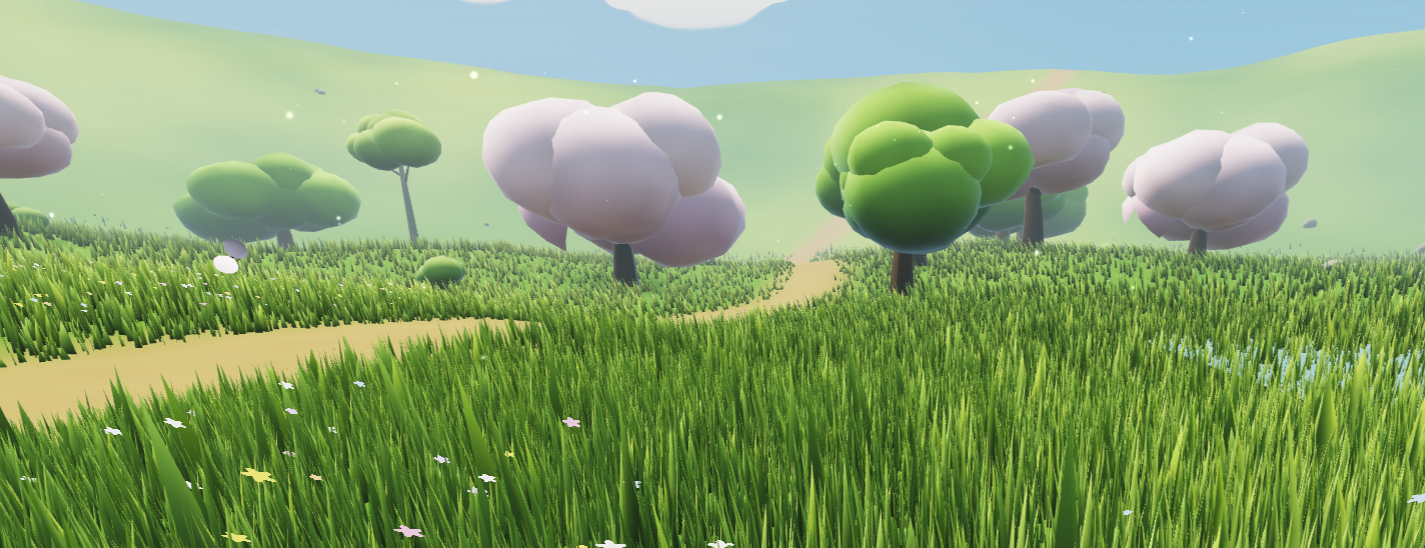
Just a little open world meadow you can walk around in.
A frog simulator: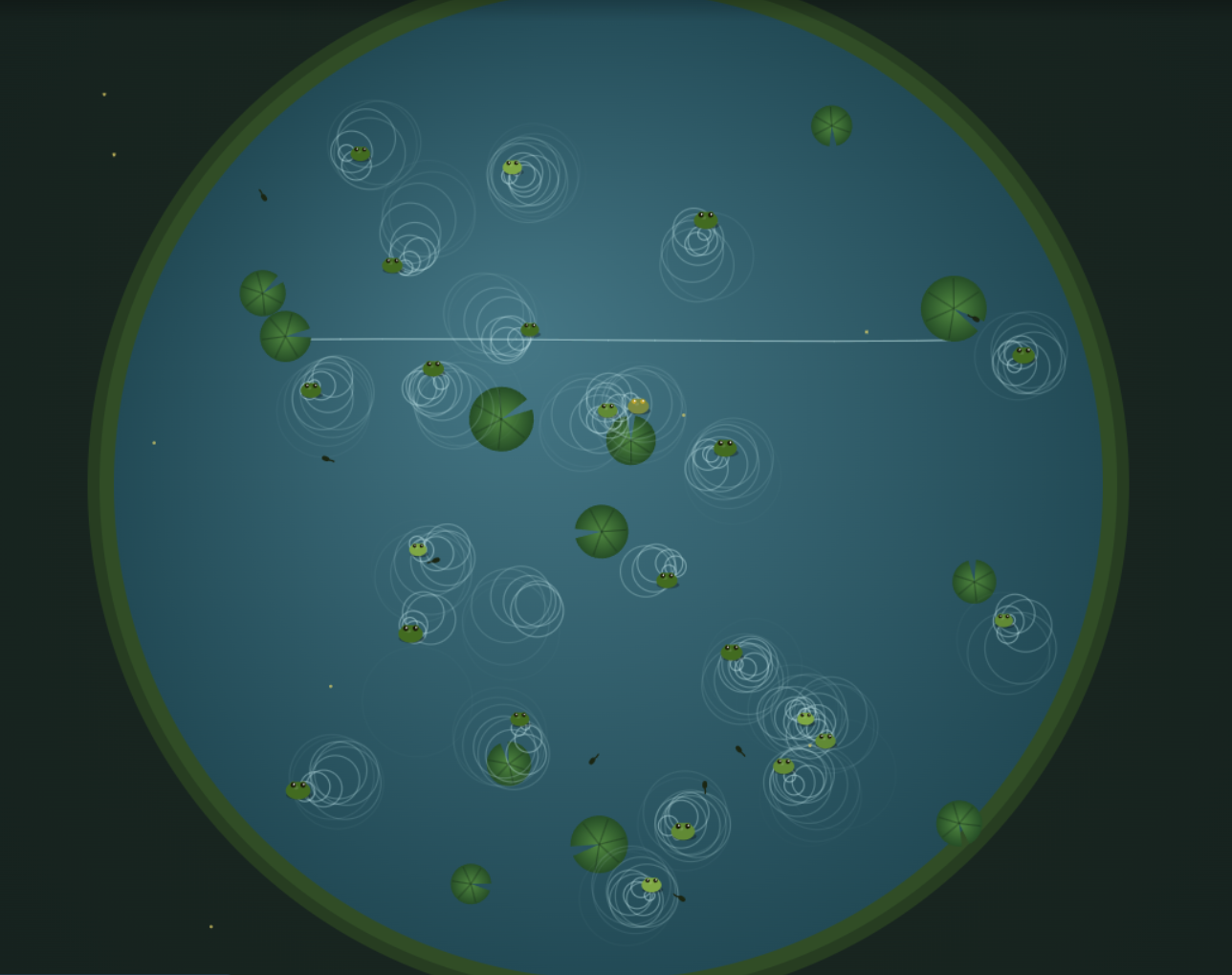
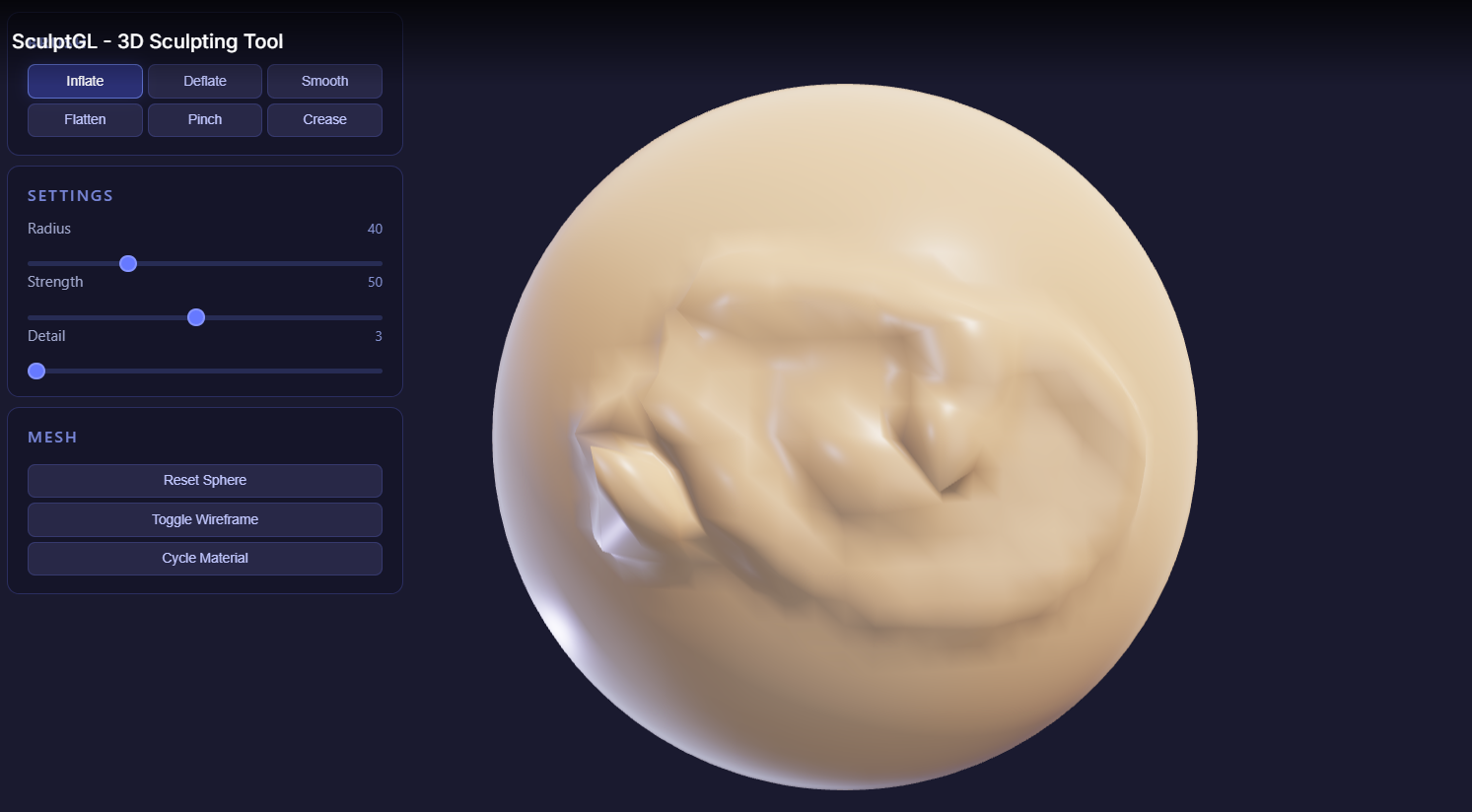
Little Sculptor
So come check it out. We'll be merging Clairvoyance stuff into WinCustomize asap.
On1 Free NoNoise App Free
Anthony Morganti teaches you the app for free, as well
Thursday, July 16, 2026 by DrJBHL | Discussion: Software Blog
Hey folks hope you're enjoying the end of the work week.
I'm happy to bring you this give away of a great piece of software from On1. No strings attached. I use the full app (On1 PhotoRAW) on my photos together with the NIK collection and Ps.
The give away is NoNoise AI 2024.5 which is its latest iteration. It integrates with Lr and Ps seamlessly and is simple to use.
Anthony Morganti is an excellent photographer and teacher and provides a full tutorial on the app free, as well.
The tutorial is here: https://youtu.be/0BBwCwtw49M?si=-BP_hvk0nFUgrUf2
And the software is available here:
Hope all the photographers among you find this useful. Have a great weekend!
Edit: NoNoise AI 2024.5 works as a standalone as well as a filter in Ps and Lr.
MS Extends W10 Free Security Patches Through October 2027
That's good news if they don't work the updates
Friday, June 26, 2026 by DrJBHL | Discussion: Personal Computing
Arthur Kaye has published this good news for many on gHacks (external link). Originally this program was set to end Oct. 12, 2026. MS made the change with no big announcement.
I recommend reading the linked article as it describes how to join the program. Those who joined the original program don't have to do anything additional to continue through 10/2027.
Static or Animated Desktop
Do you keep it simple or add a little motion?
Monday, June 22, 2026 by bdsams | Discussion: WinCustomize News
A few weeks back, I raised the question about if you like AI generated wallpaper and if it mattered if it was generated in the cloud or on your local device. Extending that conversation turns a bit towards animation on the desktop and if this is a good thing or a bad thing?
For some, the desktop is rarely seen as it is always hidden behind full-screen applications. But for others, it’s the biggest canvas in Windows to make the desktop feel like it is truly yours with either photos you took while on vacation or artwork from a favorite artist or movie.
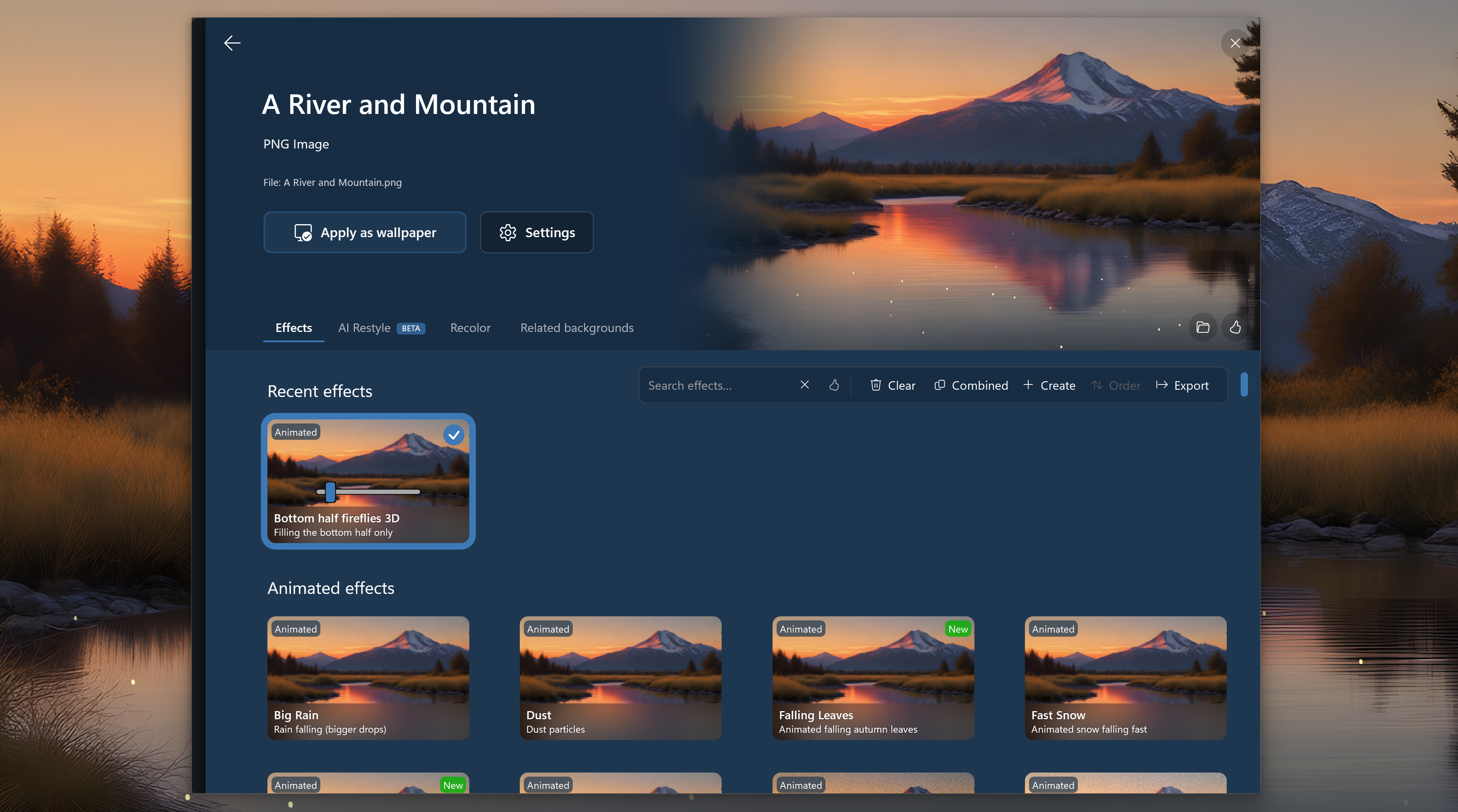
The next extension of that personalization is animation as part of the desktop wallpaper. There are couple different options from a scene playing on a loop or you can add subtle animations using DeskScapes 2026 to bring a static image to life.
I have typically been a no-motion desktop users but lately have been using fireflies with some of the natural scenes as they add a subtle liveliness to the desktop. I don’t find these small animations distracting when trying to get work done but they add a bit of depth that makes Windows feel a bit more alive rather than a static environment that is there only for clicking.
So the question is, do you keep a static wallpaper, or do you have any animations playing? There is no right or wrong answer to this question but I’m curious what percentage of people do use animations as the default state in Windows is static, so it has to be a deliberate choice to add animations to your desktop.
Making Images in the Cloud vs Local
Which do you prefer?
Monday, May 4, 2026 by bdsams | Discussion: WinCustomize News

In the new world that we find ourselves living in, generating images from nothing is a task that takes only a few seconds. Drop a prompt into the input field, wait some amount of time depending on the model, and on the other side you have an image that is created.
There are several ways you can do this with various online tools, but you can also do this on-device as well. Yes, the big cloud services make this easy, but in the token economy that we find ourselves headed toward, running things locally has a lot of advantages too.
Local image generation isn’t the easiest process, and it really depends on the hardware you have in your box. If you have a big beefy GPU like a 5090, you can put those cores to work to create nearly anything you can dream up, but most of us have more modest cards, if any dedicated GPUs at all.
I have become a big fan of running local models, not just for image generation but also for everything else, but images offer the best look yet at where on-device AI is headed. Stardock has been working to make on-device image generation easier, and we will have some new things come online here in the coming weeks and months, but the benefit of local generation is that you have more control over the experience.
And I know not everyone is a fan of AI artwork (I get it!), but there is some level of nerd-ism that I do quite enjoy when generating images that scratches the itch of complexity with a reasonable output. Being able to control the model, the weights, the style, and control of the image does add back a little bit of the personalization that the large cloud vendors tend to miss as they focus on creating images at scale for millions, whereas local is about creating an image that you refine (refine feels like the wrong word here).
It’s worth acknowledging that AI art generation today still isn’t a consistent experience, and this is something that I hope local can help resolve. While images with seven fingers are not as common anymore, AI images still have that glossy or unrealistic view of the world that is typically easy to identify, and if you are trying to create a series of images with all the same style and elements, it becomes even harder to accomplish that task.
AI artwork isn’t for everyone, but local AI art generation does blend a nice connection of control over the output and a bit of technical capability that brings a small bit of fun back to the process. And if you are lucky enough to have a 5090, being able to put it to work helps justify that hefty investment.
WinCustomize Turns 25: A Quarter Century of Making Windows Yours
New updates on the way.
Tuesday, March 31, 2026 by bdsams | Discussion: WinCustomize News
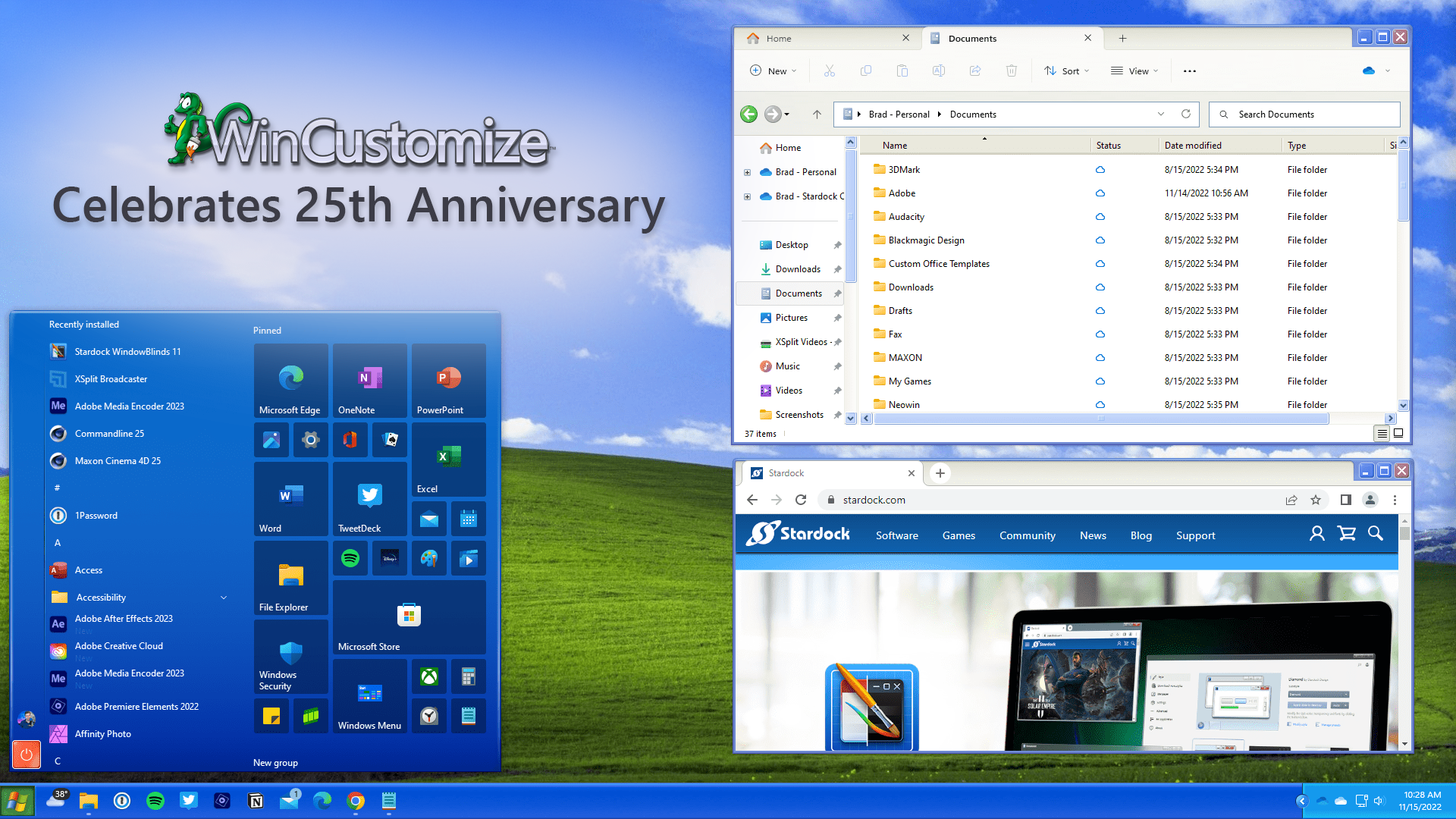
Wincustomize was started in 2001 and in internet years, that's about as old as the Big Bang. And twenty-five years later, the site is still going strong delivering millions of themes, icons, wallpapers, and more to users around the globe.
When WinCustomize.com first landed, the desktop customization scene was the Wild West. There were scattered forums, random download sites, and a lot of broken links as well as a myriad of chat applications like AIM, ICQ, and others who had their own communities for desktop customization.
Windows, during the past couple of decades, has tried a few different designs that have ranged from corporate (Windows 95/98) to the opposite end of the spectrum with Luna for Windows XP that was often described as the Fisher-Price theme. And thanks to Microsoft's choices, theming Windows is also what makes Windows, Windows.
Over the past 25 years, there have been millions of downloads across skins, themes, wallpapers, icons, cursors, and more. The artists, the skinners, the tinkerers and the people who refuse to accept "stock" as good enough have helped keep WinCustomize fresh with new content all these years later. While the tools like WindowBlinds are fantastic for skinning, it's the community that brings the desktop to life with themes that bring out the personality of each individual user.
For the year ahead, we do have plans to continue to improve the site. The first major update will be a serious overhaul to the forums of this website that should improve performance, allow us to easily add new features, and eventually, new customization categories. And later in the year, we plan to add a new category that will make sharing Start menus a lot easier too.
Twenty-five years in and Windows keeps changing but the constant is that while Microsoft builds for the billions of users, WinCustomize makes it possible to make Windows yours.
To everyone who has created, commented, and shared ideas on WinCustomize, the entire team at Stardock thanks you for being part of this corner of the web.
Just a Hint or Deeply Tinted
A subtle change that can make a big difference.
Monday, March 2, 2026 by bdsams | Discussion: WinCustomize News
Icons on the desktop and in the Start menu represent "things" that you do and also tell a lot about your personality. Do you have a lot of games or PDFs or are you mostly using the browser, so you don't have many apps installed?
On the desktop, icons can be meticulously organized with Fences 6 or in the Start menu, they can be arranged in tabs, groups, and pages with Start11.
Where you keep your icons is up to you, some like it on the desktop for easy access while others prefer they stay in the Start menu so that you the desktop is empty and you can see your wallpaper. I tend to do a bit of hybrid, all the apps that I am using stay in the Start menu but any files I’m working on tend to land in the desktop, especially screenshots.

Fences 6 with Icon Tint
With both Start11 and Fences 6 you can apply a color tint to the icons to make them standout or create a uniform color experience across the OS. I have kept my Start menu icons a shade of blue that is nearly identical to the Windows start button but the desktop icons, I will typically keep a darker grey for items that are inside my Fence groups.
However, icons that I have loose on the desktop, need to be full color as the tinting can sometimes mask a screenshot and make it not as easy to recognize. I’ve thought about dumping my screenshots into a different folder but there is something easy about having them land on the desktop for quick manipulation and then deletion.
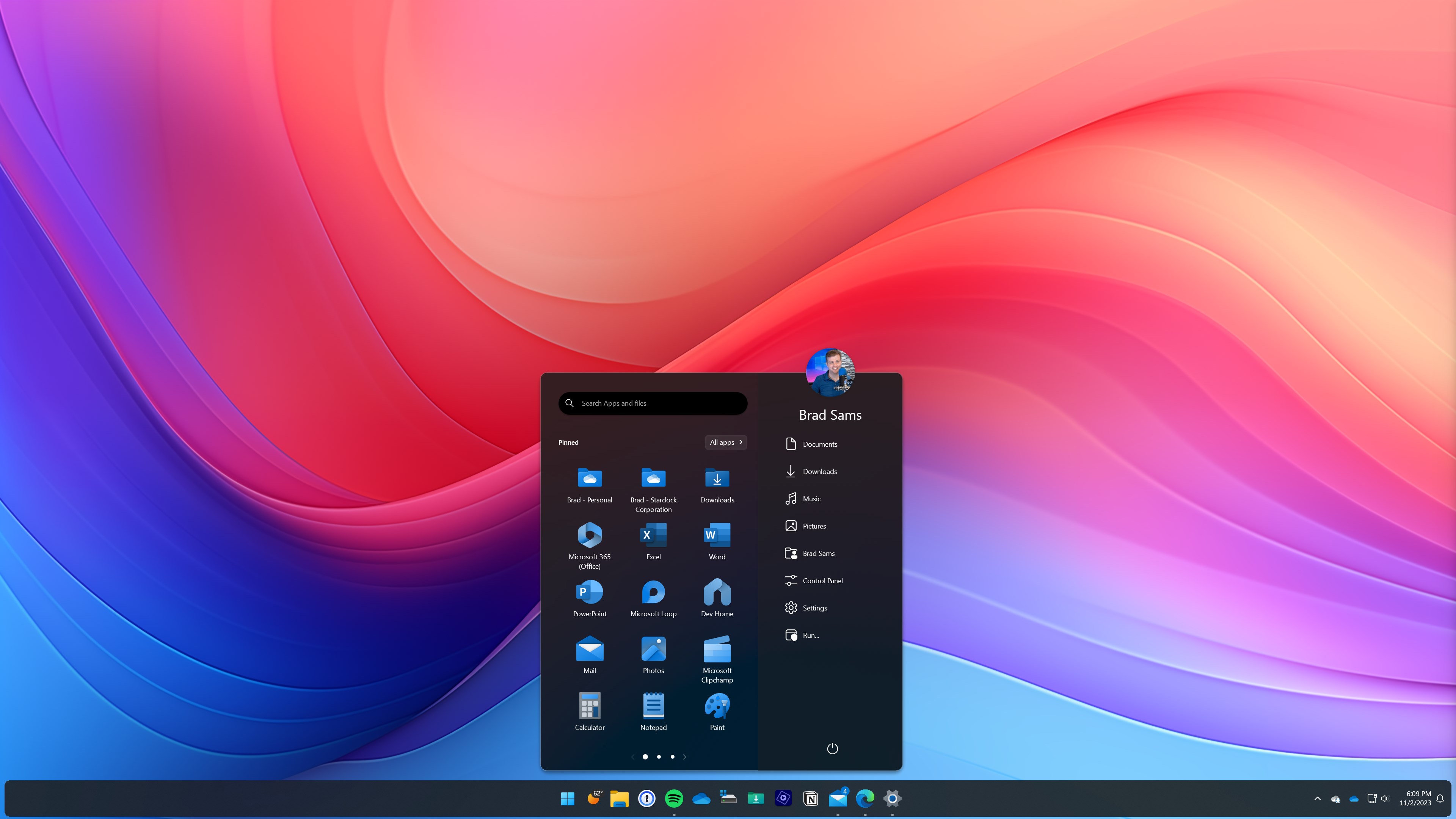
Start11 v2 with Icon Tint
In Fences 6, you can apply tint to icons across the entire desktop or make it per each group and in Start11, right click an icon and the tint option allows you to make each icon have a different tint or apply the same color to all icons.
With icon tint, it’s about providing additional layers of flexibility to help you make the desktop more personalized and more unique. It’s a small part of both applications but when combined, can really change the aesthetics of a desktop.
Adding new Animations to DeskScapes 11
More than three dozen new options.
Tuesday, January 20, 2026 by bdsams | Discussion: WinCustomize News
With the calendar ticking over past the 2026 milestone, we are kicking off the new year with a bunch of betas including a big update for DeskScapes 11.
In beta now, which you can download by logging into your Stardock account and clicking the beta link under downloads or from Object Desktop Manager, are more than three dozen new effects in the update app.

Once installed, click any of the backgrounds that you want to apply the style to, then click Effects on the left and you will see more than 150 total designs that include the more than three dozen new in this beta release.
Listed below, you will find all the new items and in a future update to DeskScapes 11, we will make it easier to search and see what items are new – let us know your favorites or any styles we should add to the app.
Chromatic Aberration
Vignette
Fisheye Lens
Barrel Distortion
Pincushion Distortion
Tilt Shift
Depth of Field
CRT Screen
Anamorphic Flare
Film Burn
VHS Distortion
Film Scratches
Daguerreotype
Oil Painting
Watercolor
Pencil Sketch
Charcoal Drawing
Comic Book
Stained Glass
Low Poly
Glitch Art
Holographic
Frosted Glass
Kaleidoscope
HDR Tone Mapping
Bloom
Sharpen
Emboss
Posterize
Solarize
Cinematic Teal Orange
Bleach Bypass
Warm Vintage
Cool Cinematic
Faded Film
High Contrast
Falling Leaves
Floating bubbles
This is one of many updates coming this year to the portfolio of applications made by Stardock. Currently in beta we have updates for Start11, Groupy 2, Connection Explorer, Object Desktop Manager, and more.
Add A Little Holiday Cheer to Your Desktop
Christmas at the beach or in the snow, it's up to you.
Monday, December 15, 2025 by bdsams | Discussion: WinCustomize News
On what has been the coldest day of 2025 at my house and right before the holiday season, it’s the perfect time to add a little warmth (and cheer) to the desktop. Many of you are quite familiar with DeskScapes 11 and if not, you can learn more here and below are a few fun Dreams that you can download today to add a bit of warmth to your desktop.

A snowy campfire in the mountains brings warmth to the desktop in a beautiful landscape that is covered in the right amount of snow. With a sunset in the background, the only thing missing is hot chocolate.

If being outside isn’t your thing, the Cozy Christmas Great Room brings the trees inside with a gentle snowfall outside. And of course, with it being the holiday season, having a little Christmas on the screen is a fun way to mix up the desktop this time of the year.

If dark themes are a bit more of your thing, Blue Tree is a gently animated desktop experience that keeps the desktop dark but has a splash of a single color-band so that you have just the right amount of desktop eye candy without overdoing it.

Or maybe you need something a bit warmer but also with the same holiday cheer? Add a relaxing ocean-front view to your desktop along with a Christmas tree and if you close your eyes, you can almost smell the saltwater.
These are just a few of the thousands of scenes you can add to your desktop. With updates being uploaded frequently and decades-worth of creations available today – you won’t have any issues finding the exact scene that matches your holiday mood.