








































Help Needed: Skin Problem
Thursday, November 17, 2005 by TheOtherGods | Discussion: WindowBlinds
Hi all,
I'm having a strange problem...
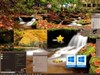
I have the full version of WB 4.6 but the toolbar buttons (Home, Search, Favorites etc.) for certain skins, namely the new M20Dark (Reduce) are not changing to the skin's buttons. Instead of looking like the glass buttons, they are just a flat gray, like the drop-down menu buttons.
Apparently, this isn't how it's supposed to look, and I've checked all my settings, and WB is set to use any skins button style.
But, I actually tried to force WB to used the style by checking the appropriate set of buttons, hit apply, and with this skin in particular, they're not changing.
This is rather upsetting because I absolutely love this particular skin, and I'm not getting the full effect here.
Can someone help me out? I've no idea why this is happening.
Thanks in advance & cheers. P.S. Just tried an uninstall and re-install of WB, and still not working correctly. The buttons for this skin are not the glass buttons in the screenshot, but just flat gray. Is there a problem with 4.6 and glitches like this? If someone can help me out, I'd greatly appreciate it.
I'm having a strange problem...
I have the full version of WB 4.6 but the toolbar buttons (Home, Search, Favorites etc.) for certain skins, namely the new M20Dark (Reduce) are not changing to the skin's buttons. Instead of looking like the glass buttons, they are just a flat gray, like the drop-down menu buttons.
Apparently, this isn't how it's supposed to look, and I've checked all my settings, and WB is set to use any skins button style.
But, I actually tried to force WB to used the style by checking the appropriate set of buttons, hit apply, and with this skin in particular, they're not changing.
This is rather upsetting because I absolutely love this particular skin, and I'm not getting the full effect here.
Can someone help me out? I've no idea why this is happening.
Thanks in advance & cheers. P.S. Just tried an uninstall and re-install of WB, and still not working correctly. The buttons for this skin are not the glass buttons in the screenshot, but just flat gray. Is there a problem with 4.6 and glitches like this? If someone can help me out, I'd greatly appreciate it.
TheOtherGods
Reply #2 Thursday, November 17, 2005 7:27 PM
Reply #2 Thursday, November 17, 2005 7:27 PM
Sure: http://the-depths.com/wb.bmp
Look at the buttons... "Search", "Favorites" "Home" etc.
For some reason, it looks like the glyphs for those buttons are not being implimented.
Even under the "Toolbars" section in WB control panel, I try to force it to use those (only ones installed; skinned buttons get installed with each skin that has skinned buttons) it simply will not work.
I cant understand this, and since I always purchase full versions of WB, I'd like it to work properly.
Anything you can suggest would be appreciated.
I've checked everything, and did a fresh WB install... everything is set to have buttons skinned, but it just wont "take" with this skin.
Would love some help with this, thanks.
Look at the buttons... "Search", "Favorites" "Home" etc.
For some reason, it looks like the glyphs for those buttons are not being implimented.
Even under the "Toolbars" section in WB control panel, I try to force it to use those (only ones installed; skinned buttons get installed with each skin that has skinned buttons) it simply will not work.
I cant understand this, and since I always purchase full versions of WB, I'd like it to work properly.
Anything you can suggest would be appreciated.
I've checked everything, and did a fresh WB install... everything is set to have buttons skinned, but it just wont "take" with this skin.
Would love some help with this, thanks.
CerebroJD
Reply #3 Thursday, November 17, 2005 7:35 PM

Reply #3 Thursday, November 17, 2005 7:35 PM
Perhaps the skinner was using different titlebar icons in the screenshot?
TheOtherGods
Reply #4 Thursday, November 17, 2005 7:48 PM
Reply #4 Thursday, November 17, 2005 7:48 PM
No. The toolbar buttons are supposed to appear as they do in the screenshot of M20Dark(Reduce)... like glass buttons. They're skinned that way, but it's not changing for me.
I explained everything above, and I asked him and he doesn't seem to know.
No one else seems to be having this issue, that I've seen yet.
I explained everything above, and I asked him and he doesn't seem to know.
No one else seems to be having this issue, that I've seen yet.
TheOtherGods
Reply #5 Thursday, November 17, 2005 8:28 PM
Reply #5 Thursday, November 17, 2005 8:28 PM
Anyone?
I've tried everything, and I just cant get the Toolbar glyphs to show up properly. I cant even force WB to use a specific set of glyphs, which is an option in WB under "My Toolbars".
Can someone help out with this?
Thanks much.
I've tried everything, and I just cant get the Toolbar glyphs to show up properly. I cant even force WB to use a specific set of glyphs, which is an option in WB under "My Toolbars".
Can someone help out with this?
Thanks much.
TheOtherGods
Reply #6 Thursday, November 17, 2005 11:24 PM
Reply #6 Thursday, November 17, 2005 11:24 PM
Hey all, I still haven't resolved this issue.
Can anyone help out here?
Thanks.
P.S.
Please see posts above for details on problem.
Can anyone help out here?
Thanks.
P.S.
Please see posts above for details on problem.
Cavan1
Reply #7 Friday, November 18, 2005 8:03 AM

Reply #7 Friday, November 18, 2005 8:03 AM
Reduce has grey gradient toolbar buttons not glass, the glass ones are tabs.
Your link does not work image must be hosted on the internet, we can't link to your hard drive.
I use PhotoBucket.
Your link does not work image must be hosted on the internet, we can't link to your hard drive.
I use PhotoBucket.
TheOtherGods
Reply #8 Friday, November 18, 2005 10:20 AM
I know, I removed the image from my server...
2 problems then: 1) the author of the skin told me the Toolbar buttons were indeed supposed to look that way; 2) even they're not, and they are gray gradient, I cant force WB to use the sets of glyphs I choose, which I should be able to do (such as in the screenshot of this particular skin) which means there's a problem with WB 4.6 in doing this.
Either way, I still need help figuring it out.
If the author was simply using different glyphs, he still made them, because they're in the folder, and were only installed as glyphs when I installed that skin, understand?
And I cant force WB to use those glyphs... they simply wont "take".
So how do I get it to work properly?
Reply #8 Friday, November 18, 2005 10:20 AM
| Reduce has grey gradient toolbar buttons not glass, the glass ones are tabs. Your link does not work image must be hosted on the internet, we can't link to your hard drive. I use PhotoBucket. |
I know, I removed the image from my server...
2 problems then: 1) the author of the skin told me the Toolbar buttons were indeed supposed to look that way; 2) even they're not, and they are gray gradient, I cant force WB to use the sets of glyphs I choose, which I should be able to do (such as in the screenshot of this particular skin) which means there's a problem with WB 4.6 in doing this.
Either way, I still need help figuring it out.
If the author was simply using different glyphs, he still made them, because they're in the folder, and were only installed as glyphs when I installed that skin, understand?
And I cant force WB to use those glyphs... they simply wont "take".
So how do I get it to work properly?
scorpio-logic
Reply #9 Friday, November 18, 2005 11:13 AM

Reply #9 Friday, November 18, 2005 11:13 AM
Okay, if you have all your "Basic Settings" checked, then that must not be the problem (you might check that). Since you're using SkinStudio, are you talking about the "MenuBarItem.bmp"? under "Controls->Menus->Bar Background->Bar Items"?
TheOtherGods
Reply #10 Friday, November 18, 2005 11:28 AM
Reply #10 Friday, November 18, 2005 11:28 AM
Skin Studio? No, maybe you're misunderstanding me. I'm not using Skin Studio (though I have it) or refering to it 
I'm talking about just WB itself and the "My Toolbars" option in the control panel to change the glyphs (buttons) on IE's toolbar, which should be possible, such in the screenshot of this skin.
So, instead of having the gray gradient buttons on this skin, for example, I should be able to change them to the glass looking glyphs that were installed in the glyps section of WB with the skin (which I don't quite understand, if they're not being used, but there they are).
Yep, all my basic settings are checked to skin everything in WB, but I cant change the glyphs, so in other words... I'm not getting what I paid for if that doesn't work
For some reason, in the folder of this skin, for example, there are those glass looking buttons/glyphs for IE's toolbar, but they're not used automatically by the skin. As you said, the gray gradient glyphs are used.
However, they are installed under the "My Toolbars" section in WB, but even when I choose them, and click "Always use the selected glyphs", then reboot, they still don't take.
I'm thinking it's an issue with WB 4.6, but I'm not sure.
Another odd thing, even though my prog file has always been "4.6enhanced" (install file) when my cursor is over WB icon in taskbar, the pop-up says "4.5"... is that yet another 4.6 bug/glitch?
Either way, I should be able to change glyphs, which would match the rest of this skin (and others) perfectly, hence why they were probably created by the author and are included in the skin's folder.
I know this seems like a lot, and it's certainly confusing, but I appreciate you taking the time to try to help, and I hope I can get this problem figured out.
Cheers

I'm talking about just WB itself and the "My Toolbars" option in the control panel to change the glyphs (buttons) on IE's toolbar, which should be possible, such in the screenshot of this skin.
So, instead of having the gray gradient buttons on this skin, for example, I should be able to change them to the glass looking glyphs that were installed in the glyps section of WB with the skin (which I don't quite understand, if they're not being used, but there they are).
Yep, all my basic settings are checked to skin everything in WB, but I cant change the glyphs, so in other words... I'm not getting what I paid for if that doesn't work

For some reason, in the folder of this skin, for example, there are those glass looking buttons/glyphs for IE's toolbar, but they're not used automatically by the skin. As you said, the gray gradient glyphs are used.
However, they are installed under the "My Toolbars" section in WB, but even when I choose them, and click "Always use the selected glyphs", then reboot, they still don't take.
I'm thinking it's an issue with WB 4.6, but I'm not sure.
Another odd thing, even though my prog file has always been "4.6enhanced" (install file) when my cursor is over WB icon in taskbar, the pop-up says "4.5"... is that yet another 4.6 bug/glitch?
Either way, I should be able to change glyphs, which would match the rest of this skin (and others) perfectly, hence why they were probably created by the author and are included in the skin's folder.
I know this seems like a lot, and it's certainly confusing, but I appreciate you taking the time to try to help, and I hope I can get this problem figured out.
Cheers
scorpio-logic
Reply #11 Friday, November 18, 2005 11:38 AM
Reply #11 Friday, November 18, 2005 11:38 AM
Okay, let me make sure I understand correctly: the toolbar in IE, where "File, Edit, View, Favorites, Tools and Help" are located, is not getting skinned?
scorpio-logic
Reply #12 Friday, November 18, 2005 11:45 AM
Reply #12 Friday, November 18, 2005 11:45 AM
Okay, I see what you are saying now...The toolbar buttons are not getting skinned right for me either.
scorpio-logic
Reply #13 Friday, November 18, 2005 11:47 AM
Reply #13 Friday, November 18, 2005 11:47 AM
It's skinning the gray-scale IE default ones instead of the perdy glass-like ones. I am checking this skin out in SkinStudio to see why this is happening.
scorpio-logic
Reply #14 Friday, November 18, 2005 11:50 AM
Reply #14 Friday, November 18, 2005 11:50 AM
ah-HA!! Change your toolbar settings to "Large Icons". If you do not know how to, I am not saying you don't and this is just so we are on the same channel: Right-click the toolbar, "Customize" click it, under "Icon Options" click the drop down and choose "large icons".
The author did not make small toolbar set for this skin.
The author did not make small toolbar set for this skin.

TheOtherGods
Reply #15 Friday, November 18, 2005 11:51 AM
Yes, all those buttons... but they ARE being skinned. What I'm saying is that, I cant change those glyphs in the "My Toolbars" section... it just wont take.
Again, for example, look at the screenshot for the skin M20Dark(Reduce). Michael is using glass-looking glyphs for those buttons you just mentioned.
Those buttons are actually in the Reduce folder, but they appear just the flat gradient gray, like you mentioned.
I want them to look like they do in that screenshot.
So, I go into WB, into the "My Toolbars" section, and there are the glass buttons/glyphs I can choose. So, I choose them, and change the setting to "use selected glyphs for every skin" and hit apply... but nothing happens... and those very buttons do not use the glass-looking glyphs.
Did you follow? Trying to explain as simply as I can.
It's an option in WB to do this, and obviously, such as in the screenshot of Michael's skin, you can choose different glyphs that are installed with the skin, just not used automatically... however... they are installed in the toolbars section of WB.
Check out your own WB right now, and you'll see what I mean... then maybe you can help me figure out what the problem is.
Tech support is being of absolutely no help right now, and I cant seem to get another response from Michael.
Anyone who can help me figure this out, it would be greatly appreciated.
If you're not sure to what I'm refering, please check out your WB control panel, and you'll see what I mean.
Thanks much.
Reply #15 Friday, November 18, 2005 11:51 AM
| Okay, let me make sure I understand correctly: the toolbar in IE, where "File, Edit, View, Favorites, Tools and Help" are located, is not getting skinned? |
Yes, all those buttons... but they ARE being skinned. What I'm saying is that, I cant change those glyphs in the "My Toolbars" section... it just wont take.
Again, for example, look at the screenshot for the skin M20Dark(Reduce). Michael is using glass-looking glyphs for those buttons you just mentioned.
Those buttons are actually in the Reduce folder, but they appear just the flat gradient gray, like you mentioned.
I want them to look like they do in that screenshot.
So, I go into WB, into the "My Toolbars" section, and there are the glass buttons/glyphs I can choose. So, I choose them, and change the setting to "use selected glyphs for every skin" and hit apply... but nothing happens... and those very buttons do not use the glass-looking glyphs.
Did you follow? Trying to explain as simply as I can.
It's an option in WB to do this, and obviously, such as in the screenshot of Michael's skin, you can choose different glyphs that are installed with the skin, just not used automatically... however... they are installed in the toolbars section of WB.
Check out your own WB right now, and you'll see what I mean... then maybe you can help me figure out what the problem is.
Tech support is being of absolutely no help right now, and I cant seem to get another response from Michael.
Anyone who can help me figure this out, it would be greatly appreciated.
If you're not sure to what I'm refering, please check out your WB control panel, and you'll see what I mean.
Thanks much.
TheOtherGods
Reply #16 Friday, November 18, 2005 11:53 AM
Reply #16 Friday, November 18, 2005 11:53 AM
You're a genius! It worked!
Ah... wish he made small ones, but now at least I understand what the problem is when something looks different!
Thank you for taking the time to help me figure this out!
Ah... wish he made small ones, but now at least I understand what the problem is when something looks different!
Thank you for taking the time to help me figure this out!
TheOtherGods
Reply #17 Friday, November 18, 2005 12:00 PM
Reply #17 Friday, November 18, 2005 12:00 PM
Ah, you're a Scorpio too, another water sign (Pisces here)... no wonder
Thanks again... that was so frustrating, and it's nice to have someone go out of their way to really try to help like that
Thanks again... that was so frustrating, and it's nice to have someone go out of their way to really try to help like that
Cavan1
Reply #18 Friday, November 18, 2005 4:03 PM
Reply #18 Friday, November 18, 2005 4:03 PM
Good catch scorpio-logic, I have used large icons for so long that I never gave the small icons being different a thought.
scorpio-logic
Reply #19 Friday, November 18, 2005 8:08 PM
Reply #19 Friday, November 18, 2005 8:08 PM
Thanks, and you are very welcome. I just happened to have SkinStudio open and checking out that particular skin. Then when I read "preview" I thought "he's talking about the one in the galleries". So I went to the gallery real quick, checked out Reduce and yep those are nice, but htey aren't grey. Opened up Reduce directory (M-something) and thumbnailed. Yep, two sets, one small one large and they were different. Checked out SkinStudio to verify that, yep. Opened an IE window, did what I suggested above and BAM! I thought "kick@ss, saved another peep from a stroke!! WOOHOO!!" GHlad to be of assistance, water-kin! Happy Skinning!!!
Please login to comment and/or vote for this skin.
Welcome Guest! Please take the time to register with us.
There are many great features available to you once you register, including:
- Richer content, access to many features that are disabled for guests like commenting on the forums and downloading skins.
- Access to a great community, with a massive database of many, many areas of interest.
- Access to contests & subscription offers like exclusive emails.
- It's simple, and FREE!
Reply #1 Thursday, November 17, 2005 7:20 PM