




































WindowBlinds 6 Beta Feedback
Wednesday, August 1, 2007 by Neil Banfield | Discussion: Stardock Support General
Please post all feedback about the WindowBlinds 6 beta on this thread.
Note that the beta is for 32 bit XP and Vista systems only. Please do not post about it not working on 64 bit XP/Vista. Please continue to use WB 5.51 on those platforms.
This beta is for Object Desktop customers ONLY. Standalone WindowBlinds 5 owners will not be able to activate this build.
Please note that you must have Stardock Central 2.46 Build 154 or later to install the WindowBlinds 6 betas. If you try and use older versions, it'll eventually timeout and give you an error about an invalid URL.
If you have problems with it running at all, please uninstall WB6, reboot and then try reinstalling WB6 again.
 |
|
Page 14 of 27 | |
|
|---|
Reply #262 Wednesday, August 8, 2007 12:29 AM

Reply #263 Wednesday, August 8, 2007 1:47 AM
Doesn't seem to affect Photoshop CS3, but Filezilla does (latest v3 beta) so maybe they have the same problem.
I can make Filezilla crash if I hit the RMB over any item in any list (Vista 32, WB6, latest beta).
If I select it not to skin in the per application settings, RMB works normally with no crash, so you might want to do that for your photoshop in the interim.
I do notice in CS3 of photoshop that the menu redraw is slow enough that I see it blurring the area then applying. I don't see that in any other program, btw, so that might be where the programmers want to look first. Note that the FileZilla code is open source, they might be able to actually compare code to code and see what precisely is giving these programs and WB6 a headache under Vista.
I hope this helps!
:}
Reply #264 Wednesday, August 8, 2007 5:40 AM
I just tried FileZilla here with the latest WB6 build on Vista and it does not crash when I right click.
What build of WB do you have installed? (see Wbconfig System Information page)

Reply #265 Wednesday, August 8, 2007 6:38 AM

see the picture..
my prob still, on vista if enable blur, little white layer left-bottom behind the taskbar..

Reply #266 Wednesday, August 8, 2007 7:05 AM

Reply #268 Wednesday, August 8, 2007 9:31 AM
It is back as a problem in the WB6 beta release.
I don't know if anyone saw the above post yet, but I thought I would pass on that the newest build, 5.90(
 .027, does not resolve the problem.
Reply #269 Wednesday, August 8, 2007 3:47 PM

Reply #270 Wednesday, August 8, 2007 5:16 PM
Any one have any ideas?

Reply #271 Wednesday, August 8, 2007 10:24 PM
It still occurs even after the new update that was to fix some issues with the skin

I am running on Windows Vista Ultimate
WindowBlinds version : WindowBlinds 6 (6.0 (beta build 36 x86 - Vista Edition))
Build 6000.vista_gdr.070627-1500
Wblind.dll 2007/08/07 11:43:20
Wbsrv.dll 2007/08/02 11:25:02
Wbconfig.exe 2007/08/02 11:25:47
Wbload.exe 2007/07/30 13:14:11
Wbhelp.dll 2007/07/24 10:21:07
Tray.dll 2007/07/24 10:21:49
Wbload.dll 2007/07/24 10:33:56
Reply #272 Wednesday, August 8, 2007 10:33 PM
I ma just wondering what the updates in the last few days to WB 6 beta are fixing?
Any one have any ideas?
Before applying the updates you can choose the option to see whats new, and it will display the changes

[Please note WindowBlinds 5.90+ releases require existing versions of WindowBlinds to be
uninstalled and Stardock Central 2.46 Build 154 or later to install.]
WindowBlinds 5.90 beta
-------------------------------
[Refresh] EasyCleaner window fix + misc mods
[Refresh] 16-bit app compat fixes
[Refresh] Updates to Diamond skin (shadow tweaks and menus)
[Refresh] Updates to Leo skin (added Vista shadows substyle, UI flash effect,
updated listview headers on Vista, tweaked Explorer bar images, updated
tabs and tab panel backgrounds).
-Initial beta release for 6.0.
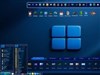
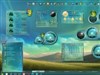
WindowBlinds 6 is packed with new features. Many new features have been added for both Windows XP and Vista users. Check out the
� WindowBlinds now has Blur support in title bars in Windows XP (addionally on the menus on Windows Vista)
� WindowBlinds now supports all many of the new Windows Vista User Interface elements so that skins can change these sections (including sidebar skinning)! Other examples are IE navigation arrows, IE tabs, start menu shutdown/lock buttons, etc.
� The Start Menu now supports animation on both Windows XP and Vista! The new Molten skin has been included with the BETA to show off this �hot� new feature.
� WindowBlinds now has category filtering when viewing skins to apply. Users with many skins can now filter by the category assigned to the skin (for example Holiday, OS, Computers, Sports, etc.)
� Wallpaper can now be filtered by tags (keywords) such as Light/Dark, Animals, Plants, etc.) Allowing the user to quickly find wallpaper that will match their chosen skin.
� Support for a random skin selection when applying a new skin.
� Users can now recolor a skin and save that setting on a per skin basis. (For example changing blues to reds.)
� In addition, WindowBlinds now supports �Advanced HSL Coloring�. Users can choose a single color to change instead re-coloring the entire skin
� A Vista-izeTM me function which sets some defaults to have a more vista like look
� Explorer background bitmaps can now be included as part of the skin,
� And many more features�
More features list:
WindowBlinds now has the ability to�
� Edit the system colors from WindowBlinds
� Change skin fonts from WindowBlinds
� Control transparency and blur on start menu, menus, taskbar & window frames. Has some limitations on XP
� Save all skin changes as presets
� Edit a sidebar skin from within WindowBlinds
� Alter the mouse over animation speed
� Alter the default button pulsing speed
� Handle skin upgrades in an improved fashion
� Use the Aero frames with the rest of the skin
[Refresh - turned off a debug file on vista and refreshed Molten skin for XP a bit]
[Refresh - Fixed Miranda IM]
[Refresh - Tweaks to system fonts]
[Refresh - Sidebar preview tweaked]
Reply #273 Wednesday, August 8, 2007 10:53 PM

Reply #274 Wednesday, August 8, 2007 11:15 PM
Reply #275 Thursday, August 9, 2007 2:33 AM
I have an annoying problem with the Molten skin, basically every reboot it changes my desktop background to its default crap brown colour. I have to manually reset my background back again, highly annoying.
Where are you trying to change the background from? I had that same problem trying to change the background from the control panel. As soon as I changed it within WB itself (2nd to last link under "tasks" on the left-hand side), though, all problems stopped.
I don't know if this is a bug, or if Molten, by design or default, sets the background to plain brown when applied...
P

Reply #276 Thursday, August 9, 2007 2:57 AM
- Backed up skins folder.
- Archived 5.5... [via Stardock Central]
- Set skin to 'Windows XP Style', using the WB Config window.
- Unloaded Windowblinds, using the WB Config window.
- Uninstalled 5.5 [via Stardock Central]
- Rebooted.
- Installed WindowBlinds 6 (6.0 (beta build 21 x86)).
- Rebooted.
- Loaded WindowBlinds 6 (6.0 (beta build 21 x86)).
- Applied 'Diamond' ...then 'Molten' ....
- WOW! @ 'Molten' & 'Diamond' ..that Dragon animation is a bewdy! ...and Diamond is a very usable skin ...nice and unobtrusive.
- Checked all other installed skins ....working fine.
- Moved backed up skins back into the skins folder of WindowBlinds.
- Tested as many as I could be bothered to ...all fine & working.
Loving this version of WindowBlinds ..still finding some very cool things.
Thankyou Stardock & WindowBlinds Dev's ...this is the best build so far, by a country mile! 
Did that for me, but changing background is a snap, anyway... 
Reply #277 Thursday, August 9, 2007 3:32 AM
Deleted .wb4 files but no change. Text is still too big.

Reply #278 Thursday, August 9, 2007 10:52 PM
Deleted .wb4 files but no change. Text is still too big.
You should be able to go into WindowBlinds 6, click on 'Change Skin Fonts', then click to the left of 'normal' on the scale bar. That worked for me with a couple of skins. Or you can change the font to another one.

Reply #279 Thursday, August 9, 2007 11:06 PM
All WB skins have a background color set in them, when setting background color thru Windows display properties it will always revert to the color that is set in the skin you are using at start-up or after a reboot.
To save having to edit all skins you have, the best solution is to open MS Paint and make an image that is the color you want for you background, save as a jpg, set that as your wall and make sure, in Override default setting of WB config, that Apply the wallpaper include with skin is not checked.
Reply #280 Thursday, August 9, 2007 11:39 PM
From list of WB 6 improvements
XP Format uses fonts for classic widgets for system fonts, they are set at a height of 15, pre WB6 it should be set at -15, I believe that with 5.5 it was being displyed incorrectly as setting was not negative, so now with WB6 it is showing as the large size they are set at. Default I believe is 10.
Please login to comment and/or vote for this skin.
Welcome Guest! Please take the time to register with us.
There are many great features available to you once you register, including:
- Richer content, access to many features that are disabled for guests like commenting on the forums and downloading skins.
- Access to a great community, with a massive database of many, many areas of interest.
- Access to contests & subscription offers like exclusive emails.
- It's simple, and FREE!
|
|
Page 14 of 27 | |
|
|---|
Reply #261 Tuesday, August 7, 2007 8:19 PM
Leftover/dangling piece of Start Orb (when autohiding taskbar using Object Dock at top of desktop) still remains, in XP only (on ATI/AMD and Nvidia/Intel machines).