



















Object Desktop in action
Learning how to super-charge Windows
Thursday, July 7, 2005 by Frogboy | Discussion: Beginners
 I have a lot of computers. It seems like I've always had more computers than one person should have. And each computer is different. I've got my development machine, I've got my casual office machine, I've got my laptop, and I've got my gaming machine. I even have a tablet PC.
Each computer has different types of software on it and very different capabilities. And yet, by default, they all look and behave identically. Windows has always been a one-size fits all solution. Even the Tablet PC version of Windows is pretty much the same as every other version of Windows.
So what is a user to do? We all use our computers for different things so how can we easily custom tailor it to our needs? The answer: Object Desktop. Object Desktop has seen its popularity steadily increase over the years as users have found themselves wanting to tweak, modify, enhance, etc. the way Windows works.
Many people see Object Desktop as a visual, cosmetic product for Windows. I.e. something that makes Windows "look cool". That's only a very small part of the story. In a screenshot or in a first impression, it's always that "cool" stuff. But as users get used to using it, they realize there's a lot more under the surface.
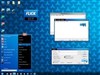
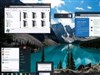
For this article, I'm going to stick with pretty basic stuff. Object Desktop gives you the power to really alter the way Windows works. But we don't want to go crazy just yet, let's go with some fairly straight forward stuff and go from there. I'm going to talk about my 3 main, non-specialized computers and how I use them. For the purposes of the screenshots, I'm doing them all on my development machine (the machine I'm on right now) to cut down on the time it would take to put all this stuff together for you. 
All the programs I mention before come with Object Desktop which is only $49.95 and plus you get everything added to it for a year!
The Laptop
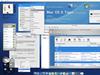
 I am probably the one guy in the world who runs his laptop at a relatively low resolution. My ThinkPad T42 laptop does up to 1440x1050 resolution but I tend to run it in 800x600 or 1024x768 when I'm doing email or browsing the net. And that's fine with Object Desktop which lets me transform the Windows UI into something optimized for low resolutions:
 I use RightClick to have a new default right-click menu. I set it up to display my most frequently used programs along with a few other handy things on there such as my "Programs" menu. I have it set to automatically open when I hit the Windows key. Sometimes I tell it to hide my Start bar to get a bit of extra space. But I go back and forth on that depending on what I'm doing.
 I also turn on IconX. That's because I sometimes will have my icons be only 24x24 on the desktop. That's smaller than the default icons and IconX can scale my icons much better than Windows can. The new version of IconX lets me specify labels so I can have nice big labels still for the icons. These days, icons are pretty useless for individual things it seems like (IMO) and labels are much more useful.
 When I'm using my Start bar, I use the new Stardock Virtual Desktops. It's faster than other virtual desktops I've used and makes it easy to get more screen space when I need to.
 I also use the Silica Media Player widget. And I admit, I mainly use it to control iTunes at this point. I have it set to come up when I hit the F12 key so I can quickly zip through songs.
 Keyboard LaunchPad is really crucial on my laptop. The reason is that, especially when traveling on the plane, I don't have much room for a mouse and while I like IBM's Trackpoint technology, it gets a bit old navigating to particular programs. So what I do is I have my common programs tied to a series of hot-keys. I am hoping that the next version will let me control iTunes directly from it (not that I don't like my media player widget but I pretty much just want to control things via the keyboard at that point).
 Last but not least is WindowBlinds. I use it to run some minimalist skin. It changes my entire Windows GUI to have a nice, simple looking skin. But it is also important because I can set it so that when I right-click on a title bar it minimized the window.
What I've used Object Desktop to do is to get the most out of my limited screen space. I want to be able to get to things very quickly and I'm not very concerned about what is on the desktop or what is pretty.
The Development Machine
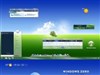
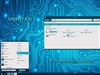
 My development machine is typically running at 1600x1200. So my screenshot isn't really reflective of just what I tend to have on it. My development machine is where I do everything from write code for Galactic Civilizations to creating new skins, objects, scripts, etc.
 First off, I use DesktopX, as an environment here. The whole "widget" thing has kind of created some confusion on what exactly DesktopX is for. DesktopX is a desktop environment. It lets you have real objects on your desktop. In this case, what I do is import widgets and other content onto my desktop. Widgets are great but each widget is a mini-program. Imported content, by contrast, use very little memory because DesktopX itself takes care of running them. So I tend to import my To-Do list, various RSS feeds, stock-tickers, sticky-notes, etc.
I also have a bunch of custom objects that I can't take screenshots of that display the status of our various databases and stores, and recent bug entries into our bug database. We created these with DesktopX too.
 The Silica Calendar widget is one I always run. So often I just don't remember which day of the week something will be and while I can double click on the clock in the Start bar, it's a lot quicker to hit F12 to bring up the calandar.
 Not that my code ever has memory leaks but I also make heavy use of the Silica Memory meter widget. So I can keep track of my overall memory use to see if something is leaking.
I also run RightClick on this desktop. Except on this machine, I have all my development tools right off the main menu.
I use Keyboard LaunchPad to do only two things really -- first, I have Visual Studio and its corresponding tools all assigned to a single hot key. So when I hit Ctrl-Shift-D on my system it loads up several programs at once. And secondly, I have Ctrl-Alt-1 through 6 specified to load up a bunch of web pages I often go to.
I use WindowBlinds primarily for cosmetics on this machine. I just want my GUI that I'm staring at all day to look cool.
 Ditto with IconPackager. IconPackager lets me change all my Windows icons to something that looks cool.
My overall strategy here is that I turn my desktop into a headline news reader with lots of objects on here that gives me all kinds of info. I also keep track of my resources and schedule. But I also care about how it looks, I want it to be nice looking as well.
The Gaming Rig
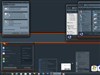
 The gaming rig is my play machine. It's ridiculously powerful for game playing. I do quite a bit of work on here too as I end up doing a lot of web work and such on this machine. But mostly I'm playing games on it. It has a really good video sub-system (right now an ATI X800 on it) so I tend to be able to turn on a lot more eye candy than I might otherwise use. I also tend to change the way it looks a lot since my tastes vary quite a bit.
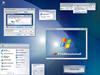
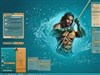
 First off, I use WindowFX very heavily here. WindowFX lets me add shadows to my windows. It also has a feature that lets me scale my windows. This is incredibly cool. Basically I can assign it so that when I hold the SHIFT button when I click on the minimize button, it will turn the window into a scaled window (See the screenshot for an example). I can even interact with the window even when it's scaled which is quite useful if I am doing IM in a scaled window.
Again, I have WindowBlinds here and I tend to have various kinds of skins running. I don't stick with anything very long. I will often just pick whatever is the currently featured skin.
Same with IconPackager. I have it change all my icons to something cool.
IconX is where I really have some fun. First, I set my default icon size to 64x64. So they're very large. Secondly, I have the mouse over size be 128x128 and I have it animate to that size so that grow on mouse over. Some icons in particular I change to use a PNG file. I am hoping that a future version of IconX will let us set individual icons to have their own unique size but I'm not sure how the UI would be done for that.
 The Silica Picture Frame is very nice to have. Remember, this is a home machine, so I will tend to have a lot of company over from time to time. So I have the Silica Picture Frame widget cycle through the latest family photos. I can resize it to be any size I want so if I have a lot of guests over, I'll make it full screen.
 The Silica Drive Meter. I use this because this is also the machine I take my home movies and turn them into DVDs. As you can imagine, the work files for this can get pretty huge so I tend to want to keep real-time track of my disk space as some of the cryptic programs I use for messing with video files don't bother to check to see if there's enough space to do what they're going to do before hand.
 I don't use the Stock monitor widget as much as I used to. I don't have a lot of stocks but last Winter before I sold some stock I was using this quite a bit. I suspect others would find this useful too.
 Enhanced File Dialog is still in beta on Object Desktop but I find it incredibly useful. Basically it extends your existing Windows File Load/Save dialog to let you have additional functionality (resizable, add new places on the left side, have some quick launch buttons in there, etc.). A lot of the graphics programs I use don't seem to remember where I want to load images from or where I want to save images to and so being able to press a button to get back to where I want to go is a life saver. When this program is completed, I'll put it onto my other machines but the other production machines don't tend to run beta software which is why I only have it on this machine.
The tip of the iceberg
Everything mentioned above comes with Object Desktop -- today. And believe it or not, I've barely scratched the surface. Object Desktop is probably one of the best software deals on the planet. It comes with everything you need to turbo-charge your Windows desktop to work however you want it to work. We haven't even gone into talking about ObjectBar or SkinStudio or IconDeveloper or how you create things with DesktopX. And we haven't touched on how you can use these programs to really change the way Windows looks & feels. I'll leave that for another time.
| Object Desktop | |||||||||||||||||
| |||||||||||||||||


Some other screenshots:


Loading a desktop with DesktopX (Newbies #15)
Cordelia's Corner for the Complete No0b #15
Thursday, July 7, 2005 by Cordelia | Discussion: Tutorials
Today's topic is loading a DesktopX 3.0 desktop. A DesktopX desktop is basically a snapshot of your desktop. It can be a desktop you've arranged with all of the widgets and objects you like displayed in a pleasing manner (or a displeasing manner, if you have a taste for suffering. Who am I to judge?).
It might also be something that has been set up for "fun" - I'll have to look up this "fun" word when I'm done here. Perhaps someone could provide me with a tutorial on "fun"?
And finally, a desktop might be a secure environment that restricts the user to a limited number of functions. Why would anyone want to do this, you ask? Well, what if you have small children and want to restrict their access to certain programs/folders on the computer. Admittedly, many 5 year olds know more about computers than I do, but it is still possible to restrict them.
|
|
Let's see some examples of this. Here is a screenshot of my current desktop.
|
|
|
Now I open DesktopX and click on Load Desktop...
|
|
|
There are 2 desktops that currently come with DesktopX 3.0. The first one is a game called "Keepie Ups" and it looks like this (click on thumbnail for a larger view). If I click on that soccer ball, the game tallies how long I can keep it in the air. You can see my pathetic score in the upper right and left corner of the screen. I don't feel bad, though - I've always sucked at any sport other than self-loathing or running away. |
|
|
The next desktop is the "Guest" desktop. Have family coming over for a visit? Will they all be clamoring to use your computer? Load this desktop and restrict their access to your files. One button takes them to the Internet, and the other can be set up to take them to a program they can use - perhaps "Word". Simply right-click on the "My Program" icon and set the link to go to the program you want. |


Notice that any widgets or programs you have running when you set the desktop will remain active and visible after you set the desktop.
This desktop is not secure. This desktop would be perfect for my mother (whom I love very much, but who is a technophobe), however most small children will have this desktop unloaded in a matter of seconds. Truly secure desktops can be created with DesktopX Enterprise Edition, but that is well beyond the scope of this article.
 |
If you want to unload the desktop, just right-click on the background and select "load desktop". You get this dialog box and you can choose from any of the 3 desktops. Notice the picture on the "classic" desktop. My guess is that it does not look like your desktop. That's ok, select that one and you will go back to how your desktop was before you changed it. |
And that, my friends, is all there is to loading an already made desktop. Making your own is a whole other article. Probably the next one .
If you don't have DesktopX 3.0 you can get it here.
https://www.stardock.com/products/desktopx/dx-faq.asp
This link will take you to the FAQ page for DesktopX. It's quite possible that I am leaving a lot of questions unanswered in this tutorial, and it's not because I don't like you. (I do, believe me.). It's a very complicated program, and it seems to me that if you can imagine it, you can create it with DesktopX. My little tutorials are just for beginners, no0bies, greenhorns...etc.
Check out the other Newbie Tutorials here: #1: Intro., #2: WindowBlinds, Part 1, #3: WindowBlinds, Part 2, #4: Screenshots, #5: IconPackager, #6: Wallpaper Basics; #7: Logon Studio; #8: CursorXP; #9: BootSkin; #10: RightClick; #12: WindowBlinds Advanced; #13: DesktopX 3.0: Loading Widgets; #14: Loading Objects with DesktopX
My Desktop:
Skin: Encoded by PixelPirate (It's new, and it's awesome)
Cursors: Encoded by PixelPirate (Keeping with the theme)
Wall: Simplicity by Nerio (Ok, I've used it before, but I can't help it: it's good and it just goes with a lot of stuff!)
Icons: Icon-A-Day by mormegil (was there any question what I'd be running?)
Rethinking UI - Task Management
Originally posted at http://rethinking.squarespace.com
Wednesday, July 6, 2005 by Tory Larson | Discussion: OS Customization
Again, I'm requesting some synergy. I had some pretty good input in the last entry about UI design. Let's keep talking about it.
Point of clarification: in this article, a "task" refers to an objective to be accomplished (write a paper, design a web page, design a graphic, etc.) rather than the program that accomplishes the task. Why? Because sometimes it requires several programs (or processes) to accomplish a task. But still only one task was done.
What is the best way to manage the things we do on a PC? I'm thinking about various methods...specifically those that can be implmented on Windows.
- Dock. It's nice. Works well on MacOS. Windows' task management works different than POSIX-based OS's, however. The idea of having a common place to manage and launch tasks has some merit. I do not like the fact that programs stay running until you select the "quit" menu item. Very unintuitive. But the idea of tasks and launchers going together is good. Sadly, the only way that works on Windows is through RK Launcher. And if you have multiple windows, you're sunk. Yes, there are other dock clones on Windows. But none of them manages windows...only processes. Or if they manage windows, they do it via several separate icons...very space-consuming and confusing. Another problem, though, is the idea of managing multiple windows through one icon. Microsoft introduced this with XP, as well--"task grouping." Sorry, guys. Loser idea. It takes longer for me to do that, than to click through a couple of taskbar buttons. Same problem on MacOS, which brings us to...
- Expose. Great feature. Works beautifully on MacOS. Still buggy and slow on Windows, unless you're running the latest and greatest. There's gotta be a better way to do things on Windows. But for window management, it's a great system...especially if you get about 20 windows open on your screen. Incidentally, for Windows, I recommend TopDesk at www.otakusoftware.com. $10, and works best of the breed. Very stable.
- Taskbar. Good concept. Works OK if you've only got about 4, max 5, windows open. Not the most efficient, but certainly less resource-intensive than the first two options. But the taskbar gets crowded quickly, especially if you actually use the Quick Launch.
- Tasklist. A better idea if it would pop up on mouseover. Otherwise, it's slow. But it is more precise than other methods. Probably the next best thing to Expose if you have many windows open. Can be found in alternate Windows Shells and in Pre-OS X Mac OS.
- Hotkey. Works well for flipping between two windows. Otherwise, a waste of time.
- NeXT Dock. Good idea; the un-evolved OS X dock--this is where it all began. Same concept as the OS X dock, except that it doesn't show all running processes in one place. Definitely the same weaknesses at the OS X dock, but takes up the same screen real estate.
- Virtual desktop. Task-based management. Good idea--most WM's don't work with the idea...making all tasks visible on all windows. Still, you can put one set of tasks in each VD, and you can move between sets of "work" rather than flipping between windows. This is a dream system for web design---graphics editing on one desktop, coding on another, previews on still another. And your email client on the fourth...just cuz you need it.

I think that covers the basic systems. If you think of another, let me know. I'm dying to see it.
Quick synopsis before my laptop battery dies:
Best ideas, IMHO...
* An integrated task-management and launching system. Works well, if there were an efficient way to manage windows. "Task grouping" is a loser idea...especially since it's misnamed. All windows for a program are not necessarily related to a "task" being performed.
* Expose-like features manage windows well...not necessarily "tasks," though.
* Hotkeys are great for window-flipping.
* Virutal desktops are the way to go...if you can filter tasks easily...and switch between them easily.
I've got an idea going here...
* A full-screen VDM, acessible by hotkey or hotspot (probably both); kind of like Expose, except that it takes you to a particular task, rather than a particlular program; desktops have a name that reflects their purpose; e.g. Graphics, Coding, Preview, Research, etc...
* Something like Expose, perhaps, within each Virtual Desktop...
* But definitely each desktop would only visibly show the programs relevant to that particular task, via a tasklist or taskbar, or even a dock.
* Each VD could be "saved," so that its particular set of programs could be launched and the desktop could be opened with a single-click, once set up. This could include programs and documents. The ability to open particular documents would be important. Imagine someone who does land appraisal, among other things. With a single click, s/he could open Appraisal Software, a proprietary database, a spreadsheet with the appropriate formulas in a template, and a word processor template document on which to transfer the data. Single click, it's all there. And once the desktop is launched, it is brought up on screen, ready to work with.
* There would be a home screen, from which tasks could be sorted onto their respective desktops by drag-and-drop--or where a program would come up by default (I use OO.o Writer for lots of stuff...not just articles and papers), especially if you simply wanted to check email or something. It would be foolish to have a "Communication" desktop with IM, Browser, and Email and have to go through all the rigamarole of switching to it if all you wanted to do was check your email. K.I.S.S., you know.
* The home screen would also integrate a master tasklist--where one could access any window with a single click (or two)--and be taken to that task AND that desktop.
These are just some ideas. Intuitive implementation...well, that's another story. Most average PC users don't use half the capability of the stock OS, much less need something like this. But if you could train people...man, the power. And to think, there are people who still don't have a clue that Windows multitasks. Yes, really. I'm a consultant. I've seen it.
Comment on this, please...
Update on Sunday, July 3, 2005 at 11:55PM by Tory Larson
As an addendum here...
Stardock's VDM has some of these features:
* ability to name desktop and assign hotkeys
* ability to assign programs via DND (needs refinement)
* taskbar filtering
Microsoft's VDM has:
* assignable hotkeys
* only 4 desktops, but...
* ability to preview them all fullscreen
* no custom names (which defeats the above feature a bit)
* taskbar filtering
So it's a start...there's other software out there, so hopefully I'll find something. Or Stardock could jump in here. *grins*
Customizing - Not only for software
Skinning the iPod
Tuesday, July 5, 2005 by Thomas Thomassen | Discussion: OS Customization
Raw images in Longhorn (and XP)
Interesting article by Paul Thurrott
Tuesday, June 28, 2005 by Thomas Thomassen | Discussion: Windows Vista
OpenID - the new Passport?
Distributed identity, but where's the catch?
Monday, June 27, 2005 by GreenReaper | Discussion: Virtual Communities
I wonder, will I someday sign myself GreenReaper of WinCustomize.com?
PS: My article about WinCustomize search plugins is more useful than this one.
Icon-A-Day: making the final IconPackage!
A video wrap up and guide to making our final IconPackage
Sunday, June 26, 2005 by mormegil | Discussion: Icons
| Making the final IconPackage. So, its been several months now since we started working on the Icon-A-Day project. I have officially finished all of the icons as of yesterday. However I still have several icon tutorials to post, but they can come out over the next few days. The icons are done, and that means its time to make the Final IconPackage. To make the final Icon-A-Day IconPackage, I am using two programs, IconDeveloper 1.1 and IconPackager 3.0. Both of these programs are pretty cheap, considering how much the software I used to design the icons cost, and besides, if you own Object Desktop you already have them. Rather then do a step by step image tutorial I have recoded a video showing the entire process of assembling the pack. I will sum it up here but make sure you watch the video. | ||
| Step 1: First I use IconDeveloper to batch convert all the PNG's we have made; 119 of them if you can believe it. This allows us to quickly make Windows XP style icons in all the resolutions we want. (Watch the Video for more)
|
Step 2: Now we use IconPackager 3.0's new Package Builder to quickly drag and drop all of our icons into their proper places. |
Step 3: And last but not least we save our pack, as well as go through and make some personal tweaks to make use of some of our bonus icons. |
| Click Here to Download the Final IconPackager Pack! | ||
|
This brings us to the end of the Icon-A-Day tutorial series. I will be posting a few more tutorials that got skipped, but they will all be linked in the Icon-A-Day Index. I might even be posting a few more bonus icons in the future, as requests come in. | ||




Linux vs XP vs the World vs Linux vs Bill Gates vs Linux vs
How Linux and Linus Torvald Save Bill Gates' Butt through Apache
Sunday, June 26, 2005 by Chuck | Discussion: Personal Computing
Fairness and objectivity is something applied to many arguments in my fields of history and computers. A striving is needed to understand the relative merits of both Microsoft XP, in this case and SUSE Linux 9.2, shall we say since familiarity is known through usage of both. Personally, there are merits and disadvantages of both systems, but some commonalities that stand out. There is no doubt Microsoft has increasing become a memory hog in each new operating system unveiled while SUSE Linux can run very easily on meager memory. My desktop operates on 768MB of memory which is enough to sustain Windows XPSP2, but makes Linux 9.2 whiz like a champ through many applications.
Obviously, there are many more applications available for MS XP than Linux 9.2. Linux has seen more software companies swing over in the past few years as well an more American cities and various nations adopting this operating system. The hope is more well known software companies will develop applications for Linux since more US localities and nations are utilizing the system. IBM has been a strong booster for Linux for a few years now, but major computer manufacturers vacillate between offering Linux on systems in addition to Microsoft. Dell did for awhile, but charge more than it did for MS XP which made little sense other than they sold far less than the MS equipped ones. There seems to be a lot of commerce talk now indicating more computer companies will be offering Linux, but that remains to be seen.
What are the advantages of Linux? It takes less memory to function with as mentioned before and seems to be a safer system overall. There have been some security flaws in the system, but they have been quickly met and patches issued in a short period of time. In fact, various patches, etc., are always available whenever one goes up on Linux pending whatever one decides to apply. I also enjoy the security available on Linux utilizing both a uder id and password to enter, period. One can neter XP, encounter a security screeen and bypass by merely hitting cancel, but that is not the same on Linux. Secondly, any change to inner Linux is accessible only by password which again is very easy to access through XP. Another aspect is various GUI one can use in Linux ranging from Linux to GNome. There are wonderful selections depending on whatever your desires are. So we have operating on neglible memory, various GUIs, securty and a wonderful patching system readily acessibly to.
On the other hand, Linux is a system that takes adjusting to if you haven't operated it before. It demands a different mindset and the ability to absorb a Unix based system instead of the prevalent MS type most are familiar with. XP's installation idea, for example, is to simply download the desired program, click twice and the installation begins with limited intervention needed by the user. Linux 9.2, on the other hand, is slightly different and requires much more user attention to protocol than MS in addition to familiarity to a different type of file system. Make no doubt about it, you have to do your homework and a bit of studying pays off in the long run with a smooth running operating system. Best thing to do is visit a bookstore and buy a SUSE Linux book which outlines all the various operations, functions, etc., and familiarize yourself with it before actually doing some hands on operations. It pays off in the long run with greater understanding not only of Linux, but of the subtle differences with XP.
Linux has made substantial GUI changes with each new edition and has done well with SUSE Linux 9.2. My Linux Guru friends rant they are making it too much like MS while others state it is necessary to develop attraction by former MS owners. Regardless, the current GUI is easy to function with once you are familiar with the process just like other system. In fact, Linux has more to offer in terms of customization that XP and generally, what you don't find can be download by some genius who has written code for the very thing you desire. Linux research and development is among the people and not confined to Redmond as MS is. This vast pool of Linux developers adds so many unqie contributions that can only be reviewed by constantly going to the various Linux websites from around the world. Though Linux is free code, there are various companies like SUSE, Redhat and others who sell Linux for a small fee. The development, however, is till among the millions of adherents who develop everything from Tux to a small clock to tell time in Russian, for example. Its truly an amazing example in international cooperation at work on a wonderful project.
One thing continually tiring about XP are the numerous security updates not only for XP, but also the various components such as Office, Outlook, Internet Explorer and Outlook Express. There were eight two weeks ago, but the number this year alone is staggering in comparison to Linux which is confronted with very few in comparison. So one asks why the problem with Microsoft? My guess is two fold with the primary being Microsoft didn't accomplish a great deal of research and development before unveiling a product to the masses for sale. I sense their concept was to present it for sale and then meet each challenge as it arose instead of finding various major during during an expensive and time consumed r/d period. One can also call this profit motive before r/d expenditures whereas Linus research and development is constant involving millions of people worldwide on any given issue. Secondly, it also appears Bill Gates, himself, gain many enemies due to his management style, aggressiveness and monopolistic desires that, in turn, manifested itself in creation of a multitude of hackers who developed a sole mission to find as many flaws or security holes in MS products as possible. In all fairness, there are many reputable laboratories out there which also find flaws and report them to Microsoft and Redmond gives them credit accordingly when announcing the hole and subsequent game plan for it. Regardless, a combination of the two aforemention reasons seem to illustrate the continual need for security upadates, SPs and various other changes issued by MS on a regular basis to those operating Microsoft operating system and products.
That in itself is enough to make even the most faithful to MS wonder what in the heck is going on. Take this example to consider>Outlook Express has a tendency to lose all print in the preview pane at times and also in the email when clicked to read. A diligent search of MS revleas only to a reinstall a dll thrun the run command on an interim basis with no permanent solution to the dilemma. This has ocurred to several of clients' systems and I gave up after exhaustive research for a solution and recommended they use Mozilla Thuderbird instead. All clients agreed this was an excellent recommendation after an initial breaking in period and now will not use anything else. Accordingly, they have also switched over to Mozilla Firefox due to security consideration after difficulties Internet Explorer has experienced and my recommendations. Bottom line was security and no permanent MS solution available even after email contact with MS techreps.
I have found no major problems with Linux nor Mozilla; and those encountered have been quickly resolved through the massive system used by both to encounter and resolve these needs. Linux has a massive knowledge base on SUSE and questions can also be directed to a LIVE PERSON for resolvement who actually emails you back within a short period of time. I was amazed since no waiting time was involved as with MS and secondly, I didn't find myself talking with someone from either China or India, with respect, that difficulties were encountered understanding due to cultural differences. It appears MS has made great strides in this area, but they still lack on the customer service side.
What is the end result for me? I have one hard drive devoted to Linux 9.2 shortly to be upgraded to 9.3 which will be used to develop more knowledge and expertise with; a second harddrive with MS XPSP2 on for the same purpose; and a third on with Windows 2000SPR to remember the good old days. I could list all the difficulties had with XP, but will save that along with solutions for another rant. It will be interesting.
Gain as much knowledge as possible on all operating systems since both MS XP and Linux are being pushed hard throughout the world. They both have good selling points, but Linux is a bit ahead with a low cost tag and safer system; MS pushes on the availability of much software, but has to really work to convey safety. Personally, I would rather see Bill Gates arguing with Linus Torvald at some site in acity where it was all taped for future viewing. Not that Bill would ever do this, but it would be interesting to see and hear what both had to say about their respective systems. I placing my bet on Linus Torvald since Linux is stil surviving after years of being bad mouthed by Bill; particularly that served Gates onces stated was his greated nemeis-Apache. So good, MS installed them at Redmond and during one nasty bug night, these servers saved his butt, but Bill didn't like the annoucement being made Apache had achieved this. In fact, his ego needed massaging after that.
Understanding Adware, Spyware, Logging, Hijackers & Phishing
Mac Attack Is Preferred To Weasly and Rascally Entry (WARE)
Saturday, June 25, 2005 by Chuck | Discussion: Personal Computing
What risk, you meekly ask with a wry smile? Why the risk of spyware, malware, hijacking, logware. viruses, worms, trojans and phishing to name the more popular ones with new ones propagating faster than earthworms in summer. The bad guys are constantly creating nasties to invade the good guys' systems which many owners are not even aware of. I was recently called to aid a nervous friend who had no idea whatsoever what was happening to her system. She had recently subscribed to broadband (and I won't mention ComCast by name) and the tech had installed everything by the book. Yes, by the book, except he did not inform her she need a current antivirus, antispyware or firewall to protect her investment. My diagnostics found and removed 1,263 pieces of spyware, 8 viruses, 4 trojans and 6 worms which fortunately had done no permanent damage to the unit. She was encouraged to contact that company I won't disclose (ComCast), but probably didn't since chances are no responsibility would have been taken. Also, this company doesn't offer any free security software for subscribers like Cox Communications does. So it goes.
The first step in diagnosing any problem regarding WARE (weasily and rascally entry) is to closely examine your computer operation. Turn on the unit and then set back to watch the booting up. Here is a checksheet to help you:
1. Turn on your system, set back, relax and watch the advertising show. Quite a show will be displayed if you have sufficient inundated adware (advertising spyware) and you will notice continuous popups. The products displayed are many, but more so is the rapidity of each popup taking up your windows memory as well as bandwidth while demonstrating subliminal advertising to the hilt. It is safe to assume you are infested with adware if this occurs, but the products shown aren't that good. Make one check mark.
2. Lets say you turn on your system and it has difficult booting up. In fact, you have problems entering safemode and mutter to yourself: "damn Microsoft." It may not be Microsoft's entire fault, but a small portion is. Spyware can invade many different portions of your system and be transporting worms or viruses to make your life more exciting as well. Where did they come from, you ask? Probably not from the bar you were hanging at last night nor from the date experienced, but could have came from the email received afterwards; or from that free piece of software you installed; or from just being on the internet. WHAT!!!!! Yup, just by being on the internet.
The internet has changed substantially from years ago. Duhhhhhh!!! A system is at risk these days simply by going on the internet without sufficient protection-nasy bots hang out there testing individual computer protection and zoom onto an unprotected one after sending back sufficient information to bring the equivalent of the Red Sea spyware to you computer's front door. This may sound exaggerated, but not that much since the nastie technology has advanced substantially and for every protection released by a recognized laboratory, a counter-nastie is devised by someone out there to attack it. It can be described as evolutionary to the full extent and is an ever crusading battle for truth, justice and the American way. Where is Superman when you need him?
Back to spyware which plants itself on your computer and sends back information to a server ranging from your marketing habits, sites visited, personal information, etc. It is not a good thing to have on your computer and should be removed as soon as possible.
3. Hijackers-these little devils do exactly what the name implies>hijack your computer and without you even being aware of it. Hacks come onto your system, look around for personal information like passwords, financial information, telephone numbers, etc., and then proceed to do things like download illegal software onto the harddrive, make numerous phone calls, credit card purchases, etc., while your computer is identified as the one used for all transactions. Normally, they are discovered when the credit card or telephone bill arrives indicating $3000 worth of charges in Singapore and you scream!!; and perhaps when something peculiar happens with the computer like bouncing around or programs not there before. Either way, by then the damage is done and the culprits have skipped out leaving you with the aftermath of perhaps identity theft, numerous long distance and international phone calls, tons of credit card purchases and the need to cry all night long. All you can do is prevent it from even happening again after reporting identity theft to the authorities and Barney.
4. Loggers-these devices are implanted on your system to record and transmit everything you log onto your keyboard. Imagine, everything you key into the system has been transmitted to a server somewhere with the idea of obtaining personal identity such as social security numbers, checkings/saving accounts, and any other preferably financial information that can be gleaned. It's mind boggling!!
5. My new favorite is entitled Child Protection or Surveillance TV...in reality its another device which takes snapshots of your entire harddrive or individual files for transfer to a server located in some unknown place where another computer examines for personal information. Very advanced, very sophisticated and demands a good antispyware with current definitions to find on your system.
6. Malware, also called Riskware, is anything that poses malice or risk to your system. This can range from a latent threat which may lay dormant for awhile and then come forth to deliver a potent virus, worm, logger, or hijacker. It depends upon which form deviousness the programmer had in mind when conceiving or if he or she had been to mass recently. Regardless, they can be identified with a good antispyware and dispatched to nastie heaven in the manurepile of digital bliss.
7. One last latter day creation Phishing. Phishing involves professional looking email from what appears to be your bank, ISP, etc., usually stating they are reorganizing financial information and would like for you to resubmit yours again. NOTTTTTTTT!! Its not the real thing and will go only to a server probably out of country where good use will be made of the information given. New security packages now have developed anti-phishing packages, but the best thing is common sense. REMEMBER THE FOLLOWING:
1. Nothing is free completely.....you will always receive something in the background if download.
2. Never open emails you don't recognize. Opening one is sufficient enough to insure an abundance of spam and possible unleashing of nasties upon your system.
3. Never respond to spam. They take it as consent has been given. Best thing is to simply brand it as junk mail, let your system remove it, or delete it, and then report it to your ISP.
4. Don't be taken in by official looking email that resembles your financial institution, ISP or something similar. It probably isn't and could prove far more devastatin than you can imagine. Ignore all Selective Service Draft Notices.
5. Always beware if downloading something, like software, and it comes in a bundled package. Generally, this is an indication it provides products for you to evaluate which involves spyware. Always go to reputable sites for software.
6. USE COMMON SENSE with everything. Keep you antivirus definitions current; update your antispyware consistently; and be aware of your firewall, keep it current and see what it stops.
7. Check your checkings/saving account statements; any other financial investiments; phone bill; credit card statements, etc., to insure nothing out of the ordinary is happening.
8. Never give a contribution to anyone named Barney who claims to be purple and sings a weird song beginning with "I love you, you love me..." Chances are its not Barney, but someone named Bluto seeking enough scratch to find Popeye for a hit. Don't be fooled.
We now come to the part where a discussion of good antispyware products is necessary. Well, this must be prefaced by determining broadband including DSL or using dialup yet. I heartily recommend the use of a router with NAT for broadband/dsl even if only one computer is used. Secondly, choose a good antivirus, firewall and antispyware. I currently utilize an excellent D-Links router with NAT and two anti-spyware programs, SpySweeper and counterSpy. You can't lose with two antispyware programs, but may have difficulty running two antivirus programs simultaneously, i.e. Norton and McAfee. My system only uses one antivirus, Kaspersky Personal Professional and one firewall, Zone Alarm For Wireless. In total, they all work superbly and provide excellent protection for my needs.
I run a wireless for my laptop and use the same two antispyware programs, Kaspersky Anti-Hacker and Kasperky Personal Professional. Again, the protection is superb and no noticeable problems have been noted since configuring both the desktop and laptop.
Now, do you know enough to go out there and fight the good fight. Probably, but you will learn a great deal in the future as the evolutionary struggle continues. You can always visit sites like McAfee, Symantec, Kasperksy, etc., to view the latest virus/worms/trojans; and there are excellent sites for spam like The Spamhaus Project (www.spamhaus.org) or the following for WARE: www.kephyr.com, www.spyware.guide and www.webroot.com has a wonderful guide entitled Truth About Spyware and Adware. There are also psychiatric/psychological sites if you ever become confused to the point of believing you are one with your computer. Feel free to write the following in Google: whyme, hit enter and wait for the results. Help is on the way and you will find your personality again!!!