

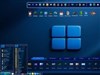

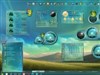

































SKS10 questions about how to skin certain things
Friday, April 29, 2016 by UltraVolta425 | Discussion: Skinning
Hey
I'm still rather new to the whole skinning thing. Specifically, I have four questions.
First, take a look at this screenshot, with all credits to Neone6 of course for the amazing skin.

Question 1: Look at the Q:\ in the address bar, specifially the pink selection area thingy. Is there any way using SkinStudio (or anything else maybe) to turn that into a different color, say, for example, red?
Question 2: How could I change the font of this selected item "A Long Way Down"? I find it barely readable. It only happens to the selected item, the non-selected items are just fine.
Question 3: How & where can I disable the glassiness you can see happening underneath the item "A Long Way Down"? I wish to make that non-transparant, is that possible?
Question 4: Is there any way to change the white-grayish color of the selected line to another color, say, for example, a much darker gray or black?
At any rate, I'd be grateful for any feedback provided.
 |
|
Page 2 of 2 | |
|
|---|
Reply #22 Saturday, April 30, 2016 6:08 AM
Thanks for the quick response, Neone6. I tried that before, I opened up the top caption image in Photoshop (CS6) and used Image -> Image Size to make it a few pixels smaller (9 pixels in total, later on I tried with 50 pixels smaller) having unchecked the "constrain Proportions" checkbox, I saved it as another targa image, imported that one in SKS but it made absolutely no difference.
Think it'll make a difference if I widen the side images instead?

Reply #23 Saturday, April 30, 2016 10:07 AM
Yup, you were right. It's weird that you have no choice but to change the size of the sides of the window in order to make it fit with the top & bottom. Changing the bottom or top doesn't change a thing, it would appear. Nevertheless, I got it to work to the best of my abilities. Ain't perfect (especially at the bottom) but for now it'll do:

(EDIT: imgur doesn't do my screenshot justice, it doesn't take into account the transparency near the right & left edges of the screen)
New question though (and to think I started out with just one question  ) : see the refresh icon near the top of the screen, and see the search icon to the very top right of the screen? Well, you can't see it, but there's text there somewhere. Something along the lines of "Search this PC". Is there any way to make that text white or something?
I tried looking in here already: SKS -> Edit Explorer/IE Shell Parts -> Edit Explorer Parts -> Search Field Background -> Extra Settings (really, Stardock knows NOTHING when it comes to usability, if you ask me ) and there: "Search text colour" which I changed to white... which resulted in no change.
You guys got any ideas? 

Reply #24 Saturday, April 30, 2016 10:21 AM
That text color cannot be changed unfortunately. Changing the search text color only changes the color of the text in the start menu search box. You have to create the search box image to work with black text, no matter what.
Reply #25 Saturday, April 30, 2016 10:33 AM
see the refresh icon near the top of the screen, and see the search icon to the very top right of the screen? Well, you can't see it, but there's text there somewhere. Something along the lines of "Search this PC". Is there any way to make that text white or something?
Kevin, next time draw a circle or something on the area you are talking about. I believe you are talking about the text on the right side between the refresh symbol and the search symbol. Guess i'm saying what you said. That text is in the search area, it is the same text that will show on the search area on the Startmenu. That text is also hard coded by the OS and can't be changed.
The only way to see it is to make the search area image a bit lighter. That image is in the Edit Explorer Parts. NOTE: It will also chang the color all the way to the left just right of the arrow after "this PC
Please login to comment and/or vote for this skin.
Welcome Guest! Please take the time to register with us.
There are many great features available to you once you register, including:
- Richer content, access to many features that are disabled for guests like commenting on the forums and downloading skins.
- Access to a great community, with a massive database of many, many areas of interest.
- Access to contests & subscription offers like exclusive emails.
- It's simple, and FREE!
|
|
Page 2 of 2 | |
|
|---|
Reply #21 Saturday, April 30, 2016 6:03 AM
Thanks for the quick response, Neone6. I tried that before, I opened up the top caption image in Photoshop (CS6) and used Image -> Image Size to make it a few pixels smaller (9 pixels in total, later on I tried with 50 pixels smaller) having unchecked the "constrain Proportions" checkbox, I saved it as another targa image, imported that one in SKS but it made absolutely no difference.
Think it'll make a difference if I widen the side images instead?