




































LogonStudio (Newbies 7)
Cordelia's Corner for the Complete Newbie: Part 7
Tuesday, January 11, 2005 by Cordelia | Discussion: OS Customization
Merriam-Webster online defines Obsession and Compulsion thusly:
Main Entry: ob·ses·sion
Pronunciation: äb-'se-sh&n, &b-
1 : a persistent disturbing preoccupation with an often unreasonable idea or feeling; broadly : compelling motivation
2 : something that causes an obsession
Main Entry: com·pul·sion
Pronunciation: k&m-'p&l-sh&n
1 a : an act of compelling : the state of being compelled b : a force that compels
2 : an irresistible impulse to perform an irrational act
Put the two words together and you get LogonStudio. OK, actually you get Obsessive-Compulsive disorder, but it's a very thin line between the two, right?
LogonStudio is a free program that allows you to change your logon screen. You can get it here. (Note: LogonStudio is no longer a supported program. *weeps quietly*).
A logon screen is the screen where you type in your password in order to gain access to your computer, always assuming you can remember your password. Oh, wait, you use the same password for everything you have to log in to and everything you've ever signed up for on the Internet, right? Here's a brief note about personal computing security: stop that. Also change your passwords on occasion.
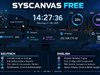
Anyway, the unskinned screen looks something like this:

Are you obsessed? Are you compulsed? Want to change your logon screen to match your current skin, or just change it to something different because you are sick of looking at the same thing for ten whole seconds out of your day? Well here's how:
1.) Download and open LogonStudio. It looks like this:

2.) Download a logon from WinCustomize's Logon Gallery. There are also some nice standard logons that come with the program. If you download a logon you will be required again to save it someplace you will remember, and then extract the zipped files as we discussed in yesterday's article on wallpapers. (See the daily hint at the bottom for a faster way to do this).
3.) Click Load and find the skin you just downloaded and then click Apply. I am trying out both Azure by adni18 and SkinPlant 102 by Mike Bryant. They are both so pretty I can't decide, I can't decide!!!

4) Once you click apply it will take you right back to your logon screen to show you what it looks like now. Sometimes I just log off and log back on just so I can stare at the pretty logon screen. See definitions at top of page.
Here are the two new screens:
 |
 |
Daily hint for the newb: Have LogonStudio open. Download your files and when the download dialog box tells you it's been downloaded you can click on open. This action will load the new logon into the program library. No more extracting files! Save precious mouse clicks!

Tomorrow's Article: CursorXP
Translate this article into Gaelic and win a Garden Cthulu !!!
(Offer not valid for carnivores or herbivores or carnivorous herbivores or vegetarian carnivores)
Check out the other Newbie Tutorials here: #1: Intro., #2: WindowBlinds, Part 1, #3: WindowBlinds, Part 2, #4: Screenshots, #5: IconPackager, #6: Wallpaper Basics
 |
|
Page 4 of 4 | |
|
|---|

Reply #62 Sunday, April 15, 2007 10:26 AM
If for some reason that doesn't work, rename the Vista Business.logonxp to Vista Business.zip, unzip it, and put the Vista Business folder in C:\Program Files\Wincustomize\Logon Studio.
It should be in the list then.

Reply #63 Tuesday, April 17, 2007 2:41 AM
i tried to make my own screen after trial and error i figured out hot to use the program to make one. then when i tried to apply it and logoff so that i could see what it looked like i got a parse error ";" at line 173 and now i cant logon to my computer at all how can i fix it

Reply #65 Tuesday, April 17, 2007 2:52 AM
Reply #66 Saturday, April 28, 2007 12:52 PM
 ..There used to be
  ..all else is fine. ..been to and thru the edit panels, and tried all options in "user" part of control panel. working from winXP and WinCustomize. Help! thanx.
Reply #68 Wednesday, May 9, 2007 3:51 AM
pls help i really wanna use this program

Reply #69 Wednesday, May 9, 2007 9:49 AM
It should work fine that way but sometimes Logon Studio will do weird things on some computers.
You are using XP right?
One way that always works as a last resort is to download the logon to your desktop, don't have it automatically load.
Then rename the file from "Whatever.logonxp" to "Whatever.zip" and unzip it. The you can put the Whatever folder in C:\Program Files\Wincustomize\Logon Studio.
Then when you open Logon Studio it should be in the list of logons so you can apply it.
Make sure there are just .bmps and a uifile and theme.ini in that folder and not another folder inside of it.
Reply #71 Friday, February 1, 2008 3:13 PM
Usually when I went back to finish creating the logon, I found that either setting image at "fixed" size usually corrected the problem. And oddly enough, when i tiled certain images, they were centered on the screen correctly?!? Hope some of this helps.
Reply #72 Tuesday, January 20, 2009 7:41 PM
Reply #73 Tuesday, November 3, 2009 11:20 PM
Please login to comment and/or vote for this skin.
Welcome Guest! Please take the time to register with us.
There are many great features available to you once you register, including:
- Richer content, access to many features that are disabled for guests like commenting on the forums and downloading skins.
- Access to a great community, with a massive database of many, many areas of interest.
- Access to contests & subscription offers like exclusive emails.
- It's simple, and FREE!
|
|
Page 4 of 4 | |
|
|---|
Reply #61 Sunday, April 15, 2007 8:38 AM
https://www.wincustomize.com/skins.aspx?skinid=8210&libid=26
and when i loaded it into logonstudio, nothing happened. no preview, no nothing, not even in the list. i figured out a way before, but then forgot. can someone help me please!! ><
please reply asap as i am desperate