

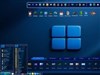

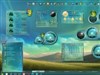

































Winstep Nexus dock and Nexus Ultimate v18.8 released!
Friday, September 7, 2018 by JcRabbit | Discussion: OS Customization

 The Winstep Nexus dock is a free dock for Windows. Nexus has everything you’d expect from a dock, including widgets, skins, drag-and-drop support, plus many others exclusive to it such as live icon reflections, over 30 different mouse-over effects, in-dock system tray, built-in support for animated icons, full Windows 10 UWP app support, multi-monitor and high DPI support and much more. Completely customizable, with thousands of different backgrounds freely available online, Nexus is fully compatible with skins for all 3rd party docks.
Nexus Ultimate is the commercial version of the free Nexus dock, adding support for multiple docks, categorized sub-docks, multiple tabbed docks (Shelves), Drawers (dock + single tabbed Shelf hybrid) plus even more widgets and cool looking mouseover effects.
Supported Languages: Arabic, Bulgarian, Catalan, Chinese (Traditional), Chinese (Simplified), Croatian, Czech, Dutch, English, Farsi (Persian), Finnish, French, German, Hungarian, Indonesian, Italian, Japanese, Korean, Norwegian, Polish, Portuguese, Portuguese (Brasil), Russian, Serbian, Slovak, Spanish, Swedish.
Nexus and Nexus Ultimate run on the 32 and 64 bit versions of Windows 2000, XP, Vista, 7, 8.x and Windows 10.


100% Windows 10 compatible with full UWP (Universal) app support.


Over 30 amazing mouse over, attention, launch and delete effects!


Built-in battery, calendar, clock, cpu, email, moon, net, ram, recycler, wanda and weather modules/widgets.

Built in support for system tray icons plus running applications with live window preview thumbnails


Multiple built-in docklets such as a compact media player, alarm manager, sleep timer, language bar, cd control, GeoIP location, screen capture....
...and much, much more!
More Information:
Winstep Web Site:
http://www.winstep.net
More information about Nexus/Nexus Ultimate:
https://www.winstep.net/nexus.asp

 |
|
Page 8 of 11 | |
|
|---|

Reply #142 Saturday, October 27, 2018 8:18 AM
Update: 18.11 beta
Grid Stacks works! Lol......I have four Drawers, three on the right one on the left. I was able to convert my book folders to stacks and taking my cursor off the Drawer it closes and the stack remains until you click on something else. When you do the Drawer makes like a fish and sucks the stack back in  . No kidding this time. That's what it looked like. It works on the Drawers but not on the workshelf. I thought it was supposed to work there too. I can browse but not convert to stack. Anyway, some screenies...


Reply #143 Saturday, October 27, 2018 1:11 PM
Nothing to do with NextSTART, I can assure you. Looks more like a WB vs. NextSTART issue?
That's actually a bug lol. The Drawer is not supposed to close automatically until you close the stack.
Quick tutorial:
The Shelf (tabbed dock) supports multiple different types of tabs: the Regular tab type is like the tabs in OD tabbed docks, when you add a tab of type Regular to the Shelf you can do with it everything you can with shortcuts in a dock (add modules, internal commands, Grid Stacks, order the icons however you want via drag & drop, etc...)
All the other tab types are very different (you should intuitively understand what each tab type is by its name): the Folder tab type, for instance, allows you to show you the contents of any folder in your hard drive as a tab in the Shelf. Not only that, you can drag & drop files into it, and those files are automatically copied or moved into the folder in the hard drive. Likewise, you can drag & drop files and folders OUT of the folder tab.
Be very careful when manipulating a Folder tab, because unlike what happens with Regular tabs that only hold shortcuts to files or applications, on a Folder tab you are directly manipulating the actual files inside the folder (a Folder tab acts like an Explorer folder in this sense)! So, if you delete a document file from a Folder tab, you are deleting the actual document, not some virtual shortcut to it!
Now, on a Folder tab you can only sort the contents by name, date, type and size, just like with folders in Explorer - you cannot freely organize the contents like you can on Regular tab types. In the same manner, you can only add file system objects to it (files, folders, etc..) - you cannot drag items specific to the Winstep application (like modules, internal commands, Grid Stacks, etc) into it because those are not recognized or even understood by the Windows file system.
There are many other tab types: for instance, the Desktop tab shows the contents of the Windows Desktop as a tab in the Shelf. This can be very useful to maintain a clean desktop and to quick access items on the Desktop: you tell the Winstep application to hide desktop icons, and then you launch/view those icons by opening the Desktop tab in the Shelf instead! Again, the Desktop tab in the Shelf offers full drag & drop support - you can even right-click-drag files and folders into it, so you are offered an option to either copy, move or create a shortcut to those files.
The Documents tab type shows the contents of your Documents folder. It acts exactly like a tab of type folder pointing at the Documents folder in your hard drive (more on this later for you to understand how it is related to your inability to convert folders in this tab into Grid Stacks, like you could in the Drawer).
Some of the tab types reference special virtual folders in Windows: for instance, the Control Panel tab type shows the contents of the Windows Control Panel. The Drives tab type shows the contents of the My Computer folder (normally your drives plus a bunch of other stuff). These type of virtual folder tabs - again just like the real thing in Explorer - do not allow you to drop items into them, although you can drag items out of them.
Other tab types have very specific functions and some do not support drag & drop at all. For instance, the Apps tab type shows all the installed UWP apps on your Windows 10 system. The Themes tab shows all your installed Winstep themes, which you can then apply simply by clicking on the thumbnail. The Recent Documents tab shows your <x> most recent documents. The Most-Used tab type shows a list of your recently launched and most used applications. You can even add a tab to the Shelf that displays all the icons in the Windows System Tray! 
As you can see, what you can and cannot do on a specific tab in the Shelf depends on the type of the tab! At the same time, this should allow you to understand how powerful and flexible the Shelf really is - it is definitely not a toy, although you can still have a lot of fun playing with it. 
Now, and this is the important thing: Drawers and Grid Stacks are variations of single tabbed Shelves, they just behave differently. Therefore, everything you can display on a Shelf, you can also display on a Drawer or a Grid Stack. The major difference is that while a Shelf supports multiple tabs, Drawers and Grid Stacks can only host a single tab - you can say they are that tab.
This tab can still be of any of the different types of tabs that a Shelf supports. Therefore you can have Regular Grid Stacks, Control Panel Grid Stacks, etc, and, of course, the type most normally associated to Stacks: a Folder Grid Stack. Same for Drawers.
Now, wrapping back to your issue: a Grid Stack is a Winstep object. As such, it can only be placed in docks, in tabs in the Shelf of type Regular or in Drawers and other Grid Stacks also of type Regular.
You cannot convert folders in your Documents tab in the Shelf into Grid Stacks like you can in the Drawer because the Documents tab is a Folder type tab and therefore part of the Windows file system (which, again, does not know how to handle Winstep Grid Stacks). Likewise, you could convert folders in the Drawer into Grid Stacks because that Drawer is of type Regular.
I hope this explanation helped a bit and didn't make you even more confused instead. 
Reply #144 Saturday, October 27, 2018 2:35 PM
Nothing to do with NextSTART, I can assure you. Looks more like a WB vs. NextSTART issue?
It happened when I had that all green set up where you said that's a lot of green or some such. I have since deleted that green theme from Winstep skins folder. I'll try and replicate it and see what happens.
EDIT: Turns out the WB Green Theme somehow got corrupted because when I tried to reload it WB's GUi lost it's mind. It started acting like it was struggling to load the skin, flashing in and out. I had to shut it down through task manager. I've changed the WB skin three times since without a problem so yeah Nextstart is off the hook.

Reply #145 Saturday, October 27, 2018 5:26 PM
Thanks for that tutorial JC. I tried to delete a file off the dock and noticed it was the actual file and not the shortcut. I copied the tutorial and saved it so I know how to use it. 
Reply #147 Sunday, October 28, 2018 12:27 AM
Told ya.
There are no green borders in NextSTART menus ehehe.
Thank you very much for the detailed explanation, this is what a useful issue report looks like (the detail of the explosion animation only happening AFTER the error dialog is very important, for instance, it helps me pin point the location of the error in the chain of events).
I'll try to reproduce the issue here and I'll let you know if I find anything.
Reply #148 Sunday, October 28, 2018 5:53 PM
Ross, do you have WorkShelf set to ask for confirmation before deleting items?
Also, what do you mean by 'the dialog didn't appear right away' and 'opened halfway' ? You mean the error dialog, right?
And finally, do you remember if when you deleted the picture file it was already showing the image's thumbnail or was it still showing as an icon?
Reply #149 Monday, October 29, 2018 8:46 AM
Ross, do you have WorkShelf set to ask for confirmation before deleting items?
Didn't know it could do that so nope. I right click, hit delete and it deletes.
Also, what do you mean by 'the dialog didn't appear right away' and 'opened halfway' ? You mean the error dialog, right?
Not the error dialogue, menu dialogue after right clicking. Its like it hesitates, see the screenie.
And finally, do you remember if when you deleted the picture file it was already showing the image's thumbnail or was it still showing as an icon?
In the screenshot it shows the thumbnail. When I did it only the icon shows. Do you have to wait for the thumbnail first because I didn't. I mouse over and click away.
Bear in mind my laptop is an older machine (going on three years) with a duel cpu and its slow as shit.

Reply #150 Tuesday, October 30, 2018 8:08 AM
No, you should NOT have to wait.
It might be the combination of these two facts that cause the issue. At the very least, they are important clues for me to try to reproduce the issue here (a bug can only normally be fixed when a developer is able to understand the chain of events leading to it, which is why detailed reports are so important - they allow the developer to reproduce the conditions that lead to the bug happening).
Reply #151 Tuesday, October 30, 2018 5:05 PM
Fixed it, thanks. Nothing to do with the thumbnail: it had to do with the tab getting unexpectedly refreshed while playing the delete animation (which is why you saw the icon re-appear when it should not do that) and that being the last icon in the list.
Reply #152 Tuesday, October 30, 2018 5:23 PM
New beta is out, by the way. Click the Check for Updates button if you don't want to wait for the Update Manager to pick it up.
Reply #153 Tuesday, October 30, 2018 7:03 PM
What version is the Nexus Dock? Mine says 18.11 and when I click on the update it says I have the current version or is that just for beta testers?
Reply #154 Tuesday, October 30, 2018 7:29 PM
If it says v18.11 you are already running a beta (latest official version is v18.10).
The 'Notify me of beta (test) versions' setting in the Advanced tab of Preferences is probably unchecked, select it, press Ok to close Preferences and save the setting, then re-open Preferences and Check for Updates again.
Reply #155 Tuesday, October 30, 2018 7:46 PM
Did the update to the beta and after it installed and the weather module came up there was a green border around it and other dialogues I had open. Unfortunately they did not show up when I took a screenshot yet were there if I minimized the screenie I had open in paint. Go figure. So I exited Winstep Xtreme then opened it again and no more green borders. I'm waiting for the next weirdness to add to my collection. Stay tuned for the next installment. Lol
Reply #156 Tuesday, October 30, 2018 7:55 PM
Didn't you have that problem last page already, and didn't that turn out to be an issue with WB or one of WB's themes?
I can assure you that Winstep applications do not sprout green borders out of the blue.
Reply #157 Tuesday, October 30, 2018 8:30 PM
I did and that WB I removed from the folder and the green theme from the winstep folder so neither one is the issue. The update initialized nextstart and it started after it came up (nextstart). I don't use nextstart so its not in the startup folder. I right click on it to exit nextstart and the borders persisted until after I restarted xtreme. I don't get them when I first boot up my laptop and the workshelf initializes.
Reply #158 Tuesday, October 30, 2018 8:47 PM
Could be a video driver problem then.
Anyway, in relation to this beta I forgot to say what's new (besides the obvious fixes and all the other fine tuning):
Icons in Grid Stacks are now cached, so the second time you open them should be much faster.
You can now set folder type Shelf Tabs, Drawers and even other Grid Stacks to open folders in them as Grid Stacks by default (You can do that in the Tab Properties dialog or in the Contents tab of Properties). You can now also right click a folder and select 'Open as Grid Stack' to open it in a Grid Stack instead of as an Explorer window.
Reply #159 Wednesday, October 31, 2018 8:16 AM
Could be a video driver problem then
Probably. So we'll consider it done and done. Now for the good stuff...
Open as stack works nicely but should it stay on the screen or close when the workshelf closes because it stayed on mine. It closed when I clicked on the start button to open paint and paste the screenie. Should create a montage of everything happening all at once. I wonder if I got enough real estate. Lol

Please login to comment and/or vote for this skin.
Welcome Guest! Please take the time to register with us.
There are many great features available to you once you register, including:
- Richer content, access to many features that are disabled for guests like commenting on the forums and downloading skins.
- Access to a great community, with a massive database of many, many areas of interest.
- Access to contests & subscription offers like exclusive emails.
- It's simple, and FREE!
|
|
Page 8 of 11 | |
|
|---|
Reply #141 Saturday, October 27, 2018 7:24 AM
Ok, something new. This I believe has something to do with Nextstart. After installing the beta (18.11) I got a green border around each dialogue. The theme I used was the all green screenshot I put up in that thread. I had this problem with Vad_M's weather app. Usually I don't use Nextstart, just the shelf because I prefer the WB taskbar. I took Nextstart out of the start up so only the workshelf and the dock appears. After installing the beta Nextstart came up and the theme had not changed from the green theme and I have changed the theme several times to match the desktop. Then I started getting these green borders around the dialogues. With Nextstart disabled I don't have this problem.