




































Winstep Nexus dock and Nexus Ultimate v18.8 released!
Friday, September 7, 2018 by JcRabbit | Discussion: OS Customization

 The Winstep Nexus dock is a free dock for Windows. Nexus has everything you’d expect from a dock, including widgets, skins, drag-and-drop support, plus many others exclusive to it such as live icon reflections, over 30 different mouse-over effects, in-dock system tray, built-in support for animated icons, full Windows 10 UWP app support, multi-monitor and high DPI support and much more. Completely customizable, with thousands of different backgrounds freely available online, Nexus is fully compatible with skins for all 3rd party docks.
Nexus Ultimate is the commercial version of the free Nexus dock, adding support for multiple docks, categorized sub-docks, multiple tabbed docks (Shelves), Drawers (dock + single tabbed Shelf hybrid) plus even more widgets and cool looking mouseover effects.
Supported Languages: Arabic, Bulgarian, Catalan, Chinese (Traditional), Chinese (Simplified), Croatian, Czech, Dutch, English, Farsi (Persian), Finnish, French, German, Hungarian, Indonesian, Italian, Japanese, Korean, Norwegian, Polish, Portuguese, Portuguese (Brasil), Russian, Serbian, Slovak, Spanish, Swedish.
Nexus and Nexus Ultimate run on the 32 and 64 bit versions of Windows 2000, XP, Vista, 7, 8.x and Windows 10.


100% Windows 10 compatible with full UWP (Universal) app support.


Over 30 amazing mouse over, attention, launch and delete effects!


Built-in battery, calendar, clock, cpu, email, moon, net, ram, recycler, wanda and weather modules/widgets.

Built in support for system tray icons plus running applications with live window preview thumbnails


Multiple built-in docklets such as a compact media player, alarm manager, sleep timer, language bar, cd control, GeoIP location, screen capture....
...and much, much more!
More Information:
Winstep Web Site:
http://www.winstep.net
More information about Nexus/Nexus Ultimate:
https://www.winstep.net/nexus.asp

 |
|
Page 4 of 11 | |
|
|---|
Reply #62 Wednesday, September 19, 2018 7:32 PM
Just a quick question. How do I get the browser icon to point to my default browser which is now Chrome again. I uninstalled Opera and rebooted but it doesn't open Chrome. Its still pointing at Opera.
Easiest way I found is to locate (in this case Chrome) the icon in the All Programs list and then click and drag it to your dock. All the correct settings will be there. You can also change the icon to whatever you want.

Reply #63 Wednesday, September 19, 2018 9:59 PM
And here is a tip that will save anyone who still doesn't know about it a hell of a lot of time:
To change the icon of an item in the dock, you DO NOT need to follow the time consuming sequence of right click it, select Item Properties, Change Icon, etc, etc...
Just open the folder with your favorite icons in Explorer and drag the new PNG/ICO file directly over the item you want to change the icon to (it will start glowing) and DROP.
Provided the file you are dragging is an ICO, PNG or TIF image file, it will automatically replace the icon of the item in the dock you drop it into. This method is also perfect to quickly replace multiple icons in the dock (drag, drop, drag, drop, ..., done!).

Reply #64 Thursday, September 20, 2018 6:52 AM
I got the Chrome icon on the dock but its the icon that looks like a planet with satellites around it that I want to open Chrome with. Dropping the Chrome icon on it did make it glow but when I let go. It found it's own place.
Reply #65 Thursday, September 20, 2018 8:48 AM
Ross, was it an icon file, or was it the Chrome exe file? It worked fine for me, but I used an icon, not an exe.
Reply #66 Thursday, September 20, 2018 12:30 PM
That might've been it. I'll get back to ya.
So this what i done. I removed the default icon for the browser, the blue planet and the satellites. I did use the Chrome exe. Dragged it from my start menu to the dock. That's why it didn't work. Went to my SD folder and the icons I saved. The one that's there now is a red planet that looks like all the satellites crashed and burned. I can live with that. 
Reply #67 Thursday, September 20, 2018 12:59 PM
Yeah, guess I should have written 'To change the icon of an existing item in the dock ... you drop an .ICO, .PNG or .TIF file directly into it'.
If you drop an .exe it will simply add that application to the dock. And if you drop a document file (.txt, .doc, .jpg, etc...) into an existing item, it will try to open that document in the application you dropped the file into.
It's smart like that.
Reply #69 Thursday, September 20, 2018 1:12 PM

LOL.
Grrr... My bad. I failed to mention that it will glow rapidly to give a visual feedback that whatever you are dropping is *into* the item (e.g.; useful for what I mentioned above about launching applications with document files) but more slowly to let you know that it will customize the item when dropping those .ICO, .PNG and .TIF files.
Reply #70 Thursday, September 20, 2018 7:42 PM
It's smart like that.
Why thanks, Jorge! Oh, wait, you said IT. 

Reply #73 Friday, September 21, 2018 12:49 PM
My bad. I opened it up and clicked on change icon. Now its red again. I like the way it fades in.

Reply #74 Friday, September 21, 2018 3:02 PM
Ross, is the white background color in that Item Properties dialog right for the WB skin you're using? Or should it be some other color?

Reply #76 Saturday, September 22, 2018 3:59 AM
Agh. Something is wrong then - a few versions ago (v16.6) I made sure that the Winstep GUI was compatible with WB:


It's also true then from then to now I also made some changes to add support for Windows 10 Dark Mode, etc, but I am not aware of doing this breaking compatibility with WB themes (at least nobody complained). I also looked at the code and see no obvious reason for such a thing to happen.
This is hard for me to double check because I don't run WB and therefore don't have it installed here.
What are WB + Winstep users seeing? The same as Ross?
Reply #77 Saturday, September 22, 2018 4:06 AM
Also, a preview of new features in the next release:
Due to popular request, icons can now be centered or right justified in Shelves (tabbed docks).
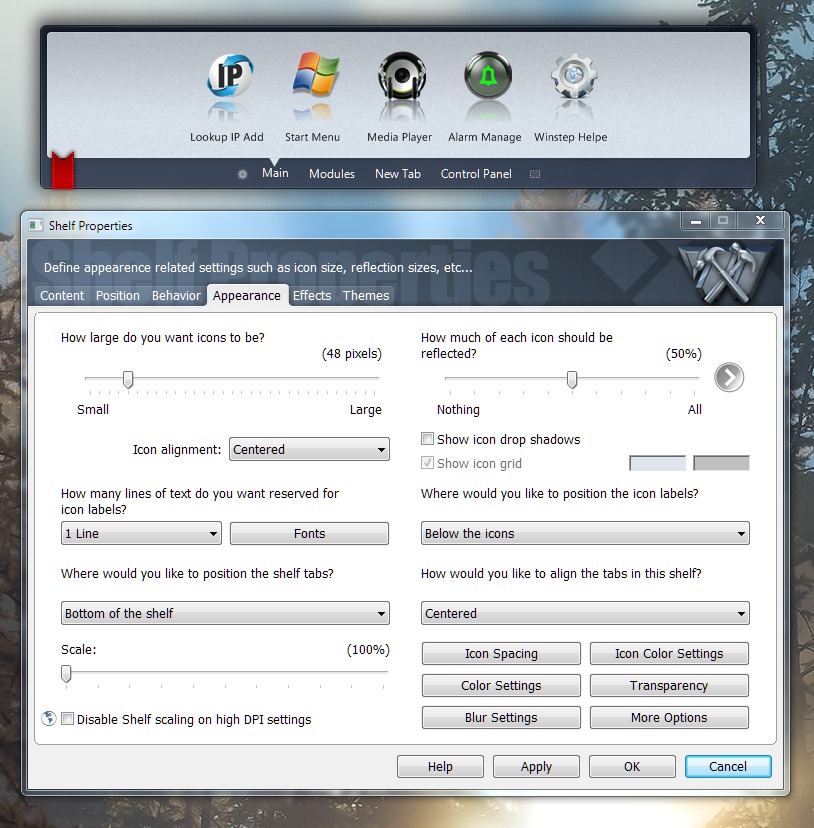
Icons in docks, Shelves, etc, can now be colorized using one of three different methods (Tint, Hue or Tone). Tint is the most useful method for icon colorization, unless the icons are black, in which case you should use Tone.
No Colorization:
Tint:
Hue:
Tone:
Please login to comment and/or vote for this skin.
Welcome Guest! Please take the time to register with us.
There are many great features available to you once you register, including:
- Richer content, access to many features that are disabled for guests like commenting on the forums and downloading skins.
- Access to a great community, with a massive database of many, many areas of interest.
- Access to contests & subscription offers like exclusive emails.
- It's simple, and FREE!
|
|
Page 4 of 11 | |
|
|---|
Reply #61 Wednesday, September 19, 2018 7:31 PM
(or asking WebGizmos to help me with that)
You could send me the psd's and I could tinker with it (while you're tinkering with the builder)...can't promise but I can try.