






































system 32 error
Saturday, July 19, 2008 by KiLlAxKeV92288 | Discussion: Windows XP
hello.. im gettign an error at startup.. and when i try to look up teh name in yahoo nothign comes up... well here is a screen shot of teh error.. can any of u help me ??
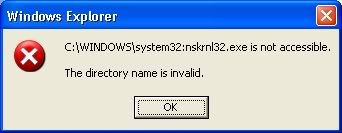
yrag
Reply #2 Saturday, July 19, 2008 11:15 AM

Reply #2 Saturday, July 19, 2008 11:15 AM
Fuzz....that was a lucid, well-thought out analogy.  Unfortunately, he referenced "nskrnl32.exe" ....that's malware.
 Unfortunately, he referenced "nskrnl32.exe" ....that's malware.
Fuzzy Logic
Reply #3 Saturday, July 19, 2008 11:37 AM  I mistook it for ntoskrnl32...
There ya go, failed my 'o' level. Still, it was good for a laugh...

Reply #3 Saturday, July 19, 2008 11:37 AM
 I mistook it for ntoskrnl32...
There ya go, failed my 'o' level. Still, it was good for a laugh...

Please login to comment and/or vote for this skin.
Welcome Guest! Please take the time to register with us.
There are many great features available to you once you register, including:
- Richer content, access to many features that are disabled for guests like commenting on the forums and downloading skins.
- Access to a great community, with a massive database of many, many areas of interest.
- Access to contests & subscription offers like exclusive emails.
- It's simple, and FREE!
Reply #1 Saturday, July 19, 2008 3:19 AM
Second. Your boot.ini may be corrupt and may need to be repaired:
1. Insert the Microsoft Windows XP CD.
2. Reboot the computer, as the computer is starting you should see a message to press any key to boot from the CD. When you see this message press any key.
3. In the Microsoft Windows XP setup menu press the R key to enter the recovery console.
4. Select the operating system you wish to fix, and then enter the administrator password.
5. When you reach the command prompt type the following command and then press Enter.
bootcfg /rebuild
The bootcfg utility will scan your hard drives for any Windows XP installations and then display the results. Follow the remaining steps to add your Windows XP installation to the boot.ini file.
6. The first prompt asks Add installation to boot list? (Yes/No/All).
Type Y in response to this question and press Enter.
7. The next prompt asks you to Enter Load Identifier:.
This is the name of the operating system. For example, type Windows XP Professional or Windows XP Home Edition and press Enter.
8. The final prompt asks you to Enter OS Load options:.
Type /Fastdetect here and press Enter.
9. Type exit to reboot the computer.
Thirdly, if the ntskrnl32.exe file is corrupt or missing this can also generate the error. To restore this file follow the below steps.
1. Insert the Microsoft Windows XP CD.
2. Reboot the computer, as the computer is starting you should see a message to press any key to boot from the CD. When you see this message press any key.
3. In the Microsoft Windows XP setup menu press the R key to enter the recovery console.
4. Select the operating system you wish to fix, and then enter the administrator password.
5. Type expand d:\i386\ntskrnl32.ex_ c:\windows\system32
6. You will then be prompted if you wish to overwrite the file type Y and press enter to overwrite the file.
7. Type exit to reboot the computer.
Fourth, as a last resort, restore Windows from a backup or re-install Windows.