




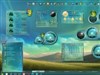


































Please unsquash my squashed buttons!
Sunday, October 22, 2006 by gardenerstouch | Discussion: SkinStudio
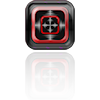
In an otherwise elegant, even striking skin, Pix Office has a problem with the size of the pull-down menu buttons. Most of them look squashed like this:

While the rest look elegant like this:

I'm having some difficulty finding where in the skin the settings are found to change the size of these buttons so they don't look squashed flat. I was thinking that it had something to do with the height of the pull-down menu bar, but the only setting I could find had no effect on the the height of the menu bar or the buttons.
I also found where it looks like you can change the size of the button image, but no changes I have made to them have made any difference. The Skinstudio interface is, to put in gently, arcane. Is there someone out there who can give me a hint how this is done? Thanks!
gardenerstouch
Reply #2 Sunday, October 22, 2006 11:55 PM

Reply #2 Sunday, October 22, 2006 11:55 PM
I actuallly did find the the location of the first two locations you suggested. That should have controlled the flattened buttons I detest. What I can't figure out is why I can make all sorts of experimental changes to the sizing margins and content margins and not affect the size or appearance of those buttons. I think there is something I am not getting here.
gardenerstouch
Reply #3 Monday, October 23, 2006 12:00 AM
Reply #3 Monday, October 23, 2006 12:00 AM
Oh ya... it seems to me that I read soemwhere in these forums that some these "menu bars" are actually erstaz tool bars, and not really menu bars at all. I'm assuming that the latter of the two locations involves the ersatz tool bars.
And also, how do I go about reassigning the images and sizing settings to the new location?
And also, how do I go about reassigning the images and sizing settings to the new location?
Cavan1
Reply #4 Monday, October 23, 2006 9:51 PM
Reply #4 Monday, October 23, 2006 9:51 PM
When select image in section tab, below preview you will see image name, note it, select buttons that you want to change, below preview click drop down arrow and find image you want and select it. As for the settings, note what they are on one and set them to that for the other.
gardenerstouch
Reply #5 Tuesday, October 24, 2006 1:43 AM
Reply #5 Tuesday, October 24, 2006 1:43 AM
I managed to figure out the image reassignment. It improved the buttons considerably. I don't think I can use the same settings, however, because the two types of tool bars are not the same height. I need to shrink the buttons just a smidgen because the buttons completly fill the bar height, but no changes to the settings seems to make any difference. I'll give it another try later.
Please login to comment and/or vote for this skin.
Welcome Guest! Please take the time to register with us.
There are many great features available to you once you register, including:
- Richer content, access to many features that are disabled for guests like commenting on the forums and downloading skins.
- Access to a great community, with a massive database of many, many areas of interest.
- Access to contests & subscription offers like exclusive emails.
- It's simple, and FREE!
Reply #1 Sunday, October 22, 2006 11:40 PM
From Explorer tree, Controls, Menus, Bar Background, Bar Items and Controls, Toolbar, Toolbar Buttons.
Some skinners use the same for each, in Pix 2 different buttons have been used. Pick the one you like, assign the image for them to the other section and change settings, size margin, content margins etc, that are used for the buttons you like.